Part 10 of 24

Fire door planner

For landlords and building managers. It works out which fire door checks the law asks for, and when.

  1. Step 1. Open Fire door planner. Is it a block of flats? Tap Yes or No.
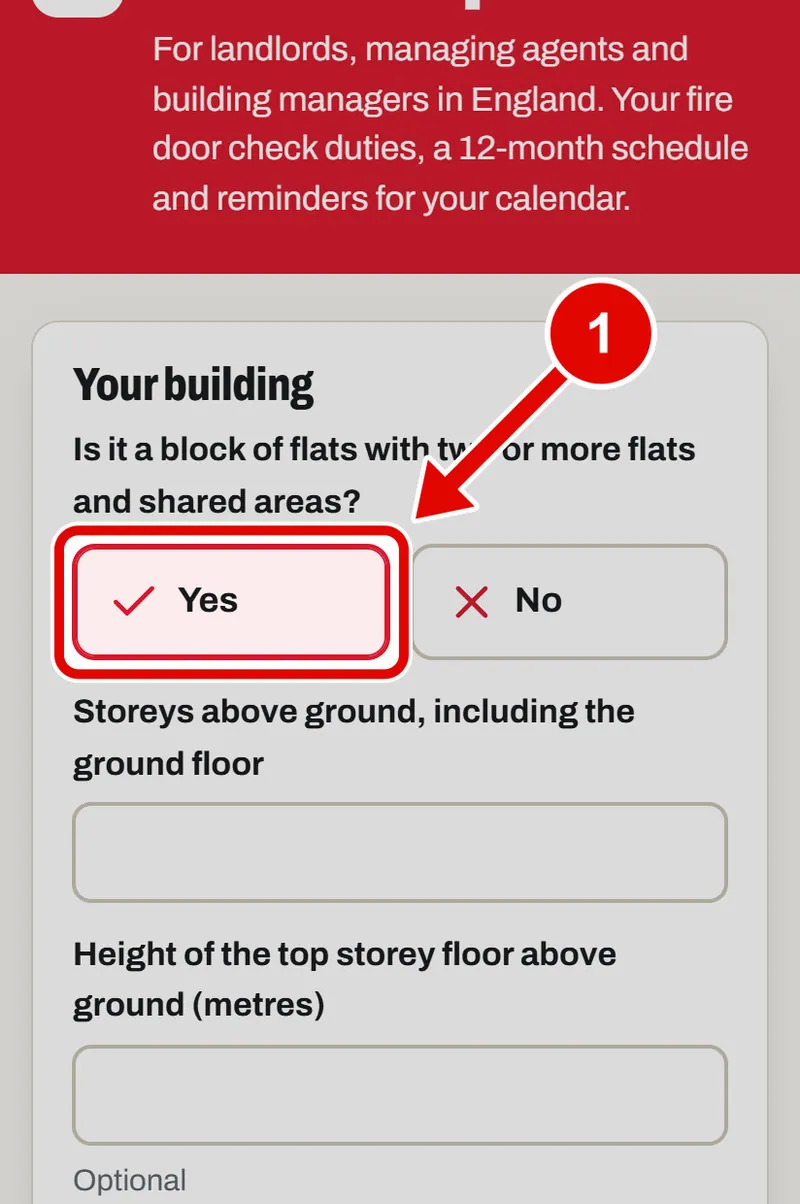
    Screen grab from Fire door planner, on a phone. A red box marks the part to use.
  2. Step 2. Type how many floors the building has.
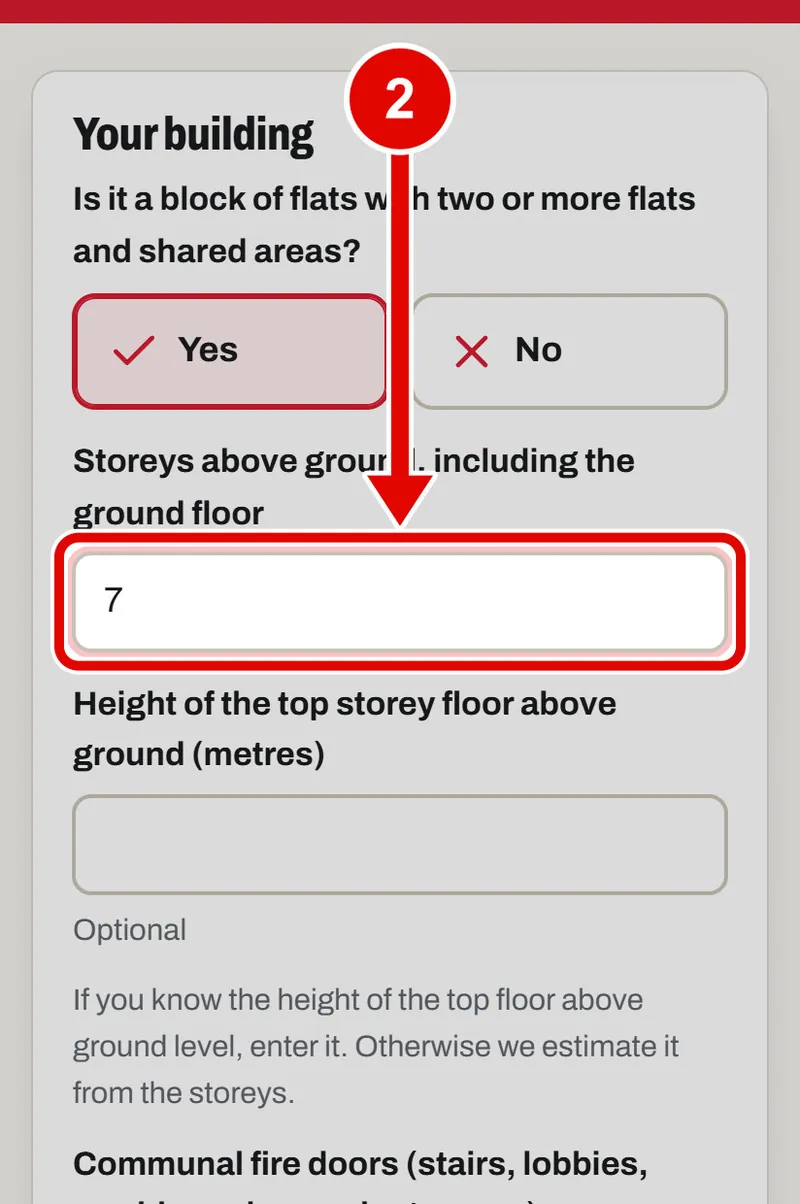
    Screen grab from Fire door planner, on a phone. A red box marks the part to use.
  3. Step 3. Type how many fire doors are in the shared parts, like halls and stairs.
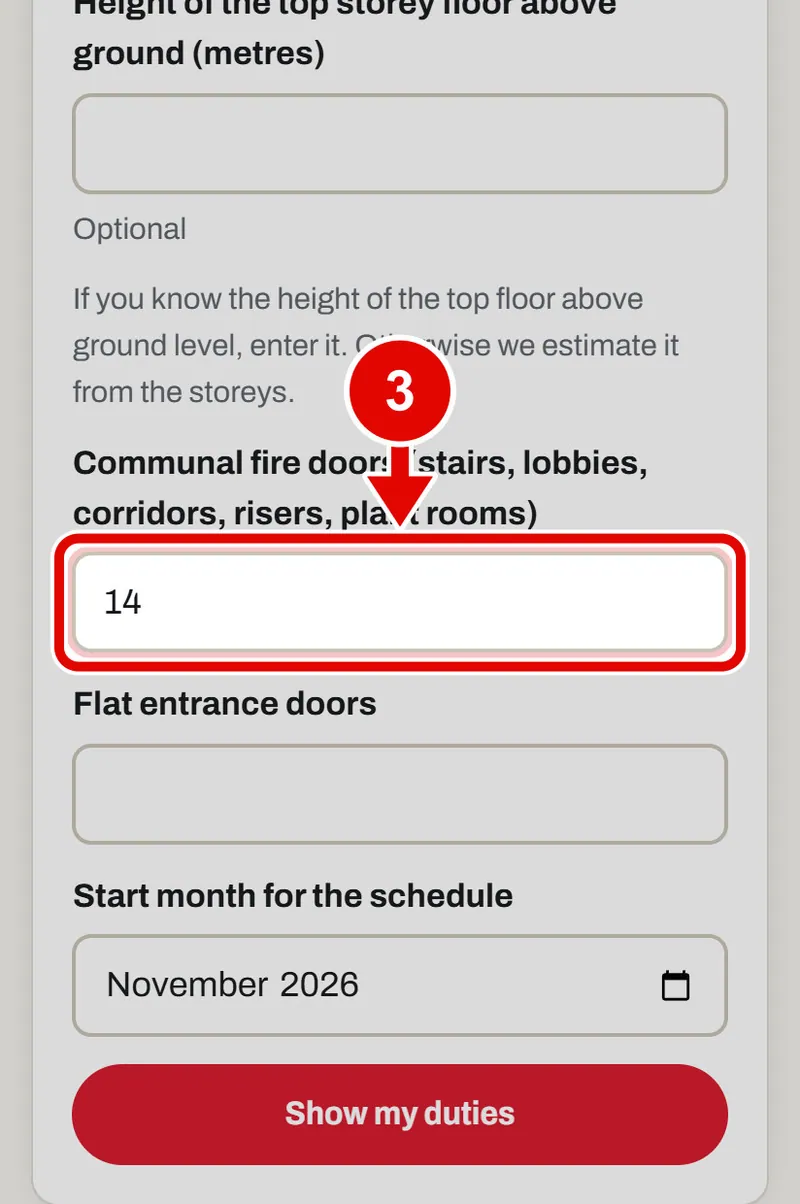
    Screen grab from Fire door planner, on a phone. A red box marks the part to use.
  4. Step 4. Type how many flat front doors there are.
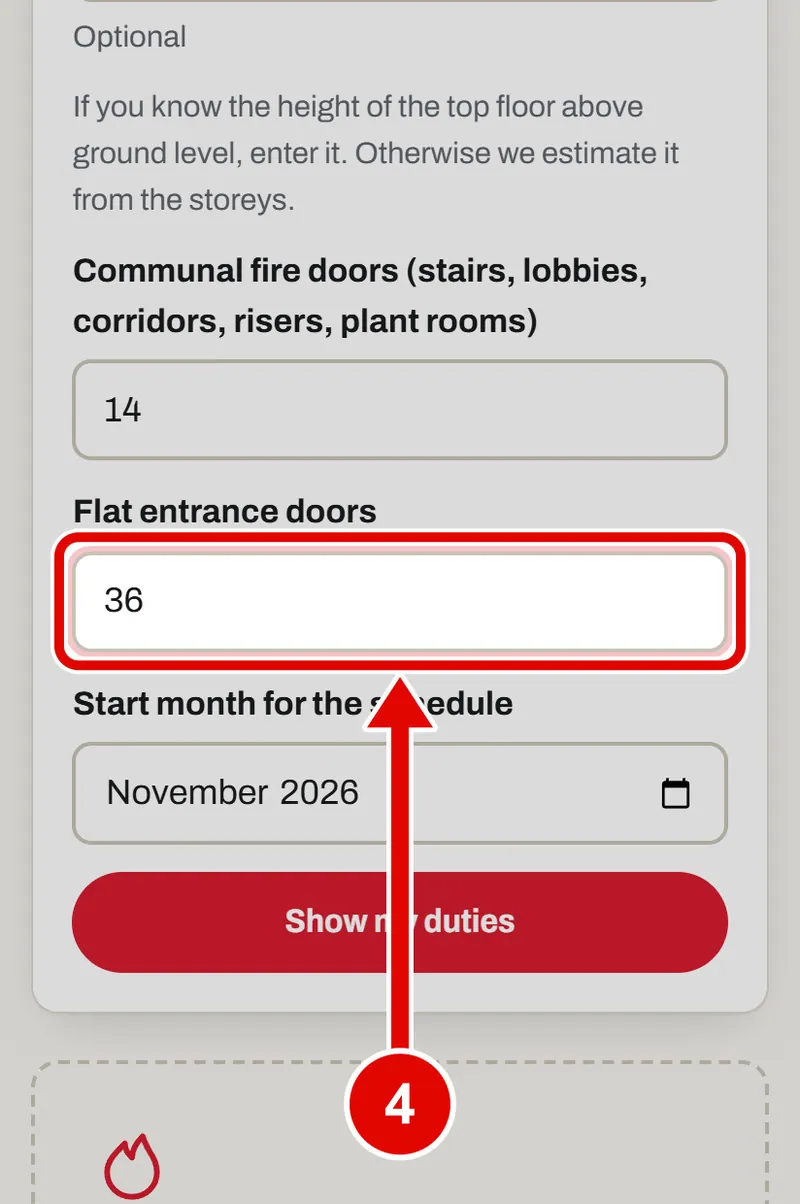
    Screen grab from Fire door planner, on a phone. A red box marks the part to use.
  5. Step 5. This box is the month to start. It is already set for you.
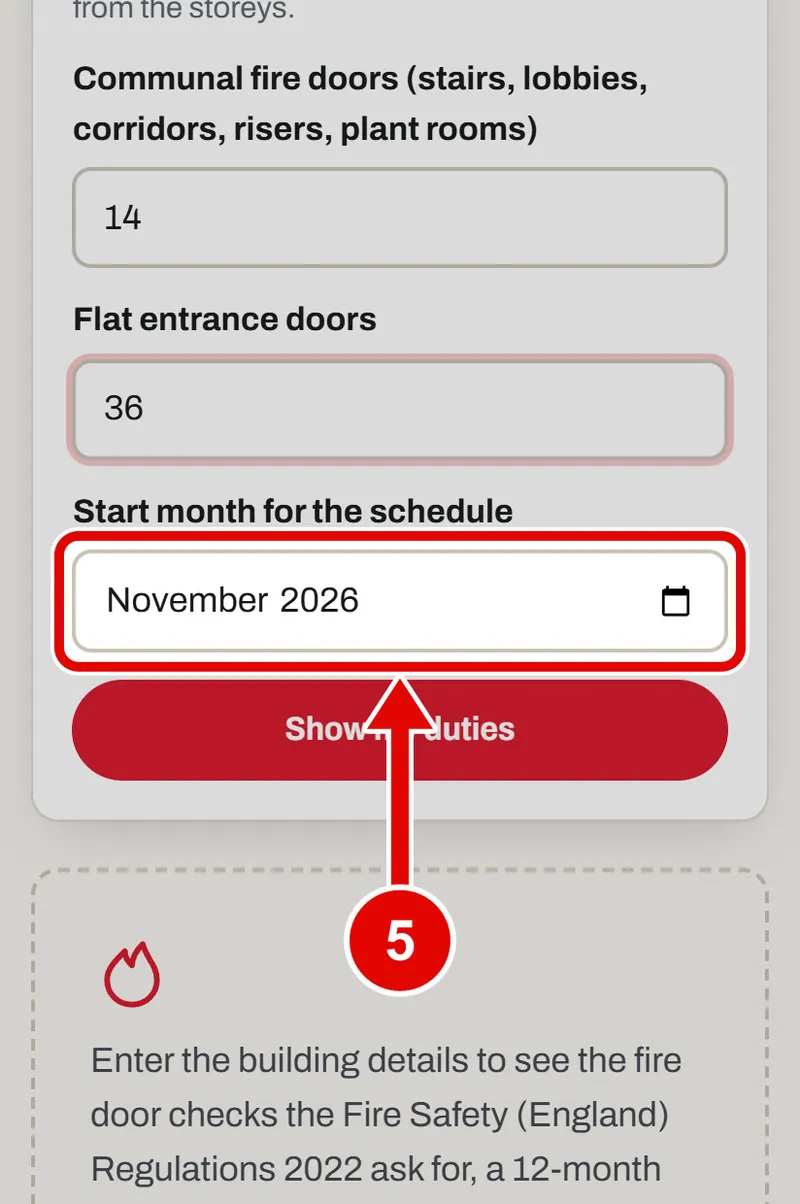
    Screen grab from Fire door planner, on a phone. A red box marks the part to use.
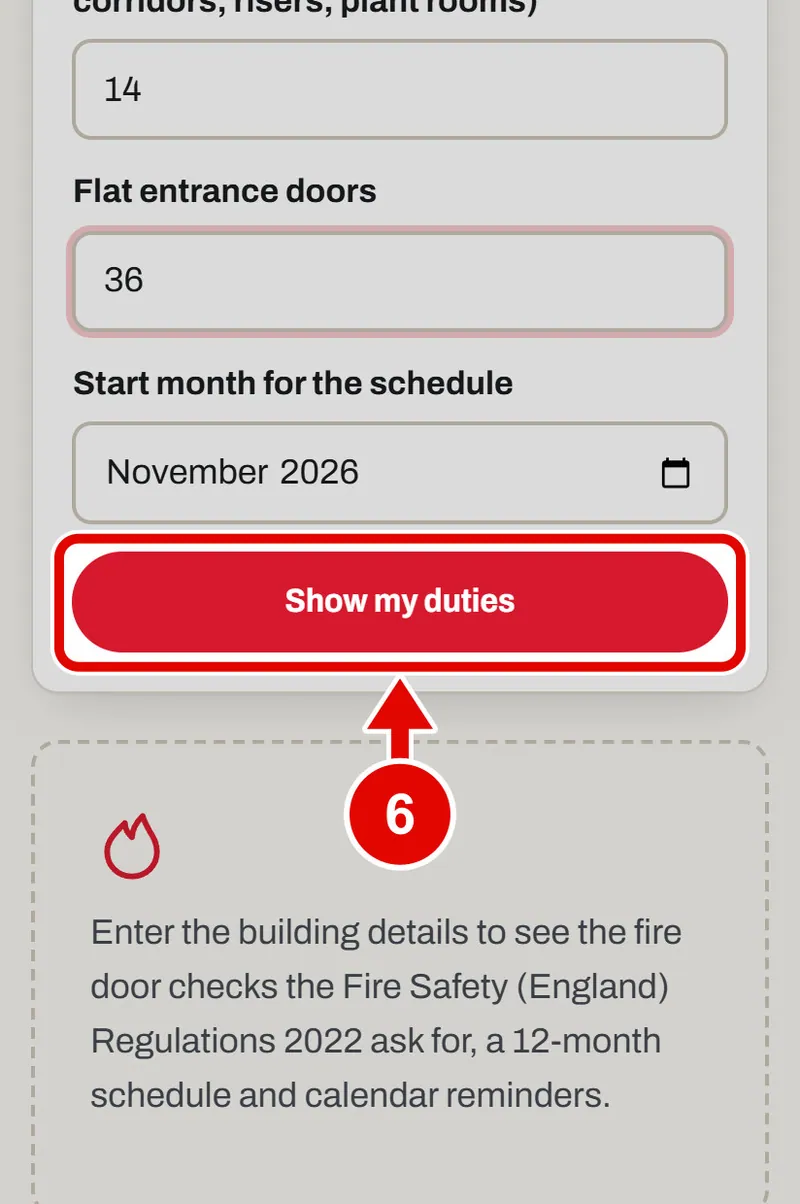
  6. Step 6. Tap Show my duties.

    Screen grab from Fire door planner, on a phone. A red box marks the part to use.
  7. Step 7. Your check schedule appears, month by month.
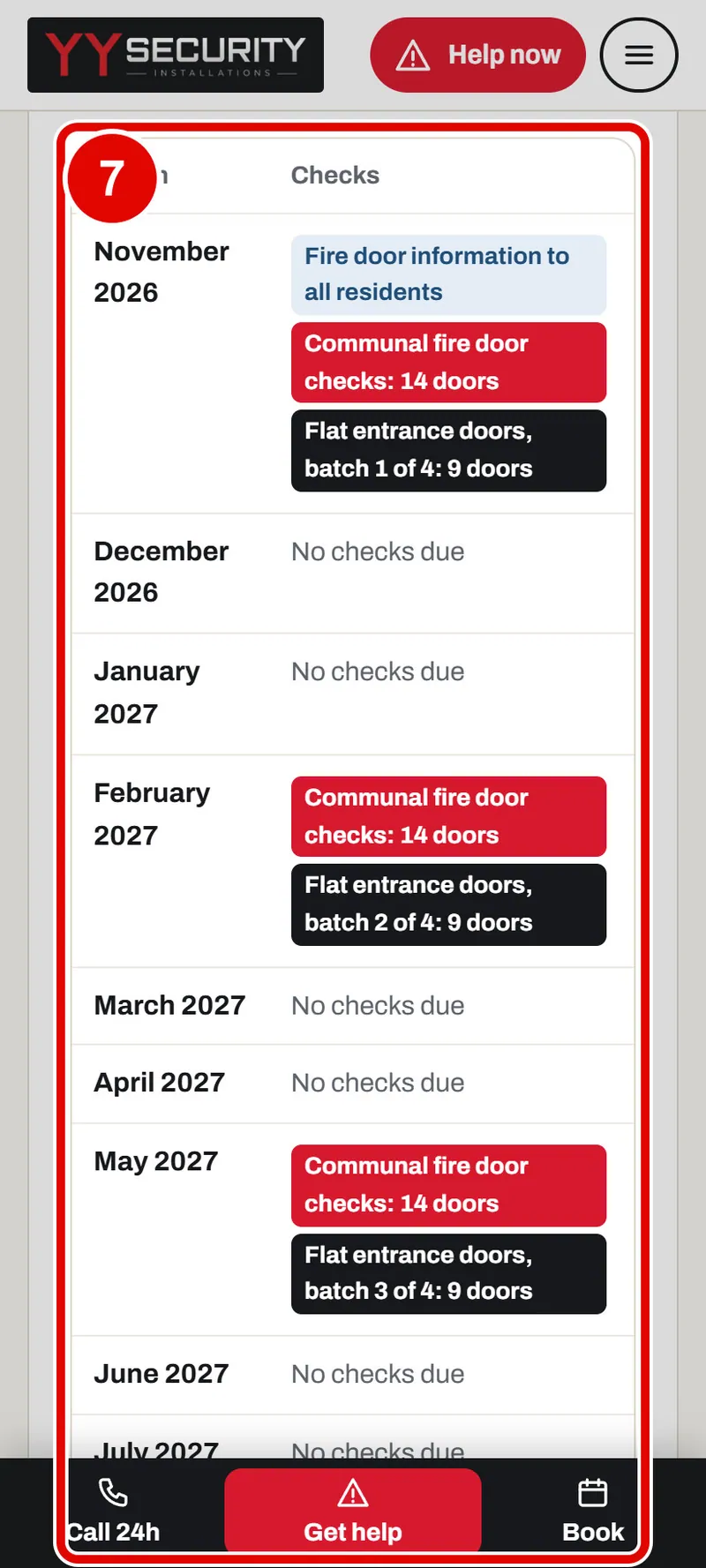
    Screen grab from Fire door planner, on a phone. A red box marks the part to use.
  8. Step 8. Tap Download calendar reminders. Your calendar gets a reminder for every check.
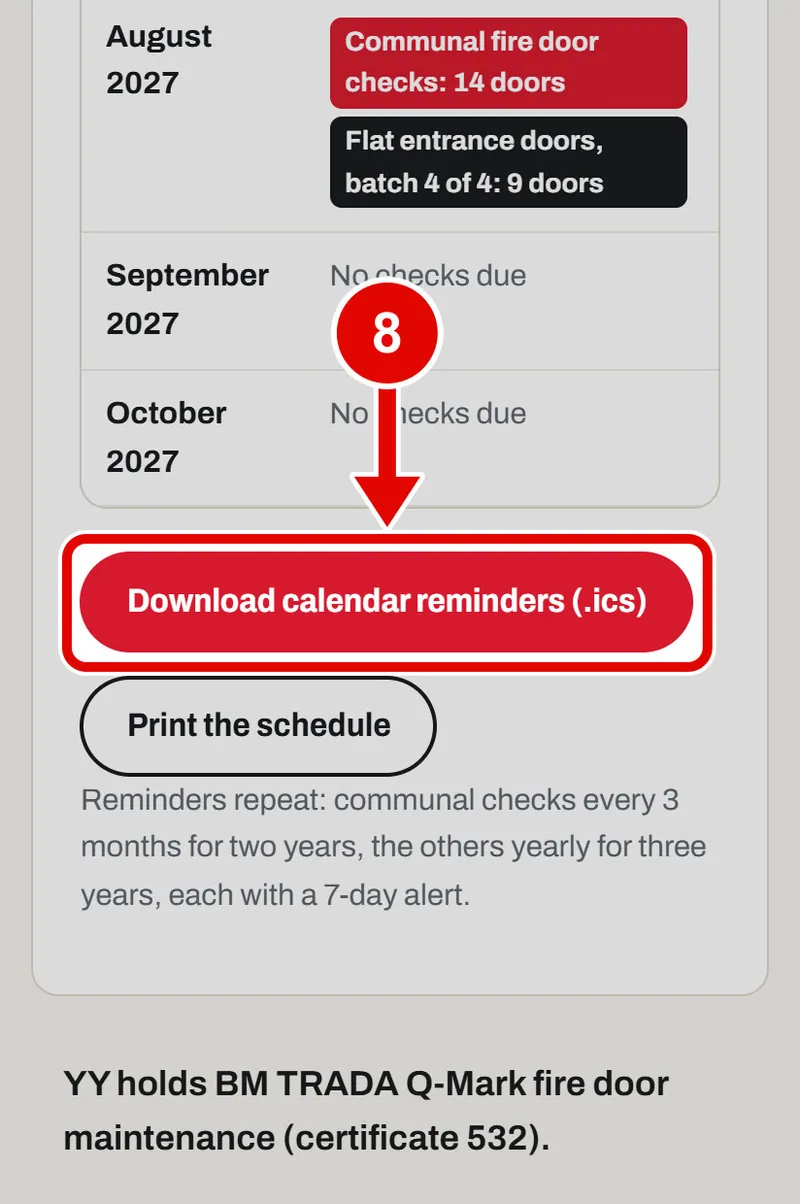
    Screen grab from Fire door planner, on a phone. A red box marks the part to use.
  9. Step 9. Tap Print the schedule for a paper copy.
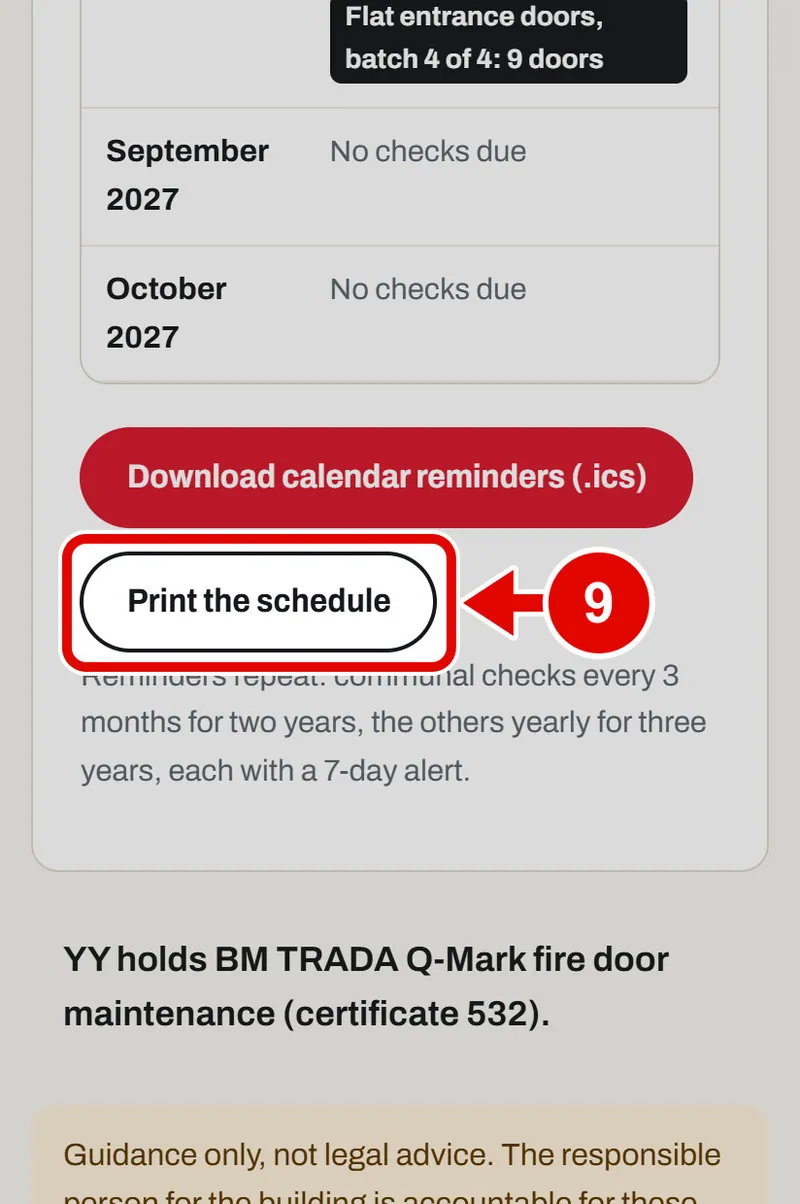
    Screen grab from Fire door planner, on a phone. A red box marks the part to use.
Text us