Part 23 of 24

Back office

The back office is for YY staff. Every call back, job request, portal fault and enquiry lands here.

  1. Step 1. Open Back office from Tools or the footer. Type your account email in Email.

  2. Step 2. use the account details issued by YY in Password.

  3. Step 3. Click Sign in.

  4. Step 4. The numbers at the top: enquiries today, open jobs, emergencies this week, and everything in the inbox.
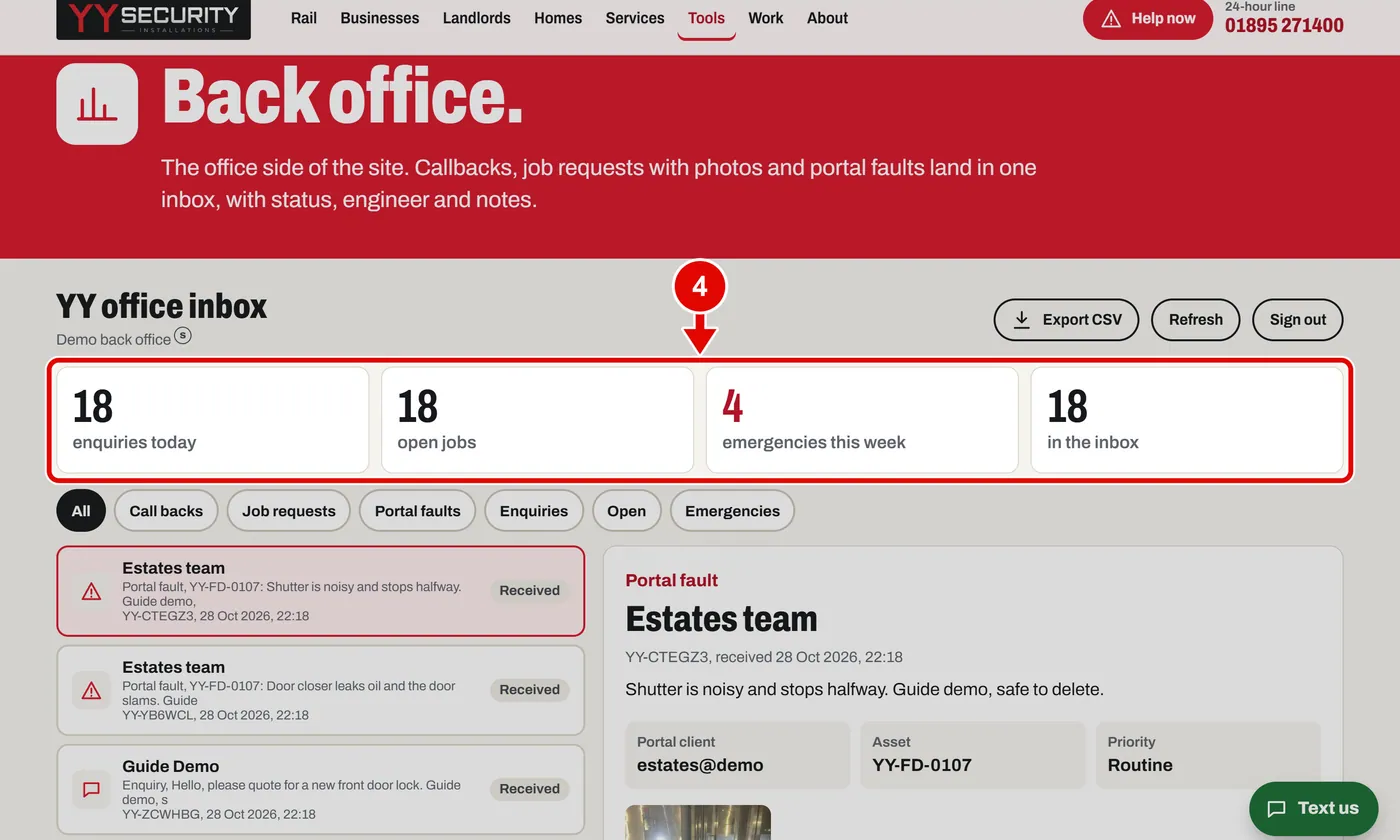
    Screen grab from Back office, on a computer. A red box marks the part to use.
  5. Step 5. These buttons filter the list: Call backs, Job requests, Portal faults, Enquiries, Open and Emergencies.
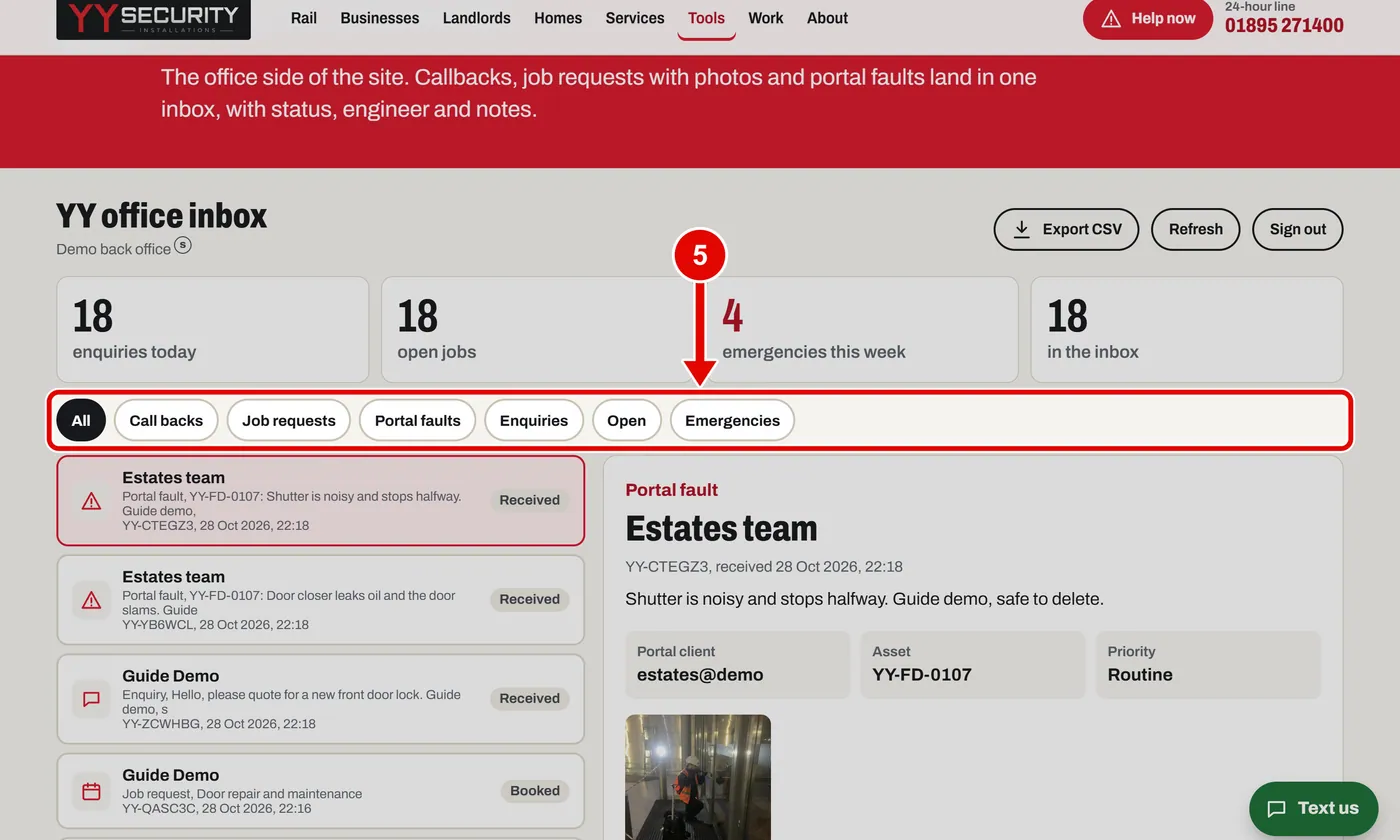
    Screen grab from Back office, on a computer. A red box marks the part to use.
  6. Step 6. Click Job requests to see only those.
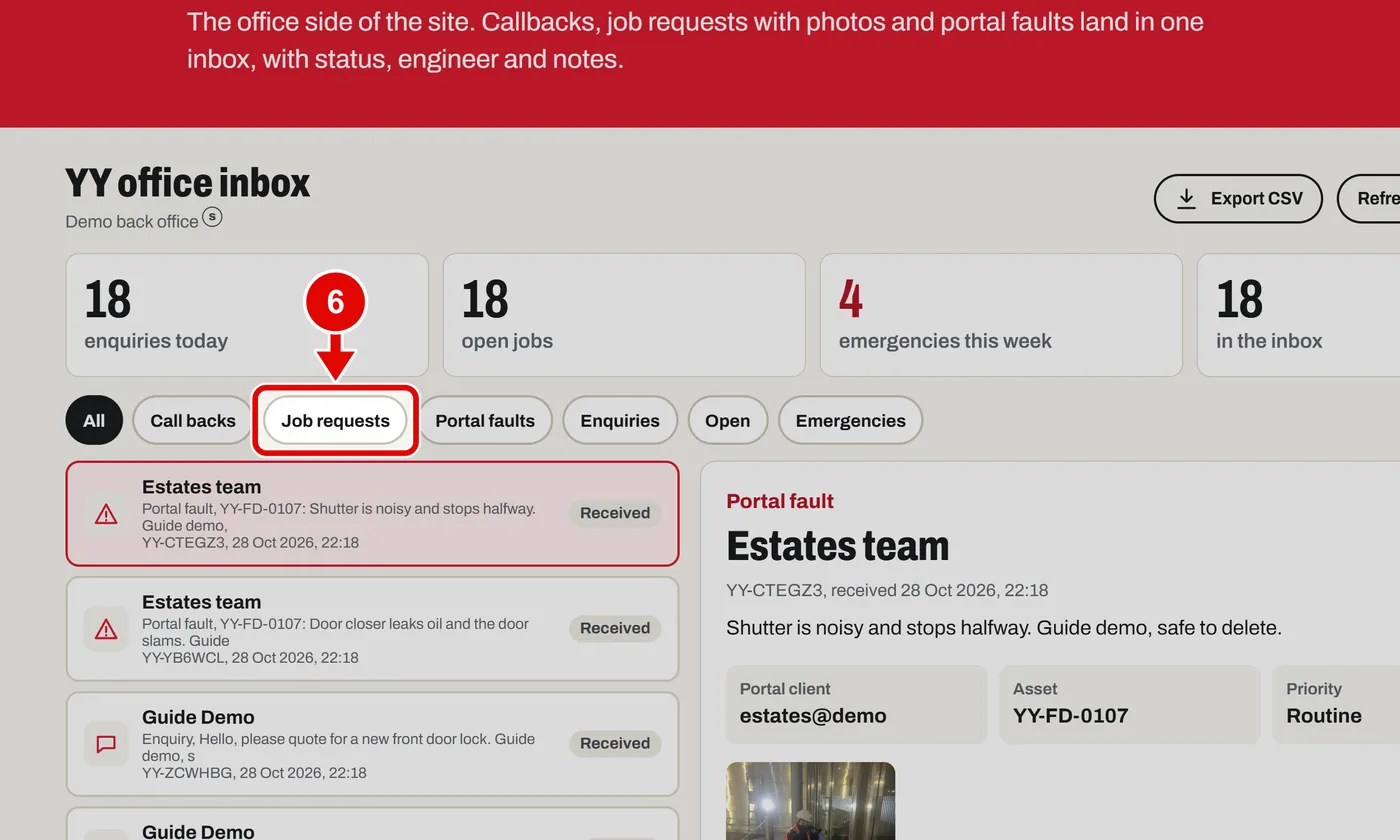
    Screen grab from Back office, on a computer. A red box marks the part to use.
  7. Step 7. Click an item in the list to open it. We open the survey we booked.
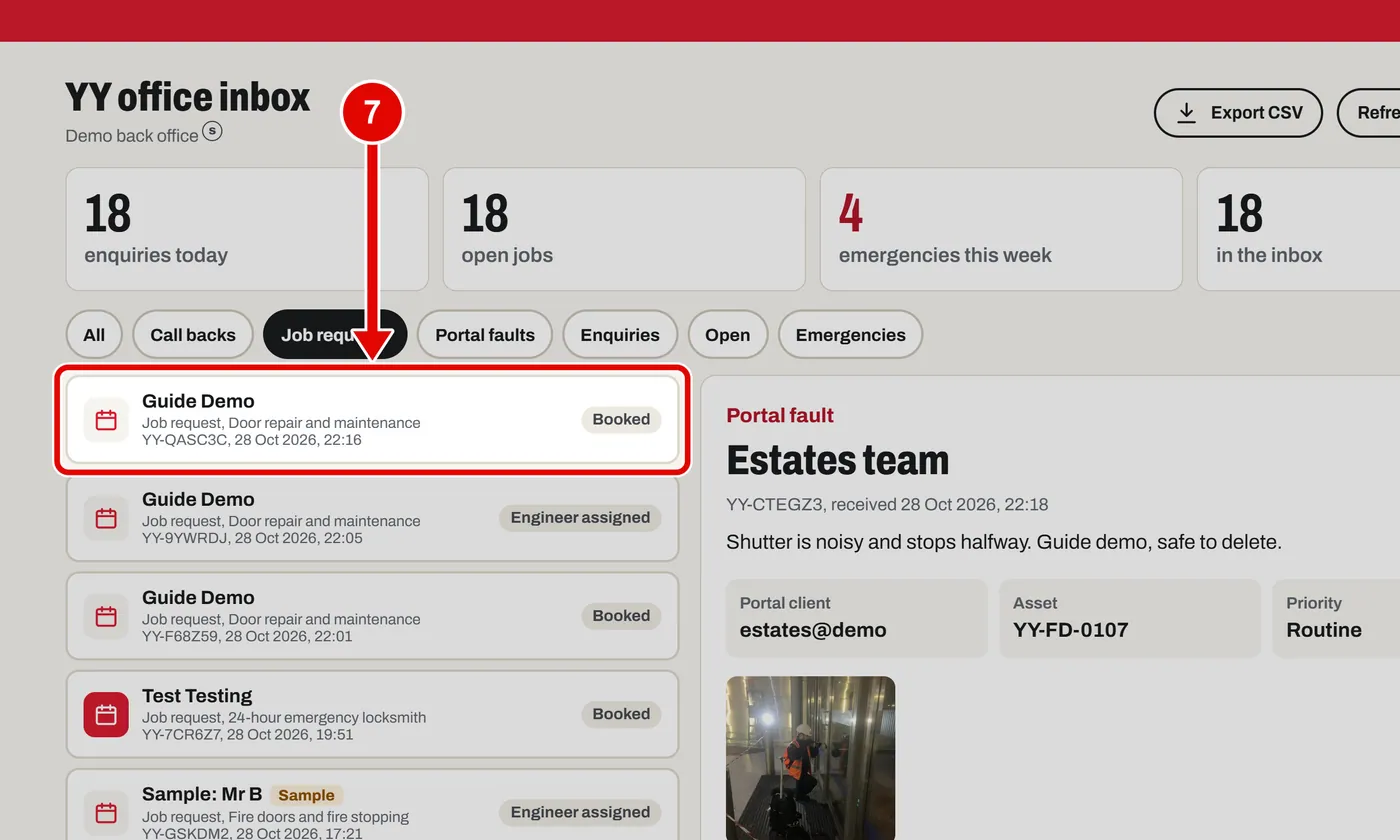
    Screen grab from Back office, on a computer. A red box marks the part to use.
  8. Step 8. The photos the customer sent are here. Click one to see it big.
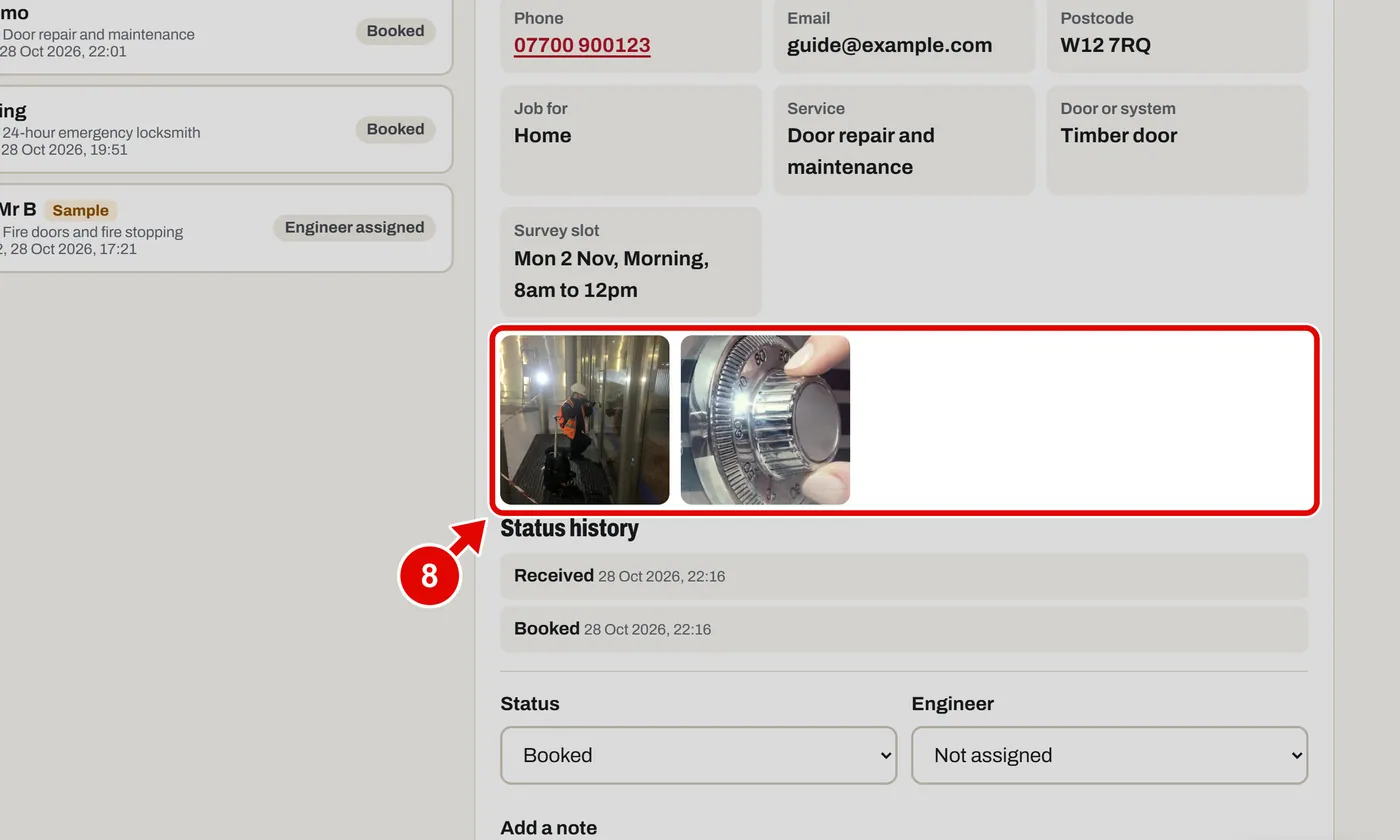
    Screen grab from Back office, on a computer. A red box marks the part to use.
  9. Step 9. Change the status here. We pick Engineer assigned.
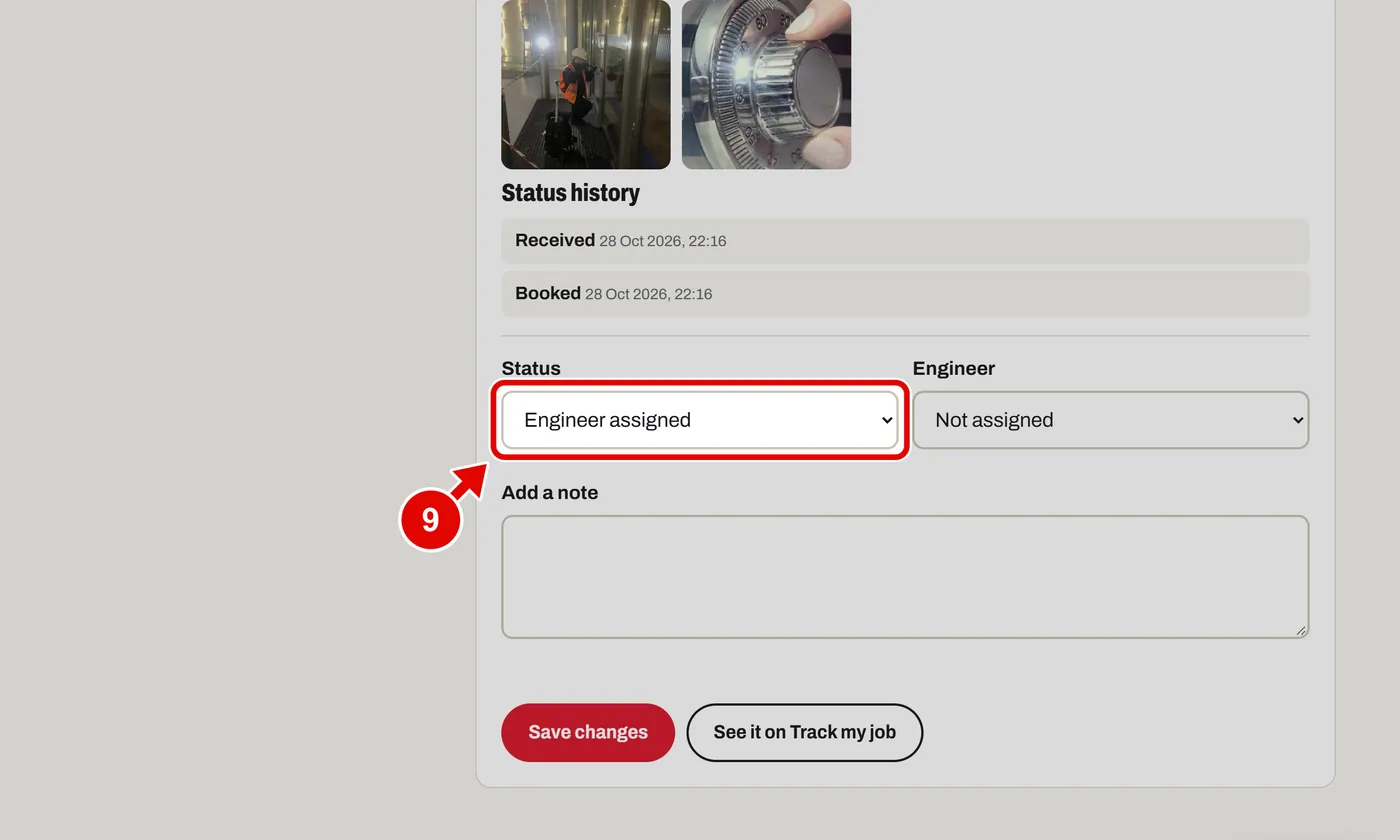
    Screen grab from Back office, on a computer. A red box marks the part to use.
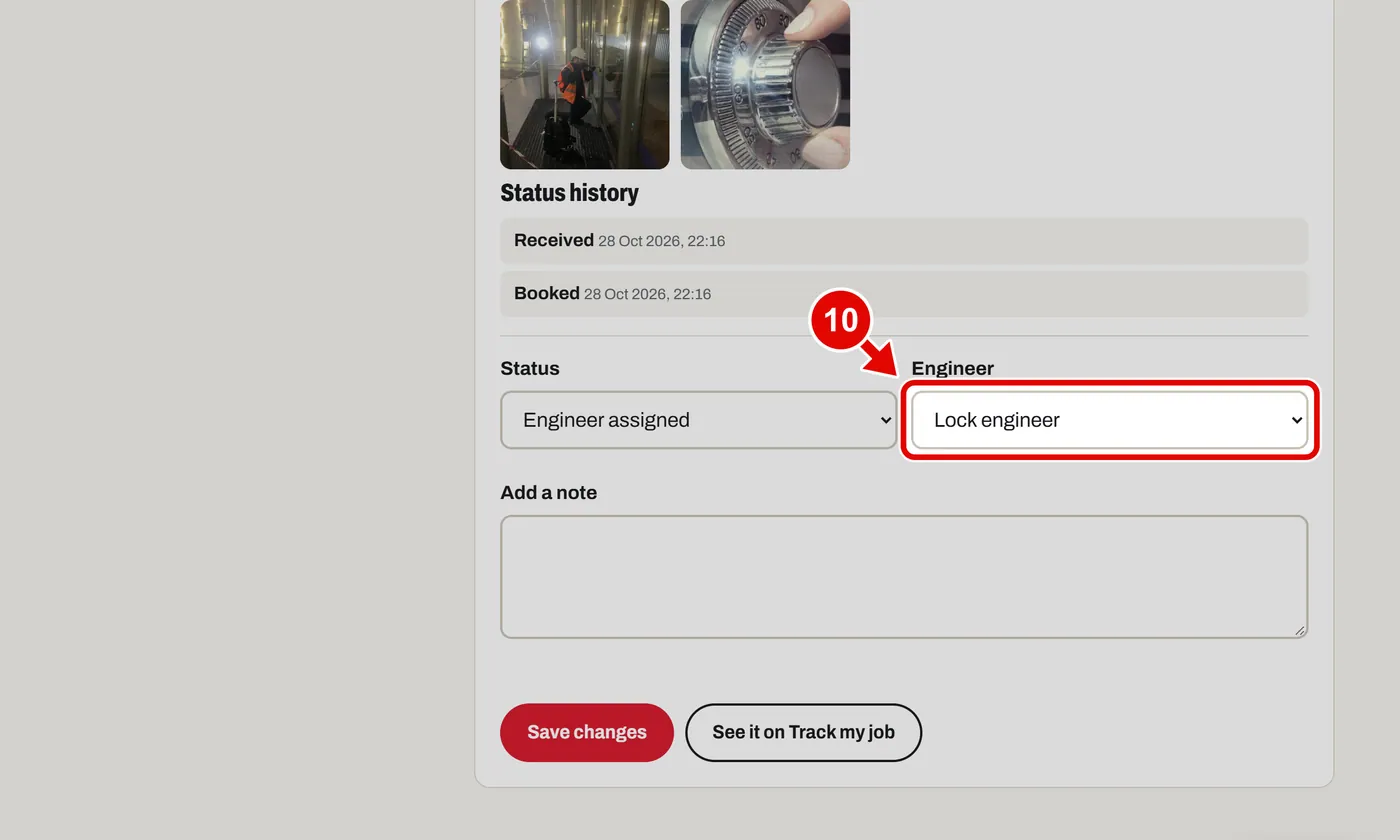
  10. Step 10. Pick the engineer.

    Screen grab from Back office, on a computer. A red box marks the part to use.
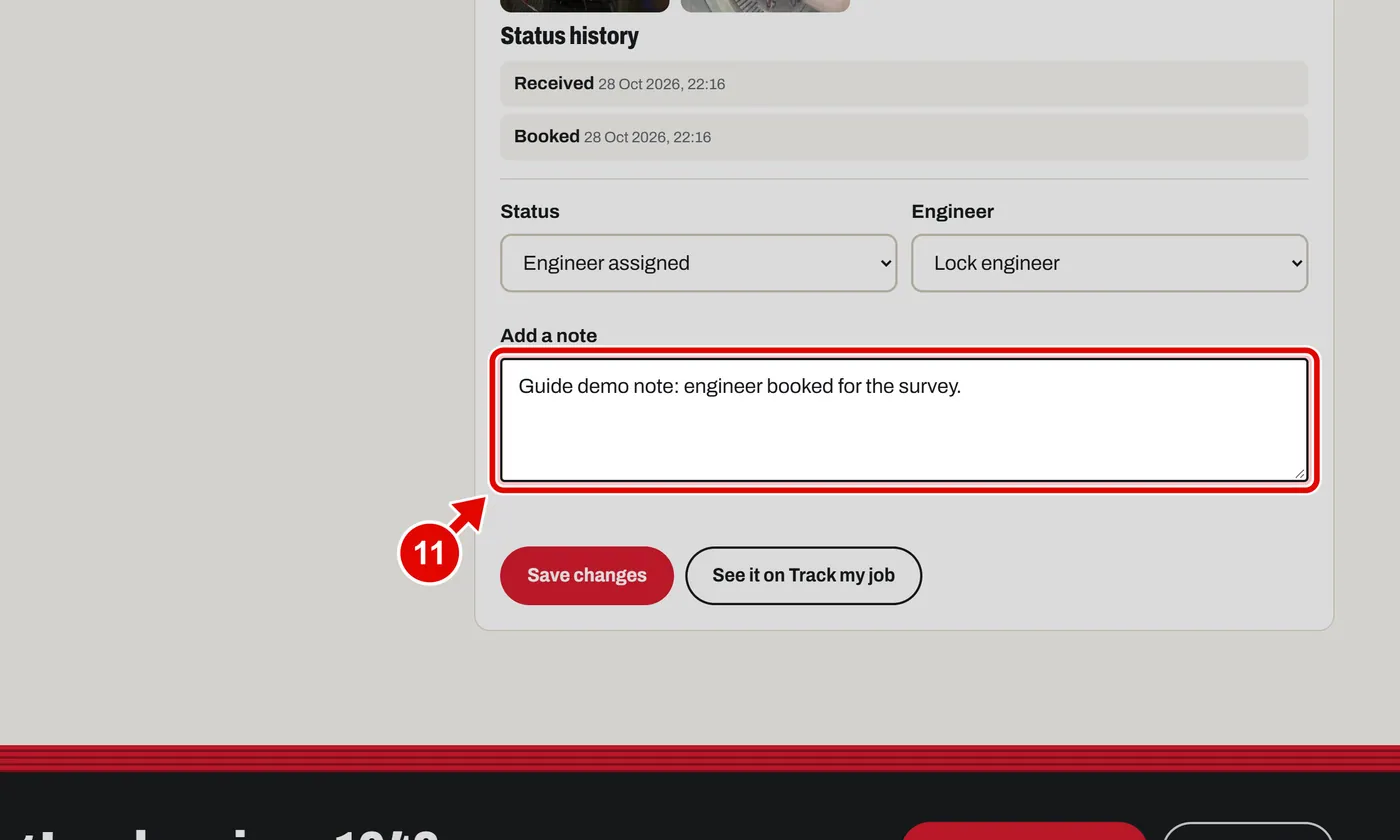
  11. Step 11. Type a note if you want.

    Screen grab from Back office, on a computer. A red box marks the part to use.
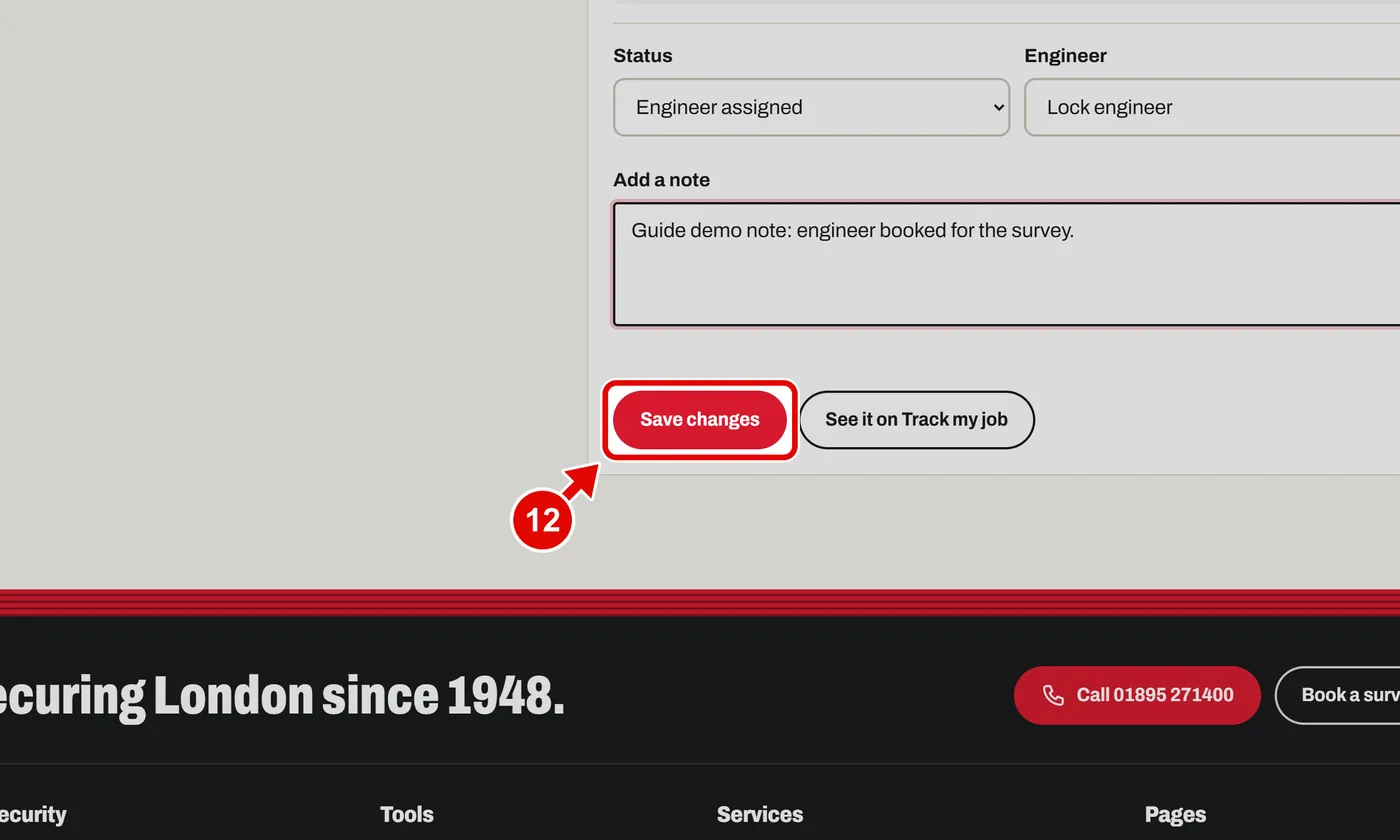
  12. Step 12. Click Save changes.

    Screen grab from Back office, on a computer. A red box marks the part to use.
  13. Step 13. The status history and the notes now show the change.
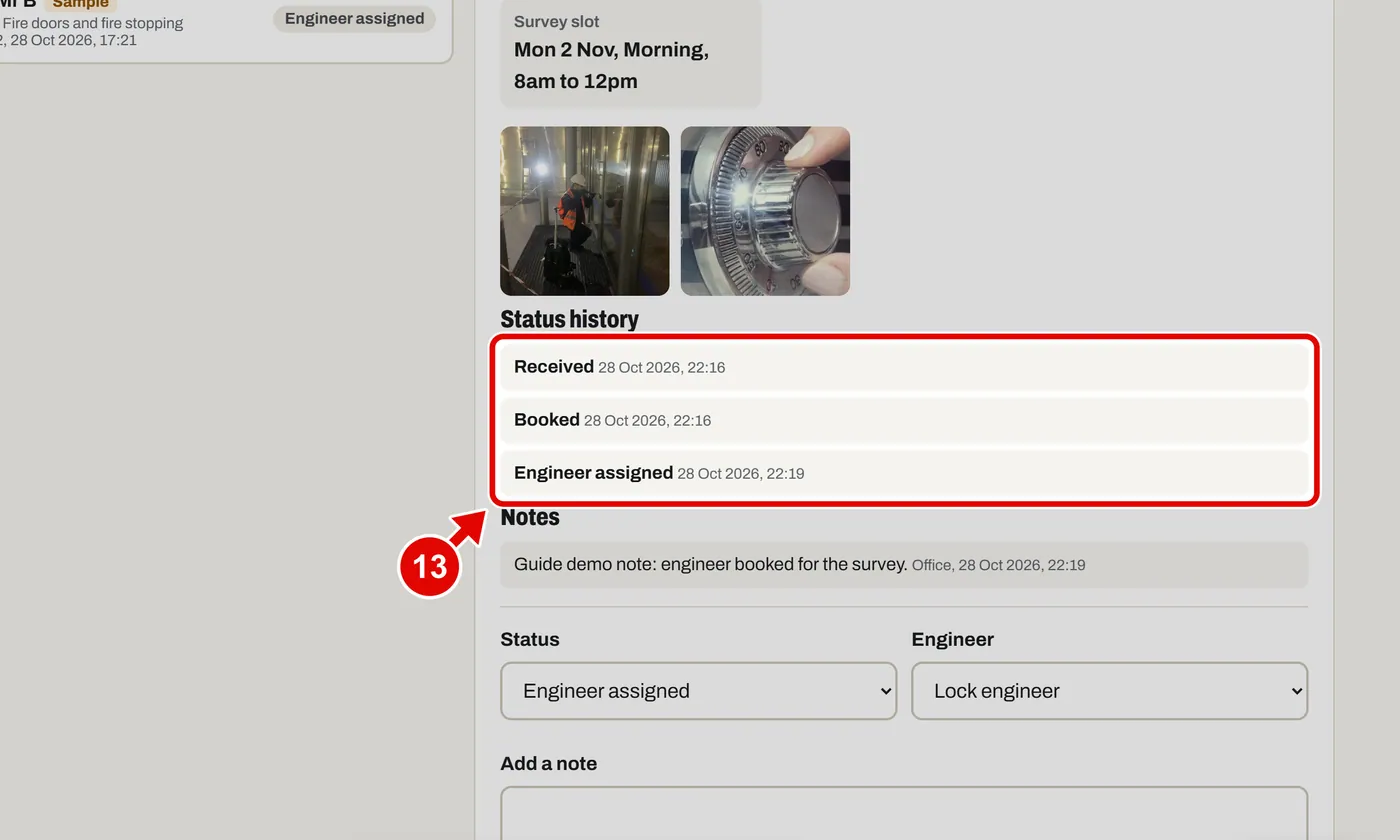
    Screen grab from Back office, on a computer. A red box marks the part to use.
  14. Step 14. Click See it on Track my job to see what the customer sees.
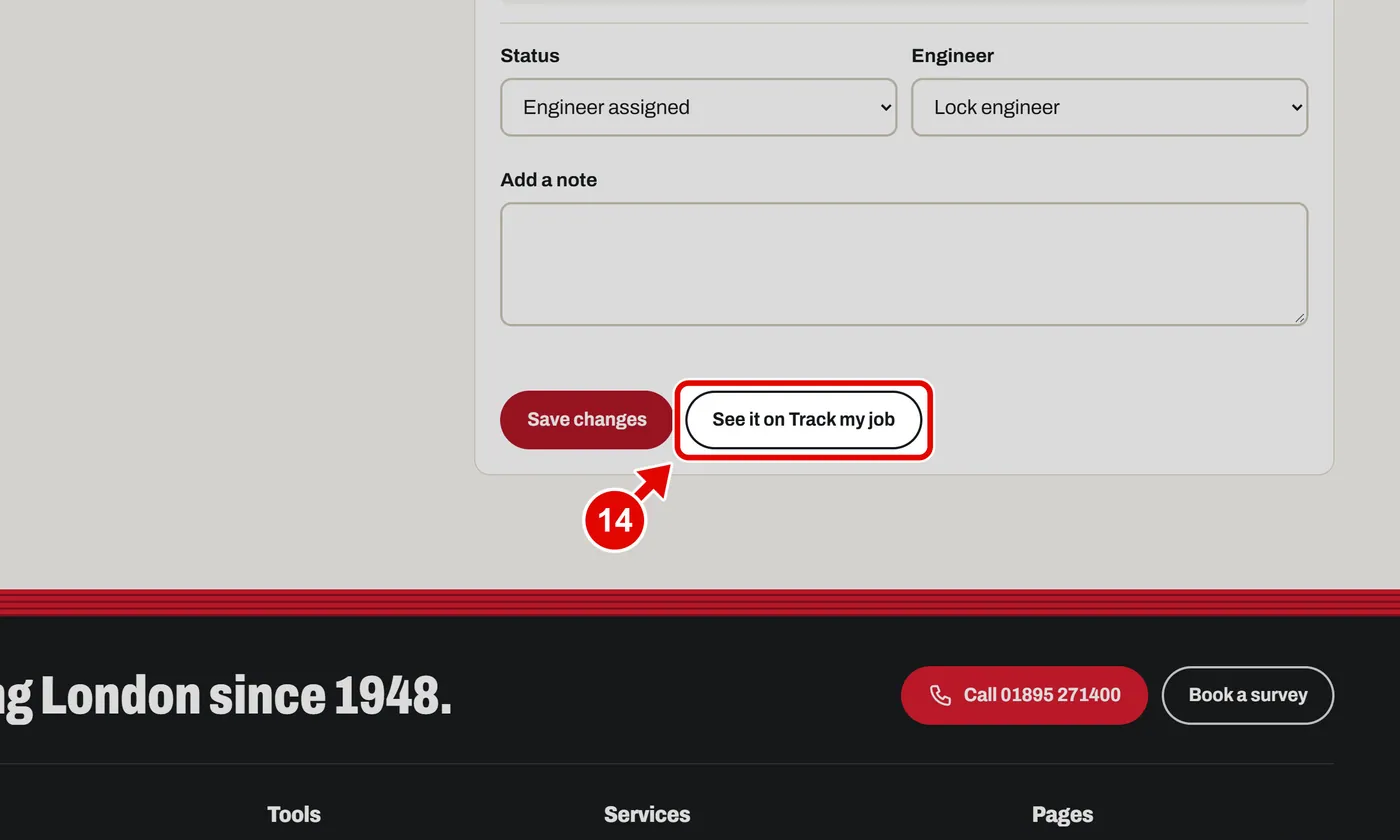
    Screen grab from Back office, on a computer. A red box marks the part to use.
  15. Step 15. On the customer's phone, Track my job now shows the new status.
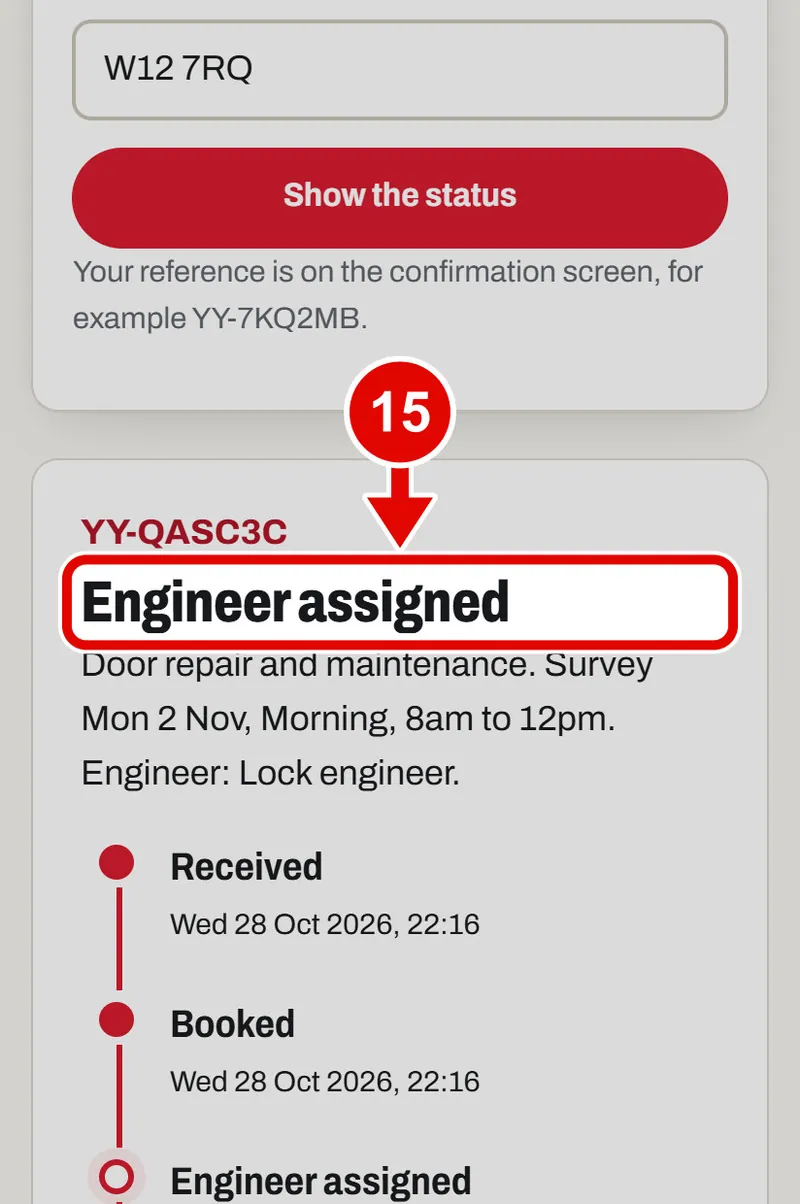
    Screen grab from Back office, on a phone. A red box marks the part to use.
  16. Step 16. Back in the office, click All to see everything again.
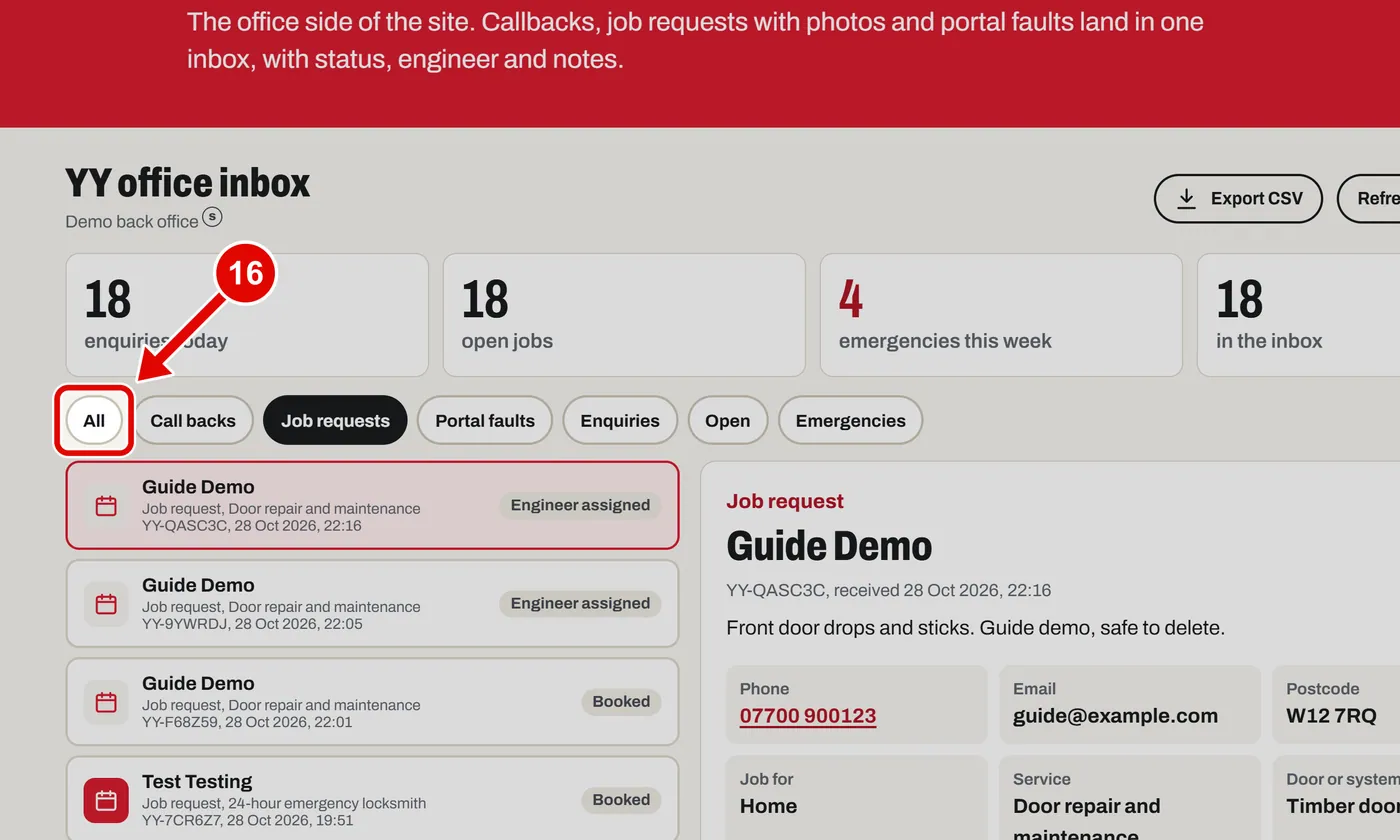
    Screen grab from Back office, on a computer. A red box marks the part to use.
  17. Step 17. Call backs, job requests, portal faults and enquiries all land here. The newest is at the top.
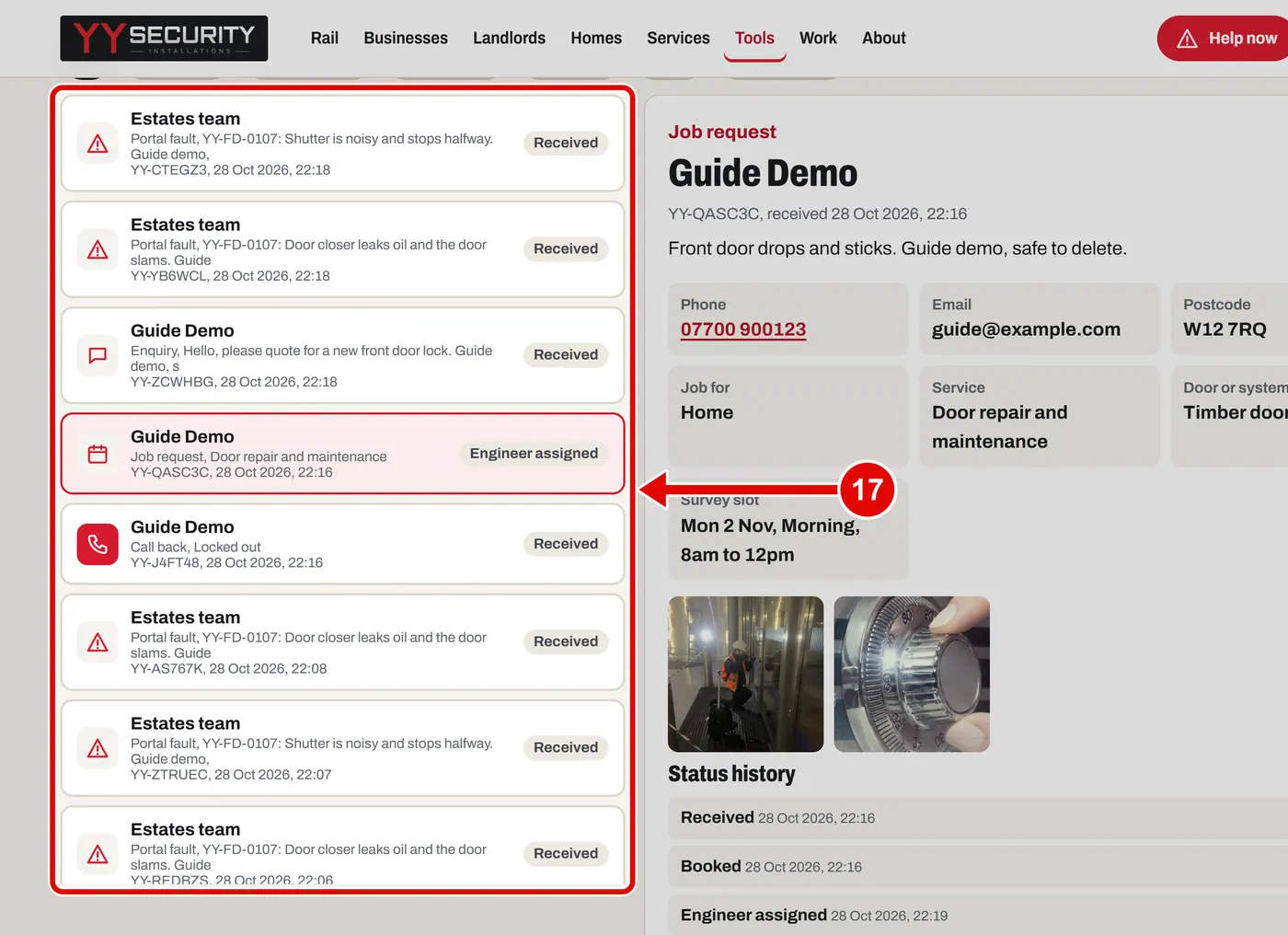
    Screen grab from Back office, on a computer. A red box marks the part to use.
  18. Step 18. Click Export CSV to download the list. It opens in Excel.
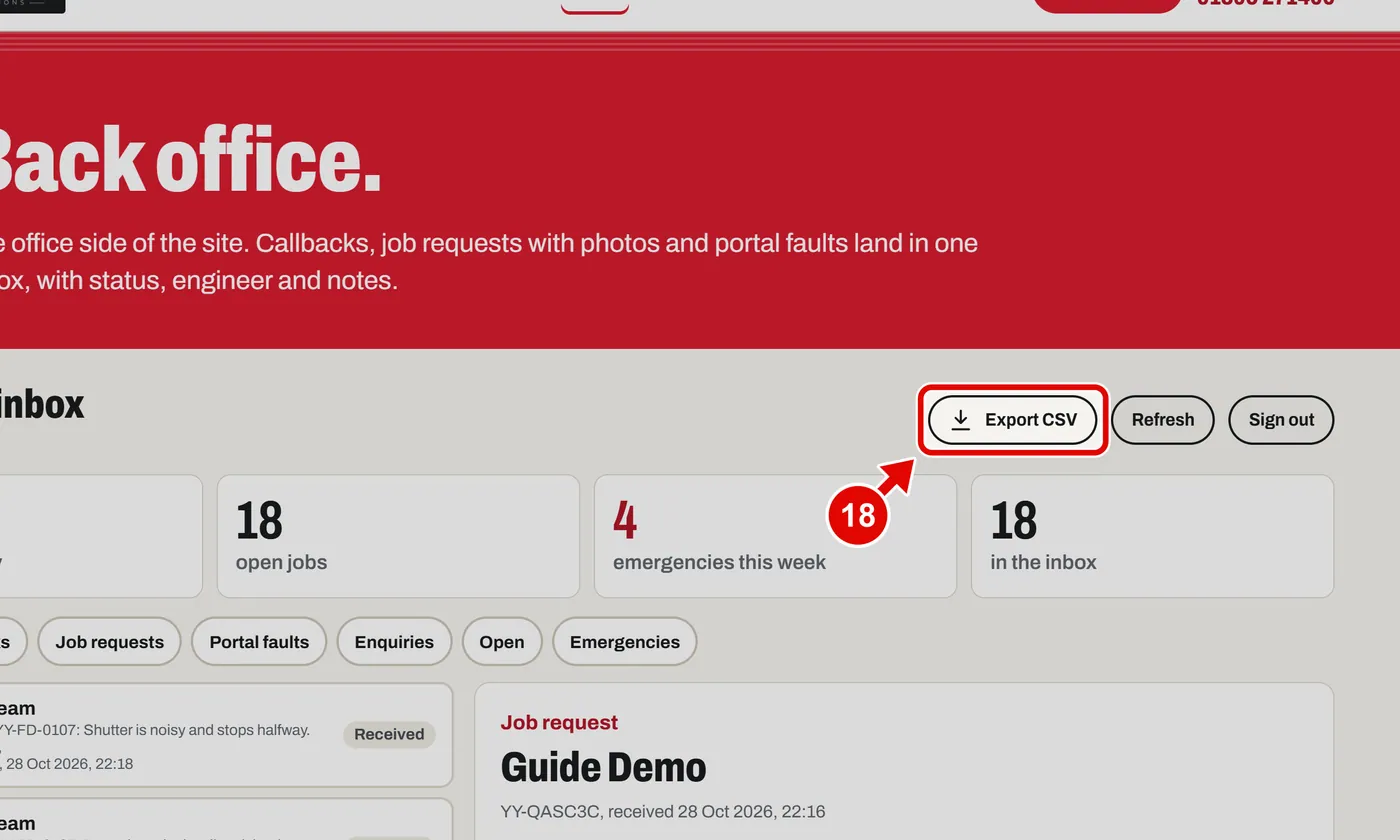
    Screen grab from Back office, on a computer. A red box marks the part to use.
  19. Step 19. Click Refresh to load new items. It also refreshes by itself every 30 seconds.
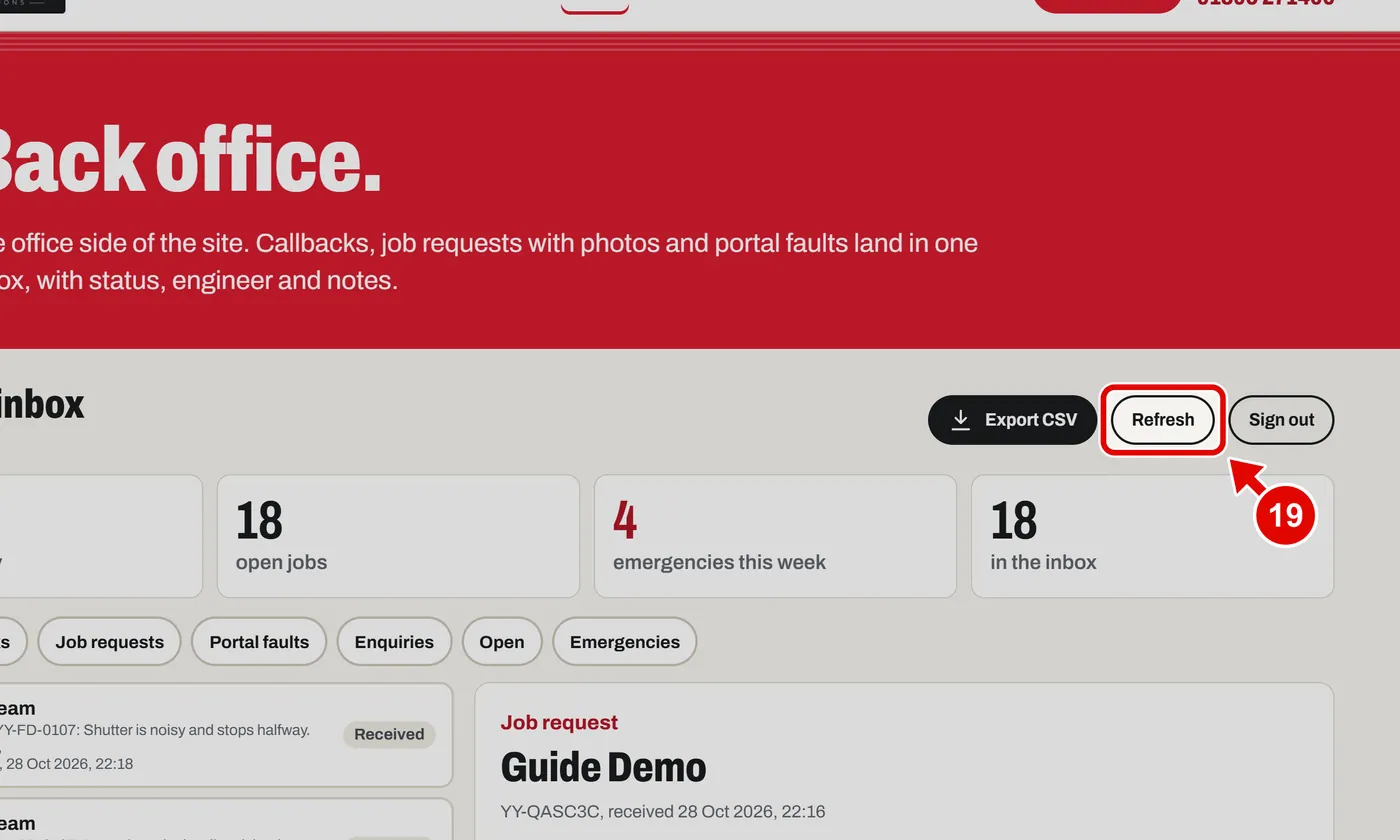
    Screen grab from Back office, on a computer. A red box marks the part to use.
  20. Step 20. Click Sign out when you finish.
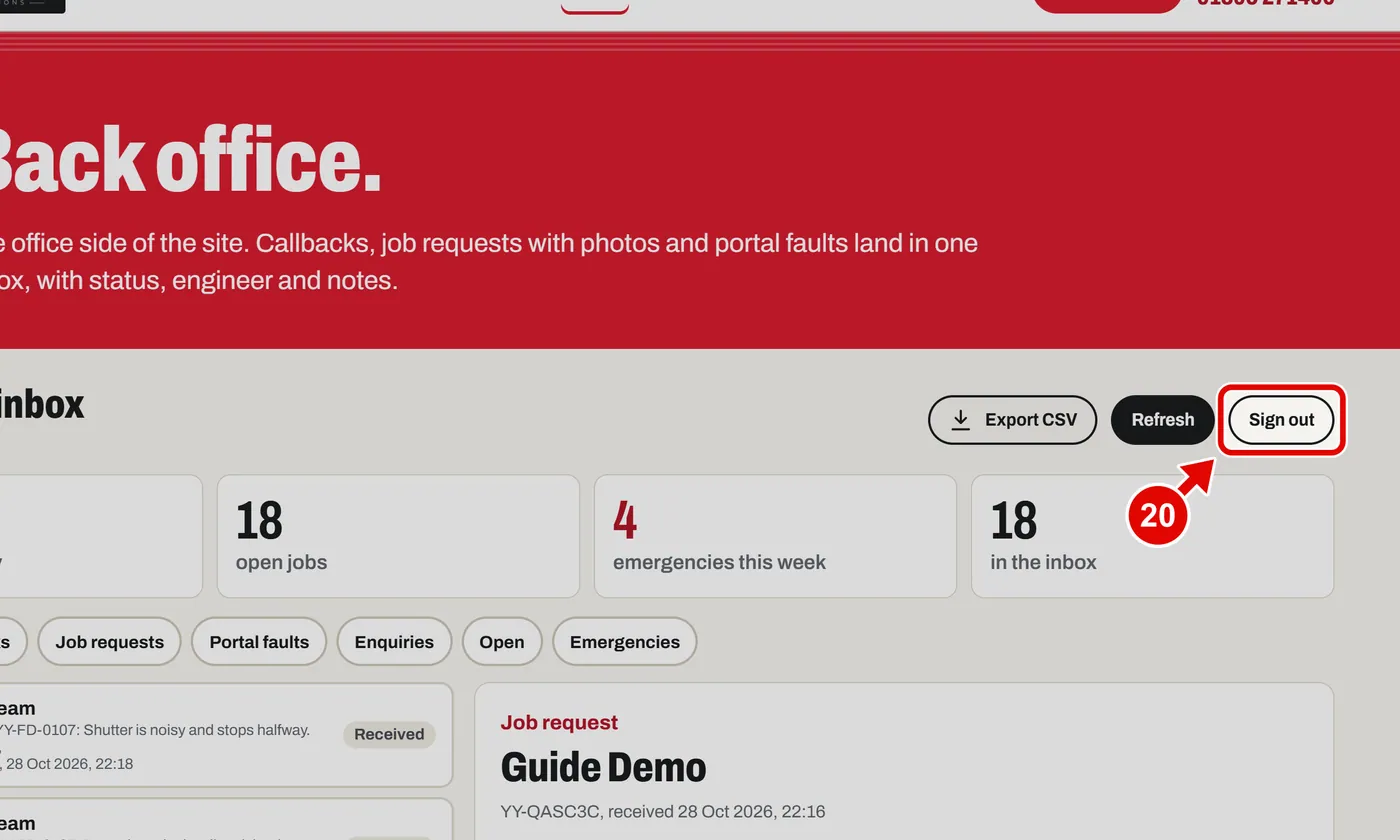
    Screen grab from Back office, on a computer. A red box marks the part to use.
  21. Step 21. On a phone, sign in the same way, then tap Sign in.

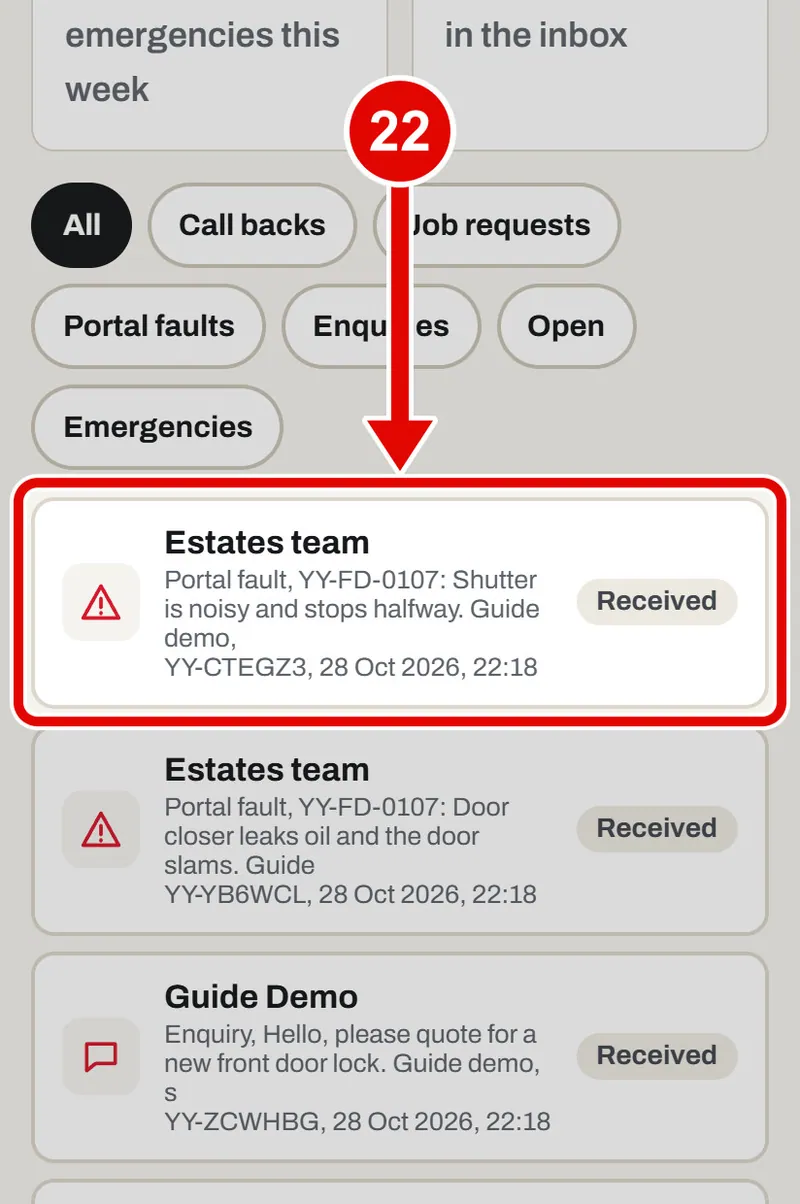
  22. Step 22. Tap an item to open it.

    Screen grab from Back office, on a phone. A red box marks the part to use.
  23. Step 23. Tap Back to the inbox to go back to the list.
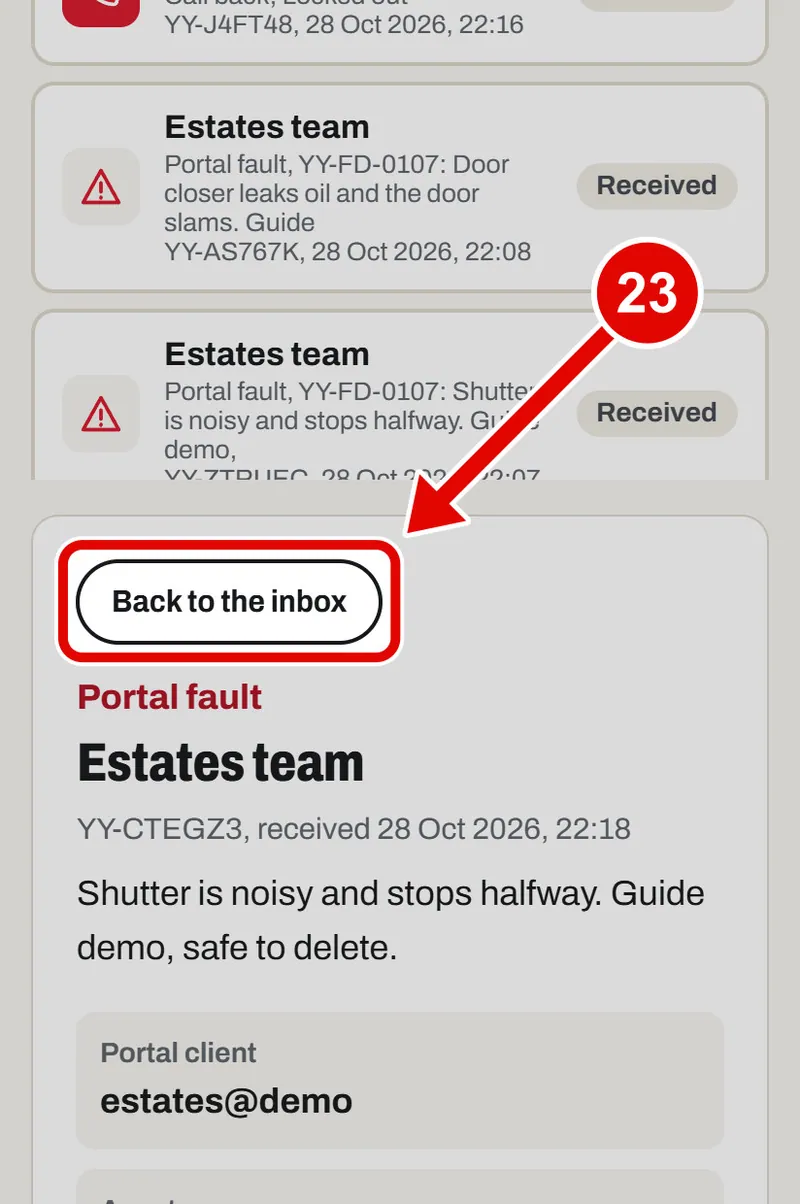
    Screen grab from Back office, on a phone. A red box marks the part to use.
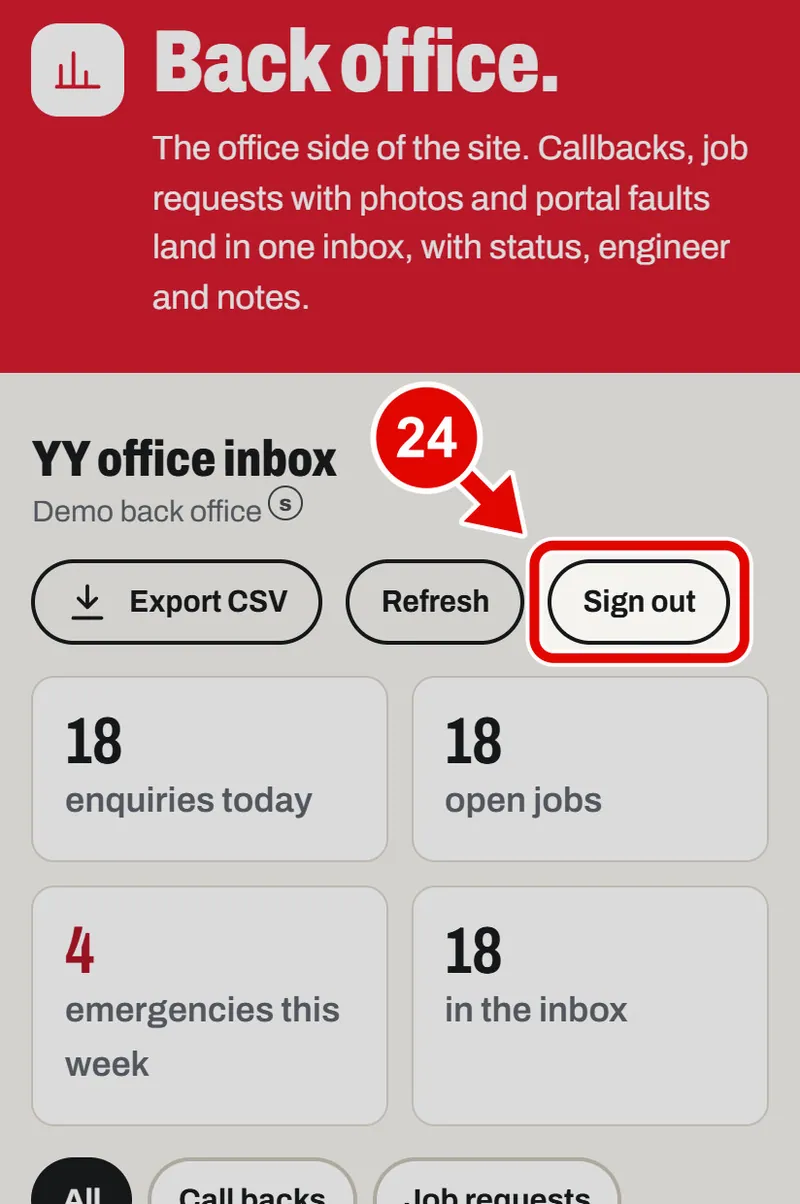
  24. Step 24. Tap Sign out.

    Screen grab from Back office, on a phone. A red box marks the part to use.
Text us