Part 6 of 24

Book a survey

Book a survey has 7 short steps. It takes about two minutes. At the end you get a reference to track the job.

  1. Step 1. Open Book a survey. The bar at the top shows the 7 steps. It shows which step you are on.
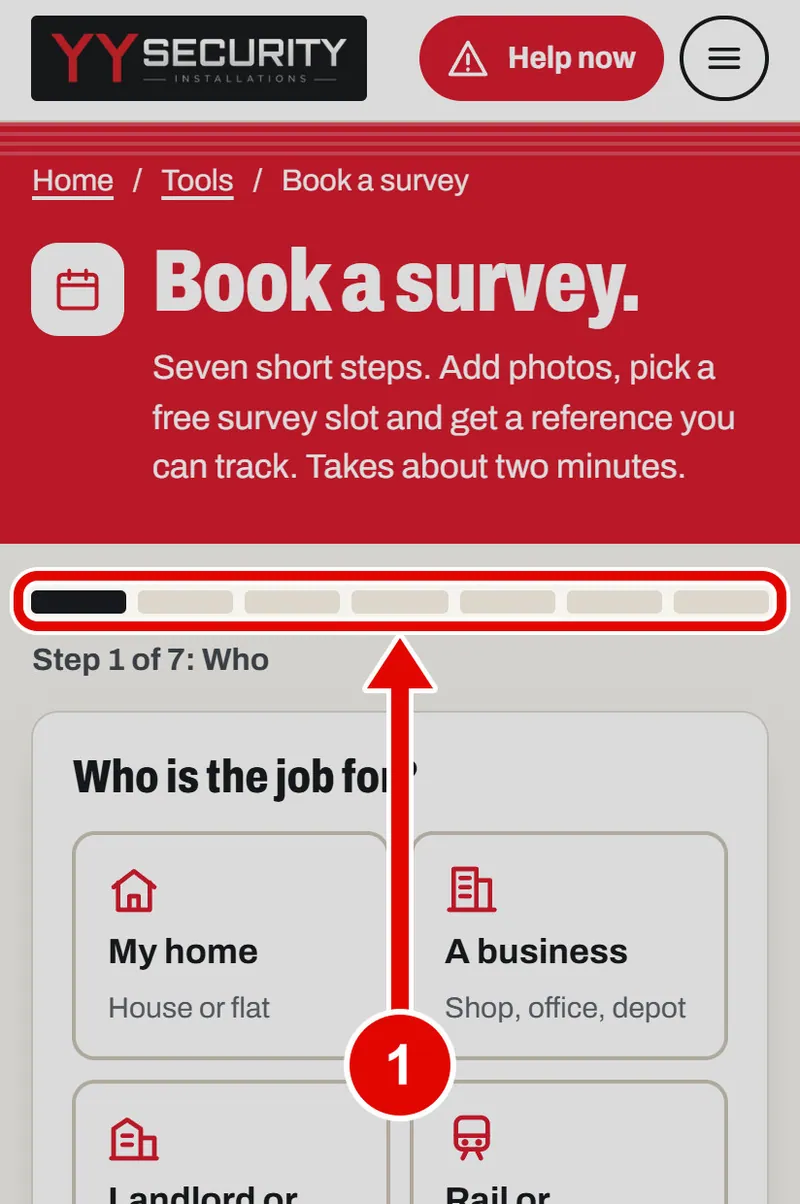
    Screen grab from Book a survey, on a phone. A red box marks the part to use.
  2. Step 2. Step 1, Who. Tap who the job is for. We tap My home. The next step opens by itself.
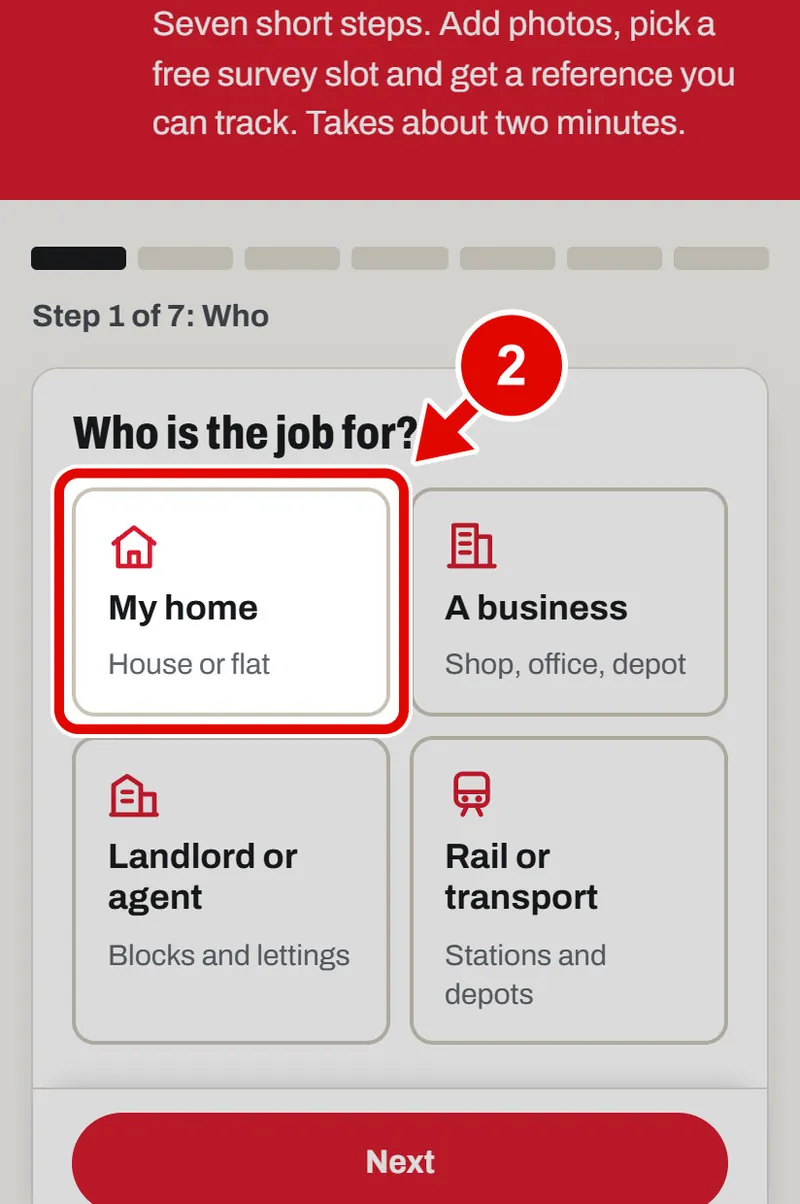
    Screen grab from Book a survey, on a phone. A red box marks the part to use.
  3. Step 3. Step 2, What. Tap what you need. We tap Door repair and maintenance.
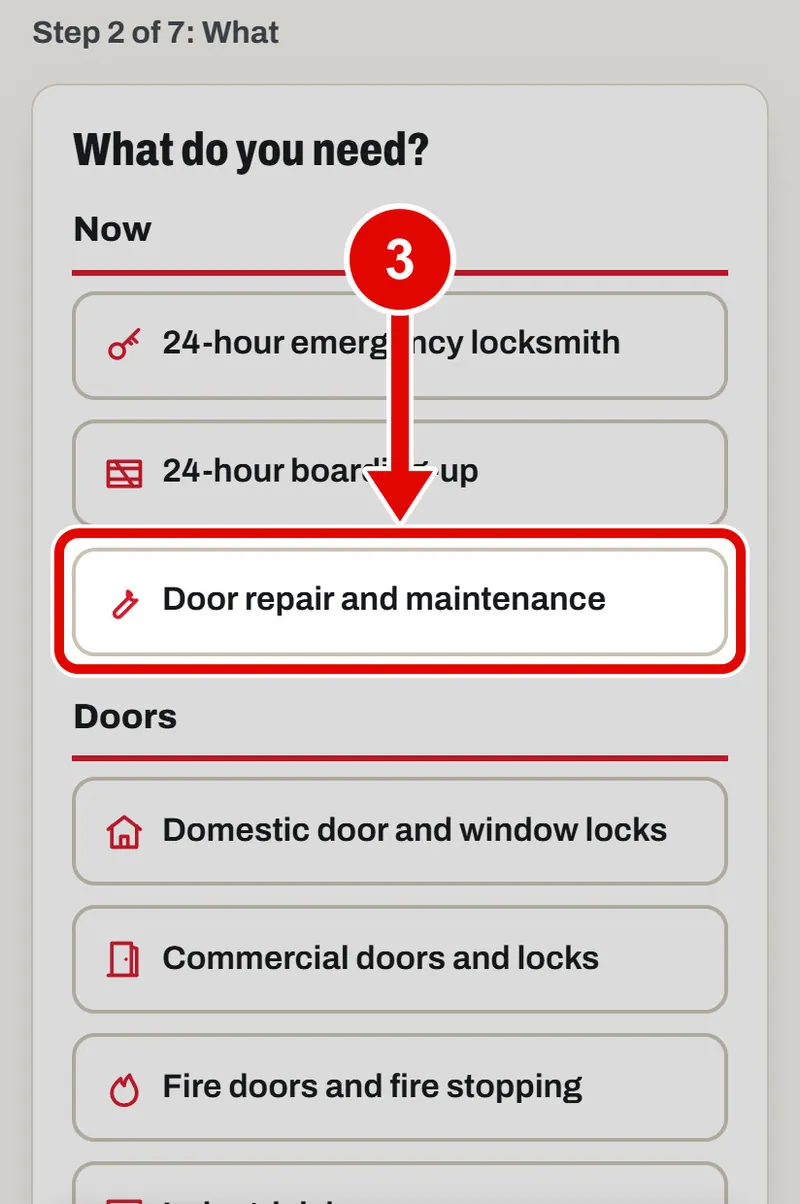
    Screen grab from Book a survey, on a phone. A red box marks the part to use.
  4. Step 4. Step 3, Door. Tap the one that looks most like yours. Not sure is fine too.
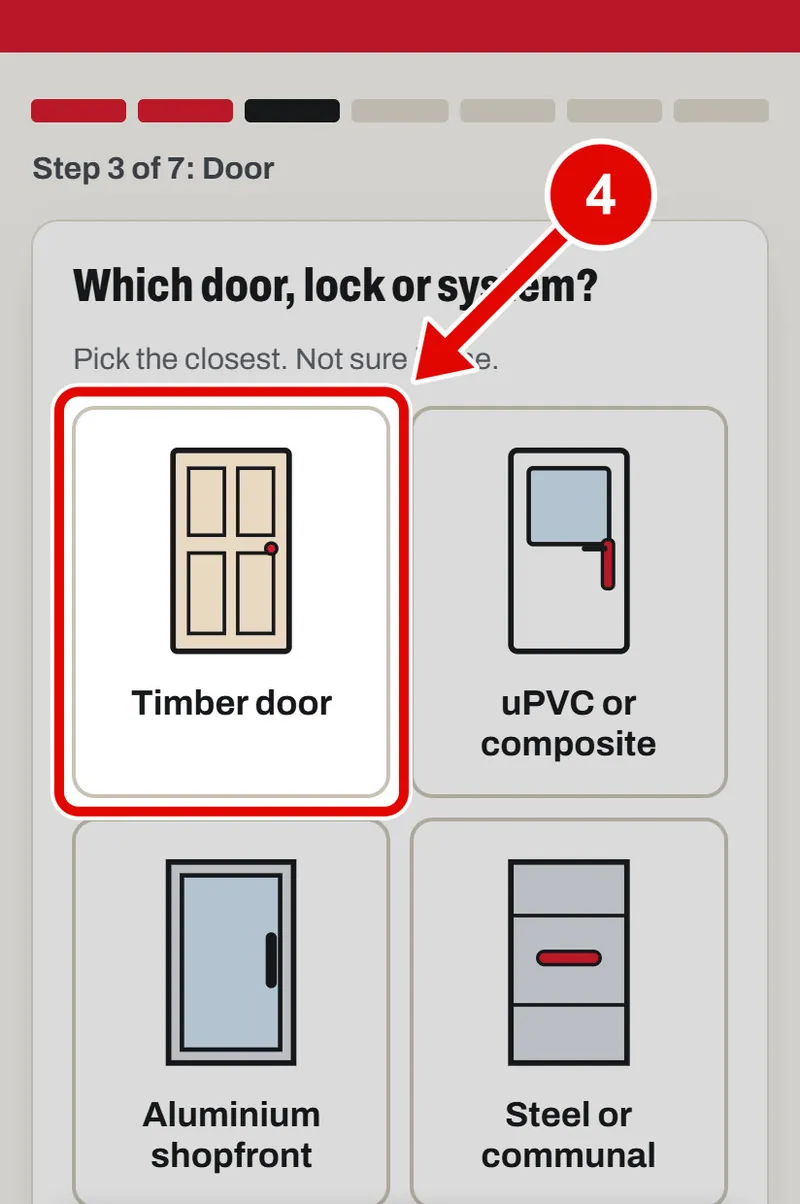
    Screen grab from Book a survey, on a phone. A red box marks the part to use.
  5. Step 5. Step 4, Photos. Photos help YY bring the right parts. Tap Take a photo to use your camera.
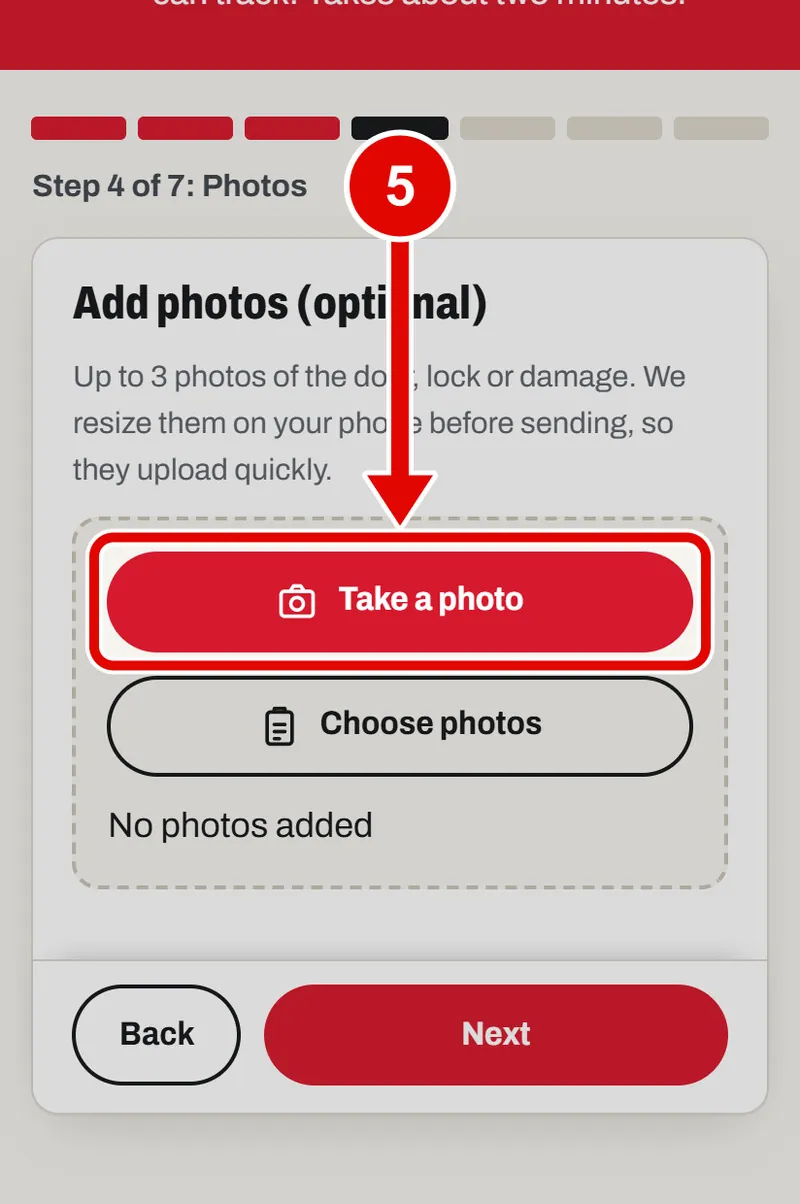
    Screen grab from Book a survey, on a phone. A red box marks the part to use.
  6. Step 6. Or tap Choose photos and pick a photo from your phone.
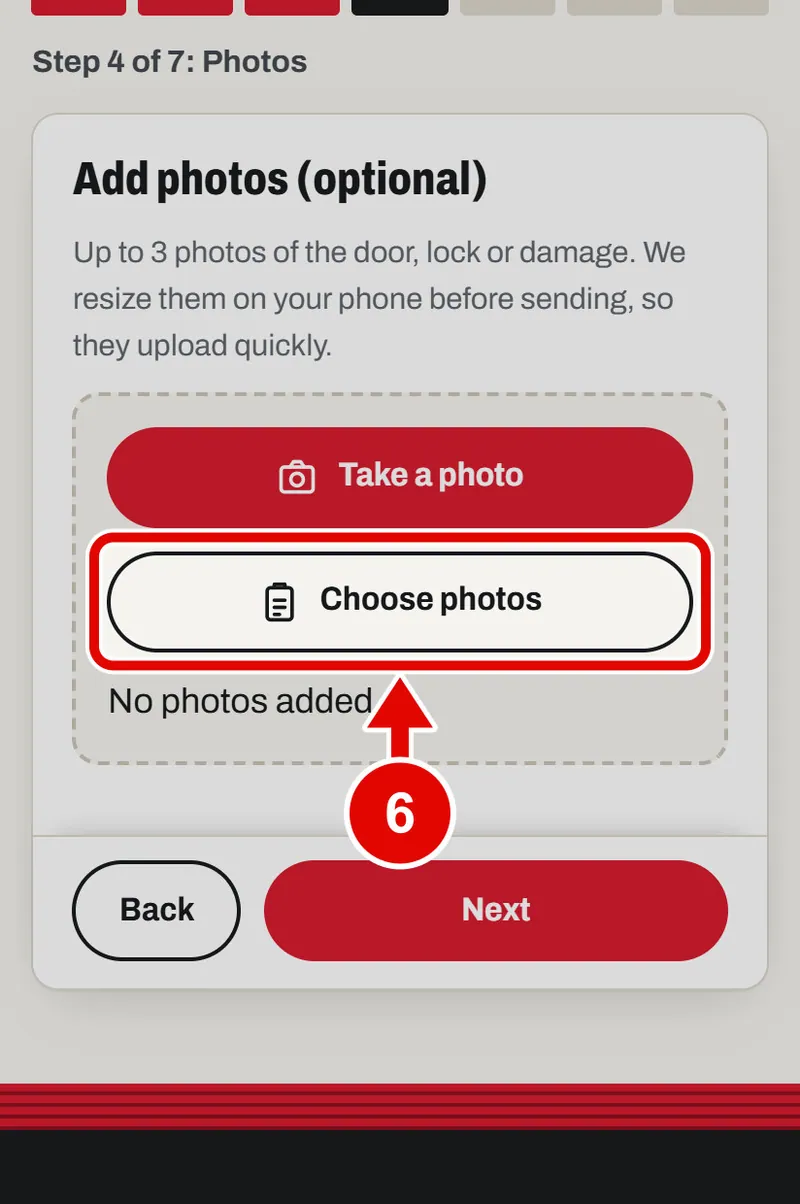
    Screen grab from Book a survey, on a phone. A red box marks the part to use.
  7. Step 7. Your photo shows here. You can add up to 3 photos.
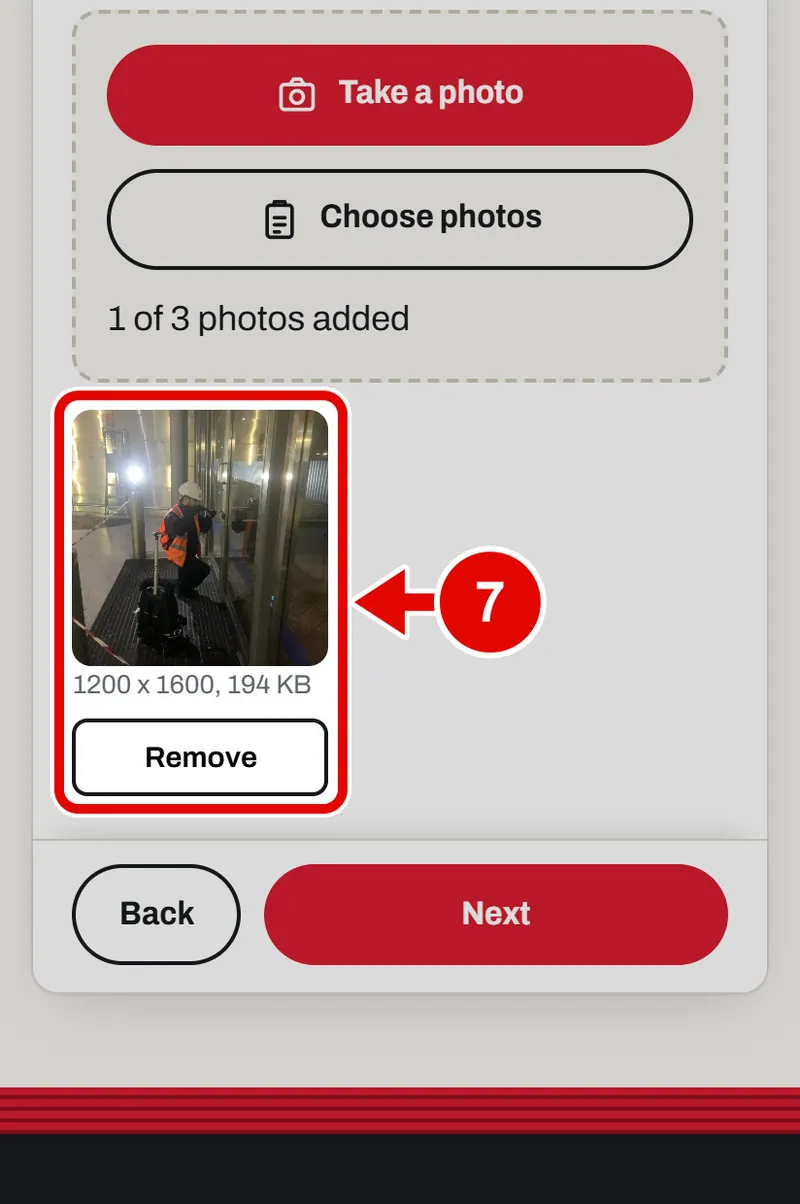
    Screen grab from Book a survey, on a phone. A red box marks the part to use.
  8. Step 8. Wrong photo? Tap Remove under it.
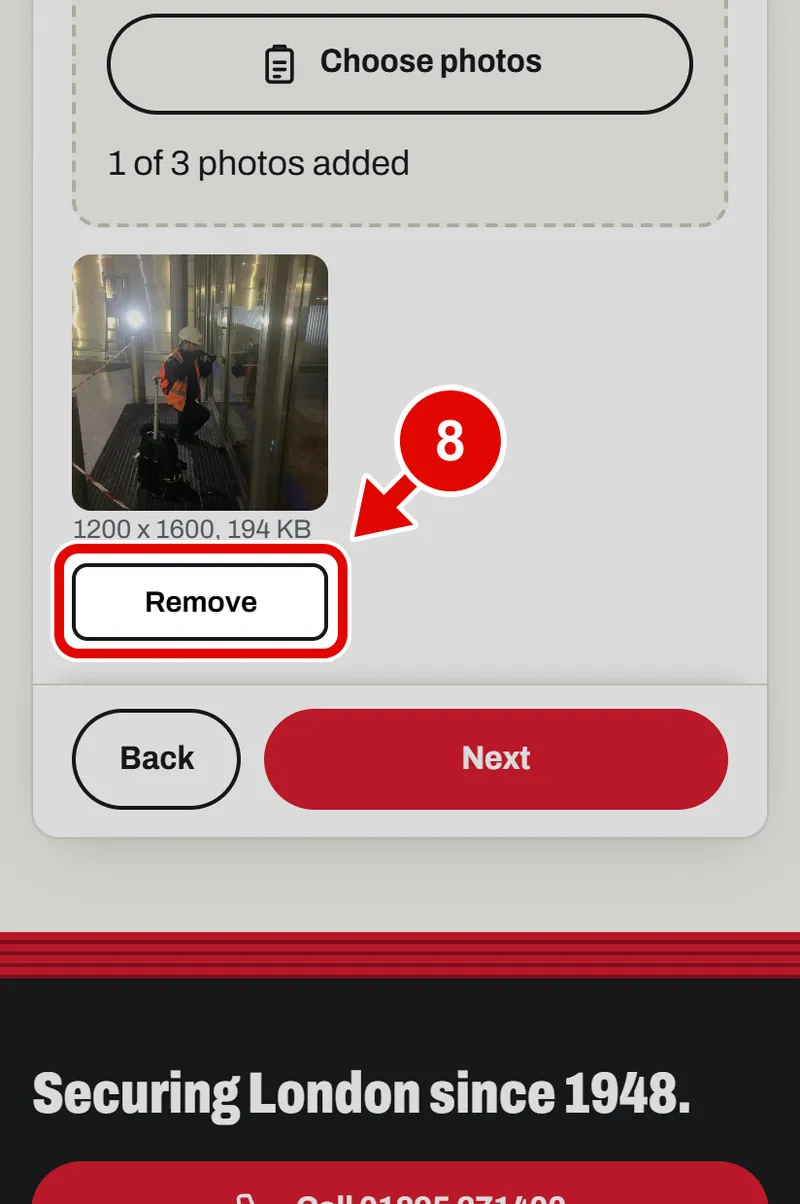
    Screen grab from Book a survey, on a phone. A red box marks the part to use.
  9. Step 9. The photo is gone. Tap Choose photos to add photos again. We add two.
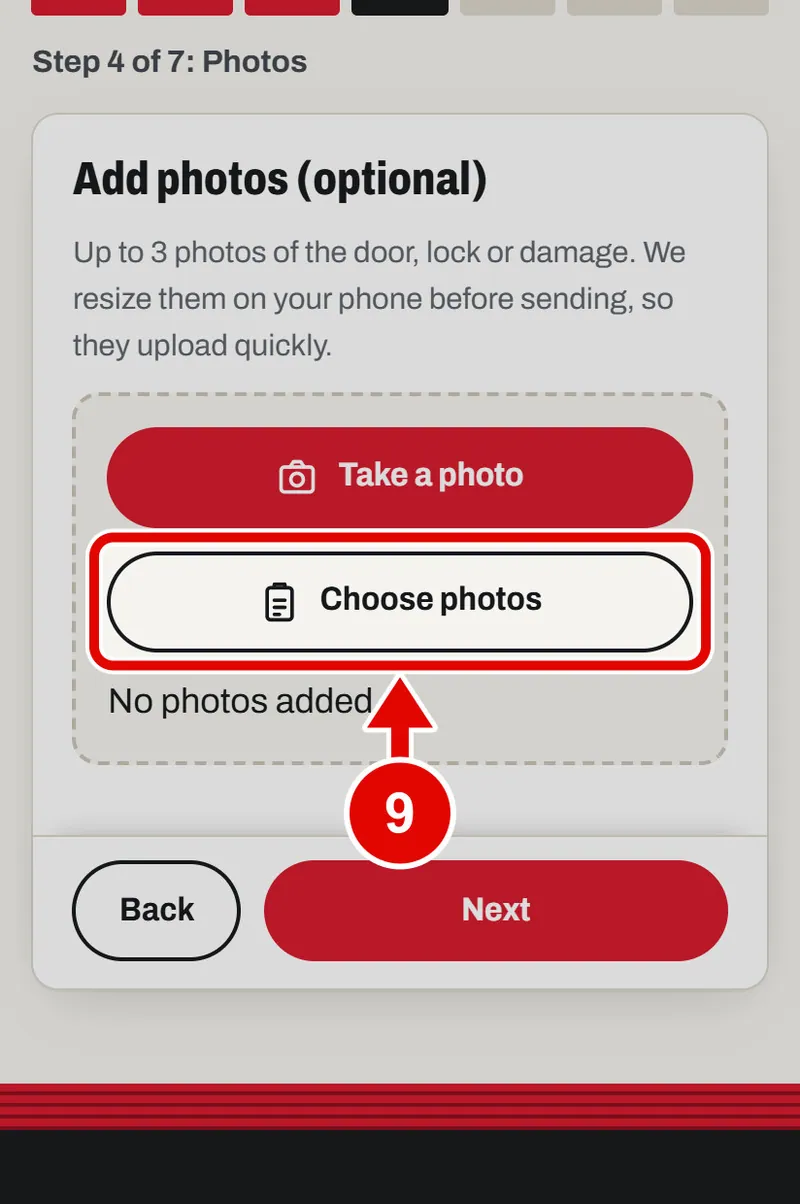
    Screen grab from Book a survey, on a phone. A red box marks the part to use.
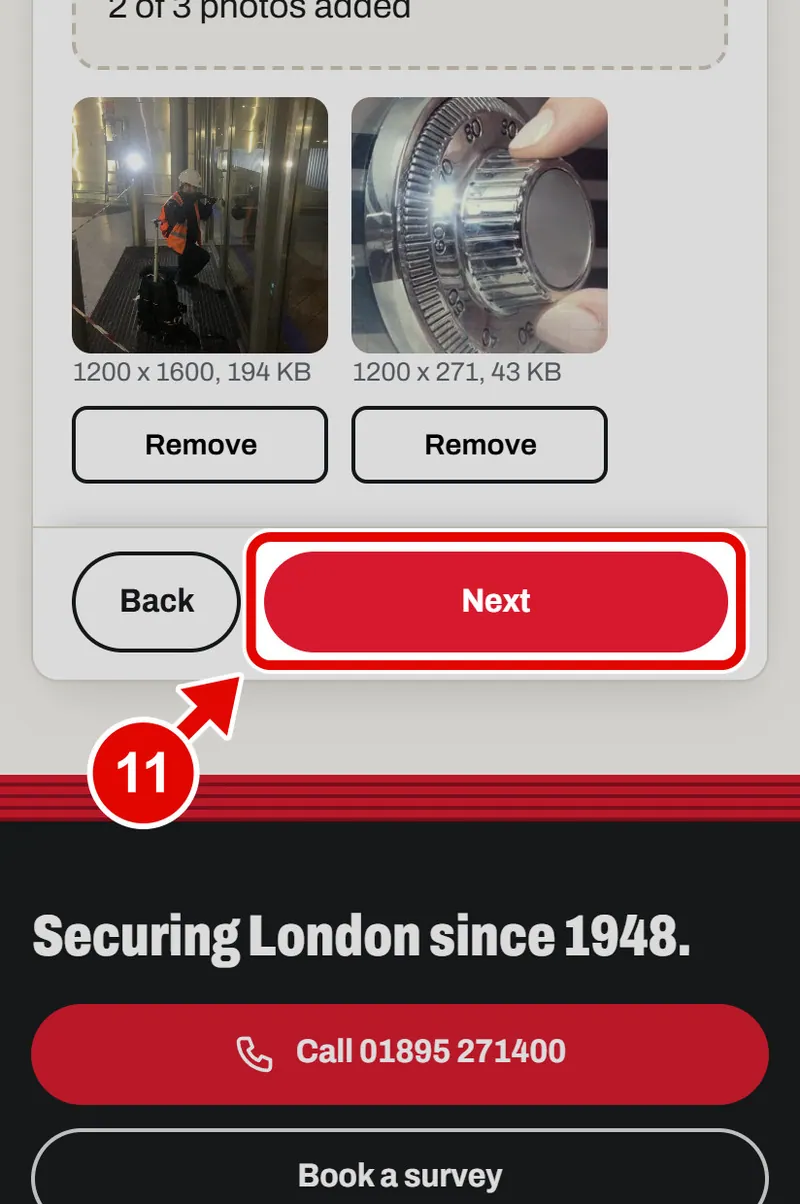
  10. Step 10. Now there are two photos. Good.
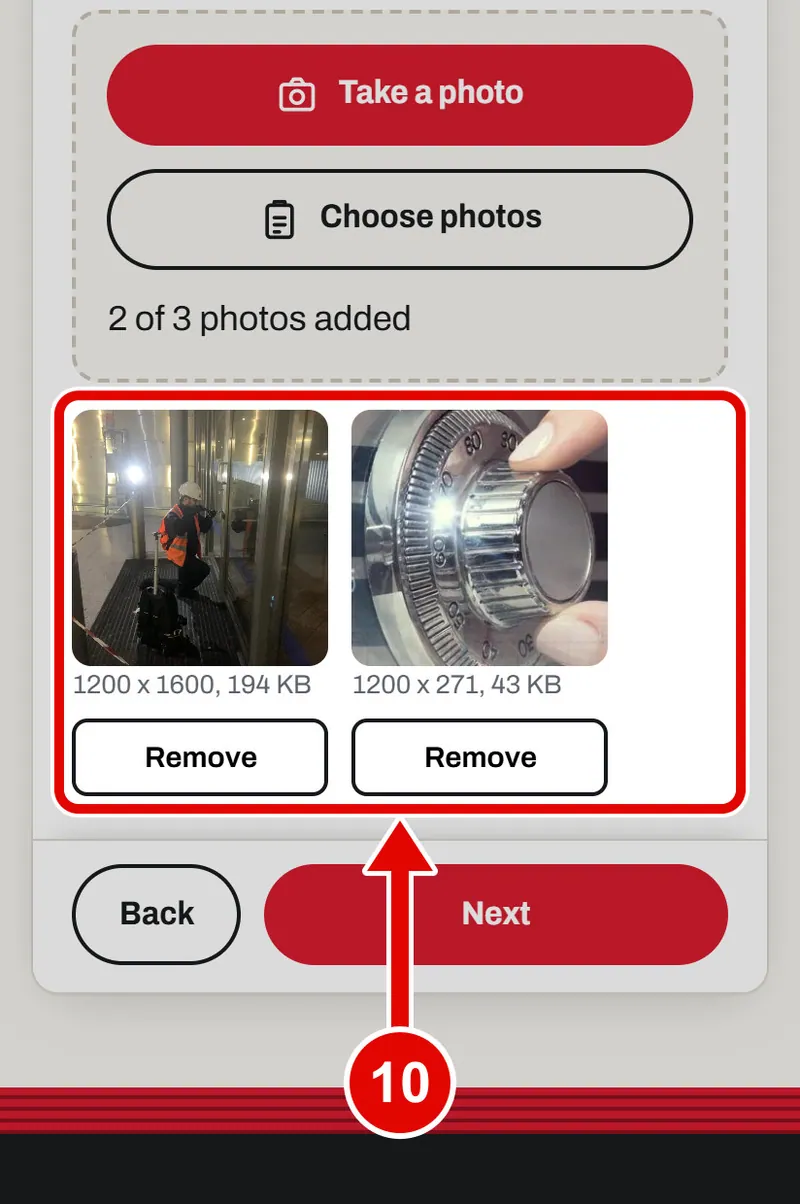
    Screen grab from Book a survey, on a phone. A red box marks the part to use.
  11. Step 11. Tap Next.

    Screen grab from Book a survey, on a phone. A red box marks the part to use.
  12. Step 12. Step 5, Slot. No time suits you? Tap No slot: call me to arrange. YY will ring you to fix a time.
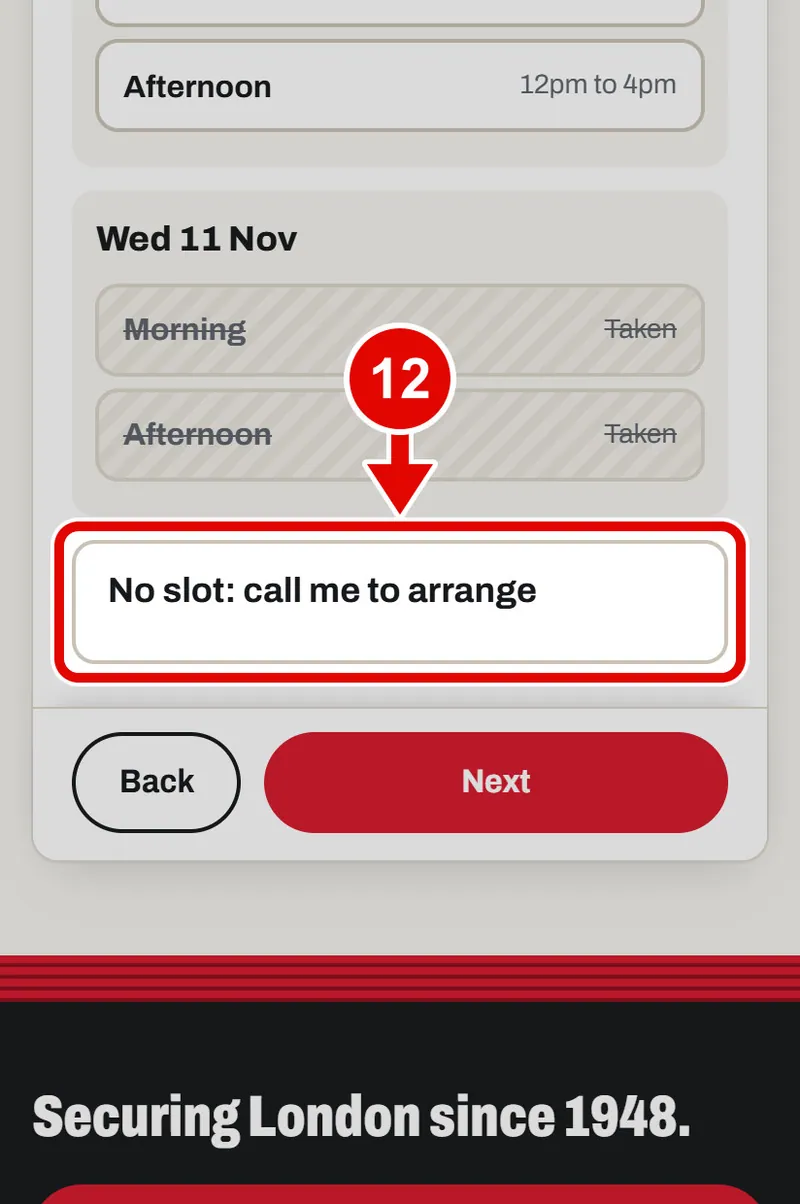
    Screen grab from Book a survey, on a phone. A red box marks the part to use.
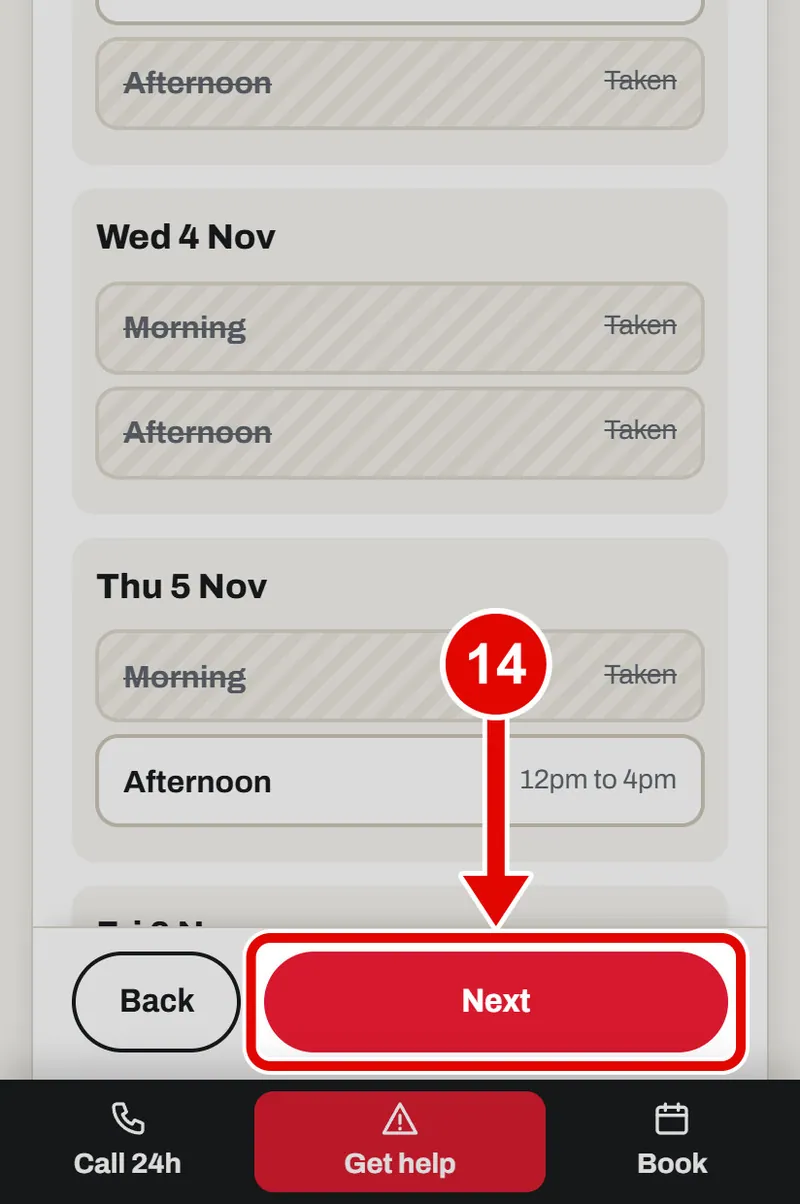
  13. Step 13. Or tap a free time for the survey visit. Taken means someone else has it.
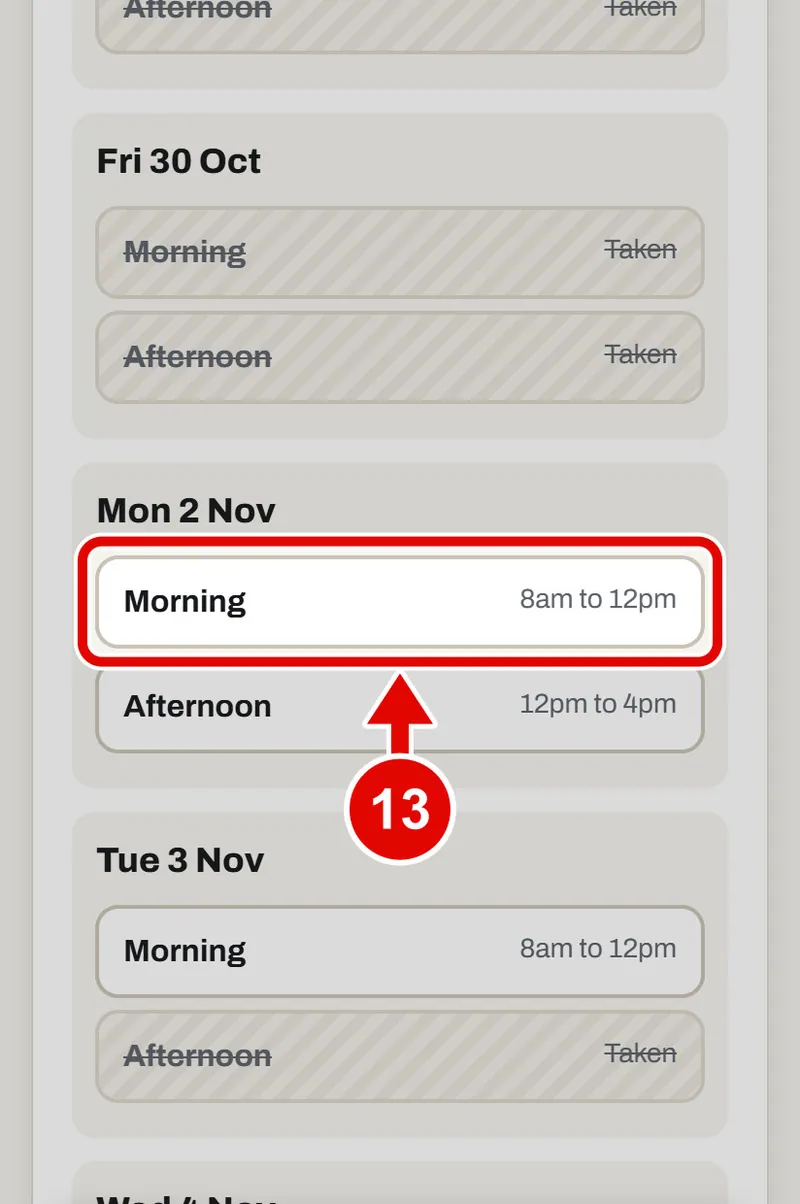
    Screen grab from Book a survey, on a phone. A red box marks the part to use.
  14. Step 14. Tap Next.

    Screen grab from Book a survey, on a phone. A red box marks the part to use.
  15. Step 15. Step 6, Details. Tap Name and type your name.
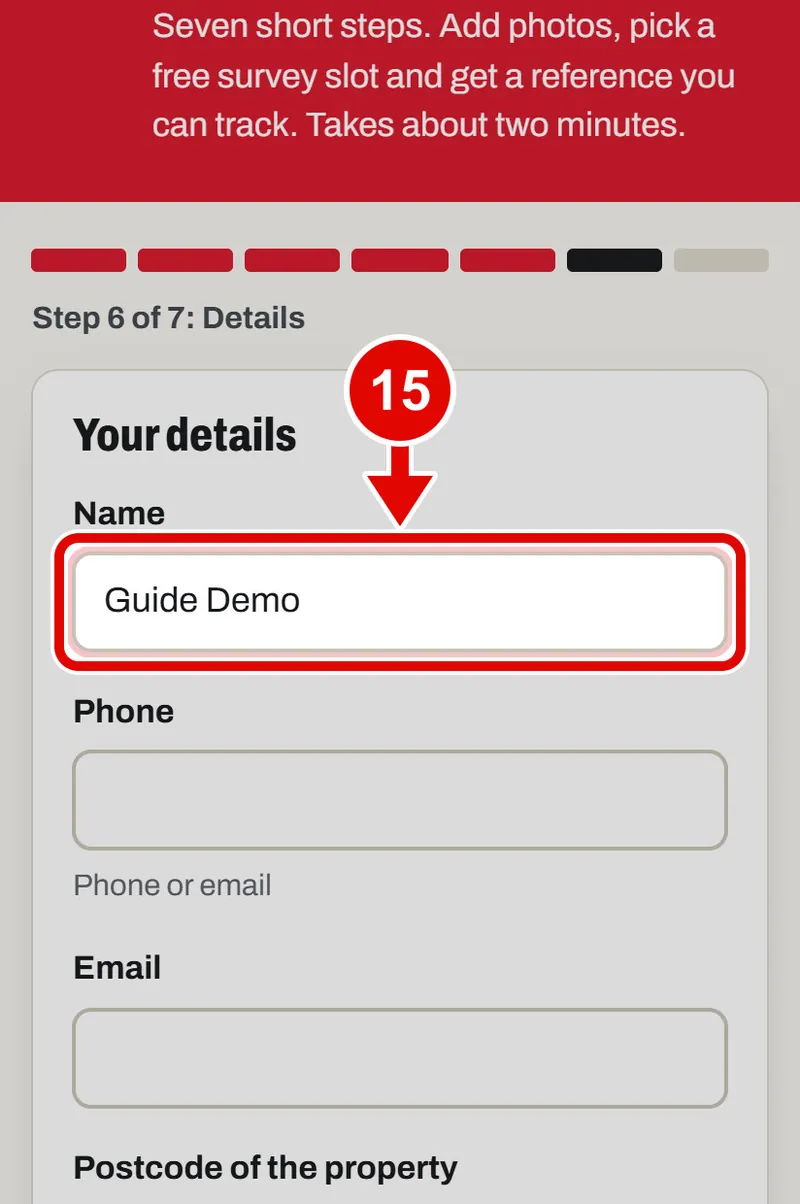
    Screen grab from Book a survey, on a phone. A red box marks the part to use.
  16. Step 16. Tap Phone and type your number.
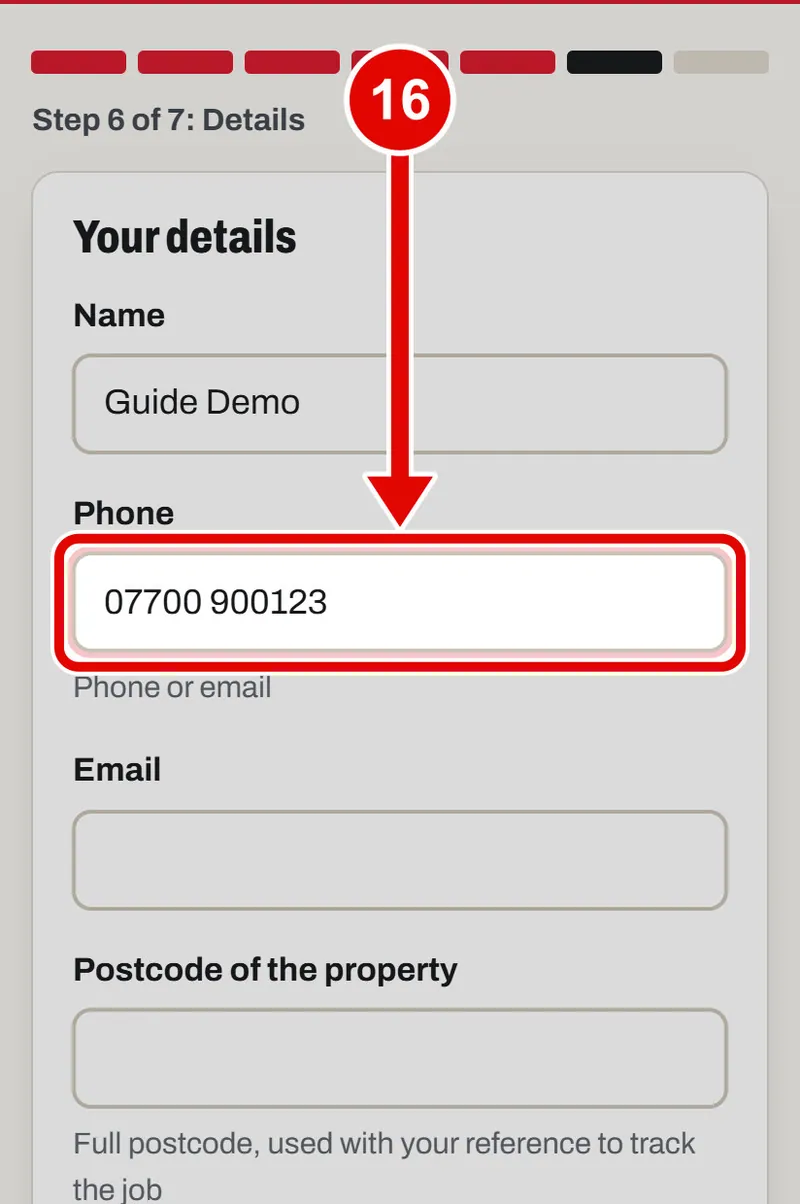
    Screen grab from Book a survey, on a phone. A red box marks the part to use.
  17. Step 17. Tap Email and type your email. You need a phone number or an email. Both is best.
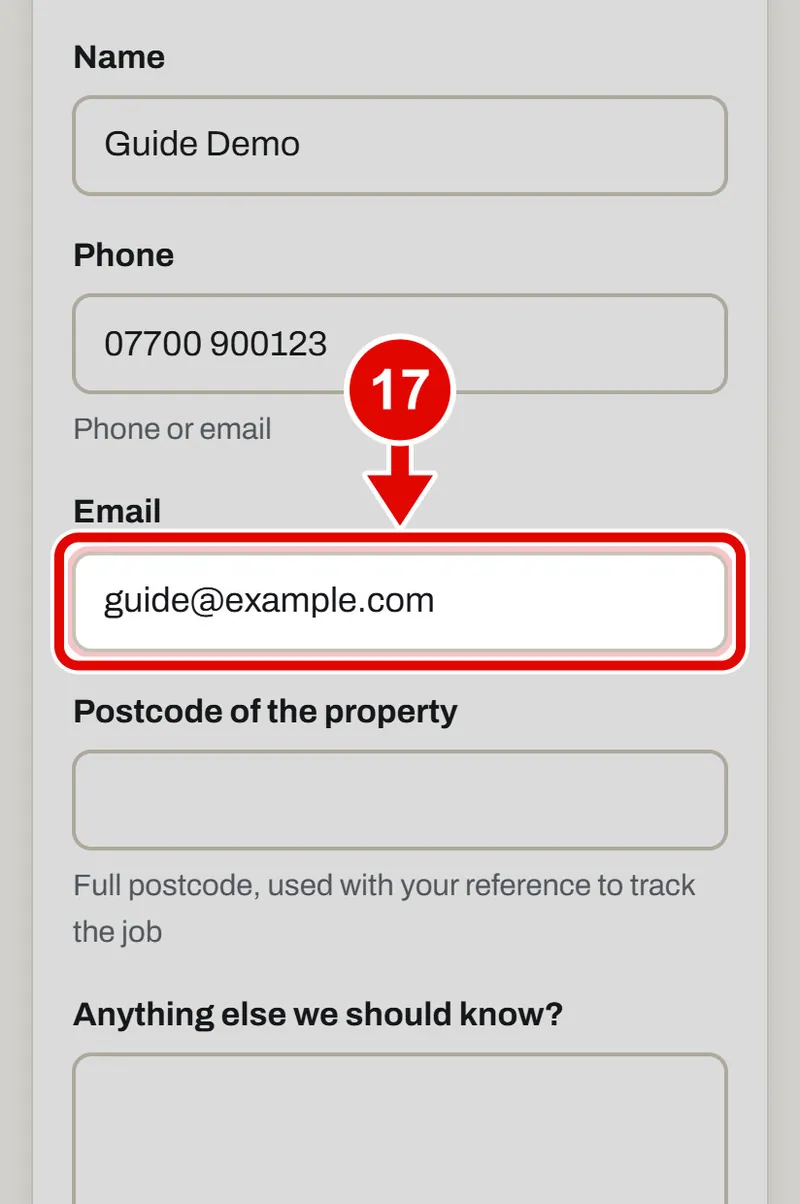
    Screen grab from Book a survey, on a phone. A red box marks the part to use.
  18. Step 18. Type the postcode of the place. You need it later to track the job.
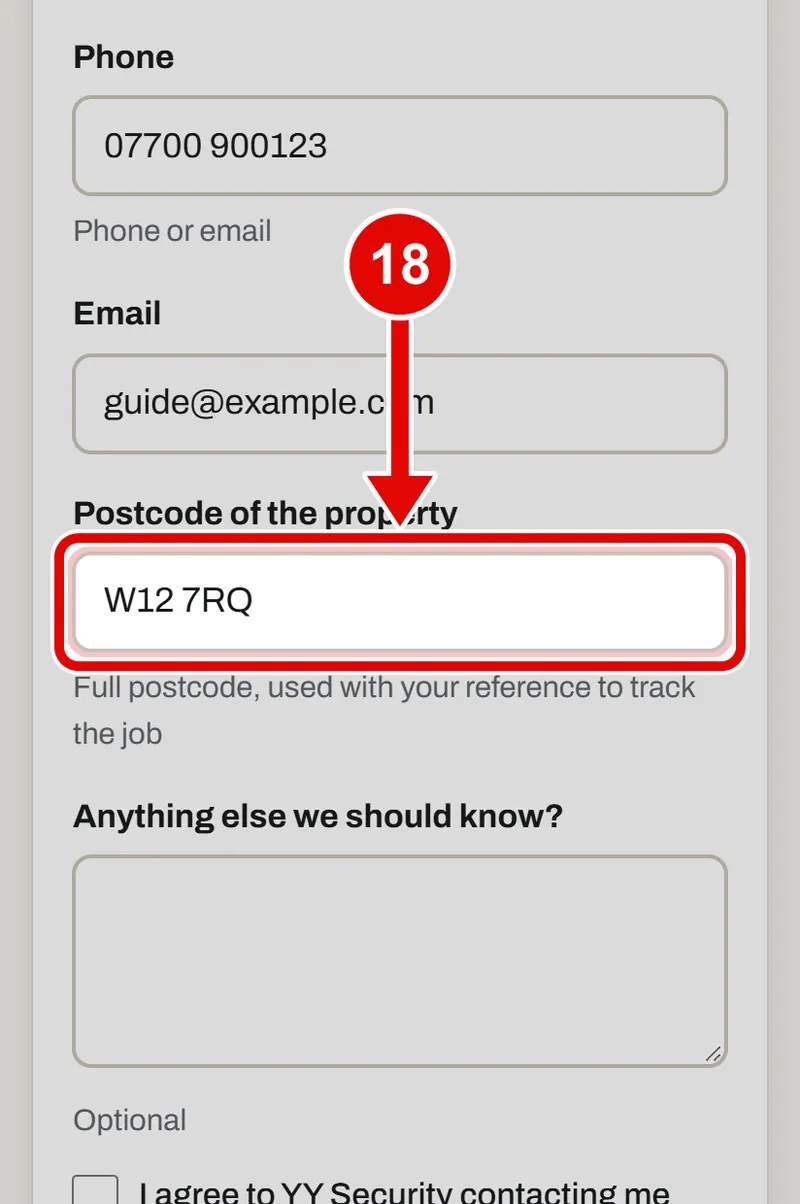
    Screen grab from Book a survey, on a phone. A red box marks the part to use.
  19. Step 19. Anything else YY should know? Type it here. You can leave it empty.
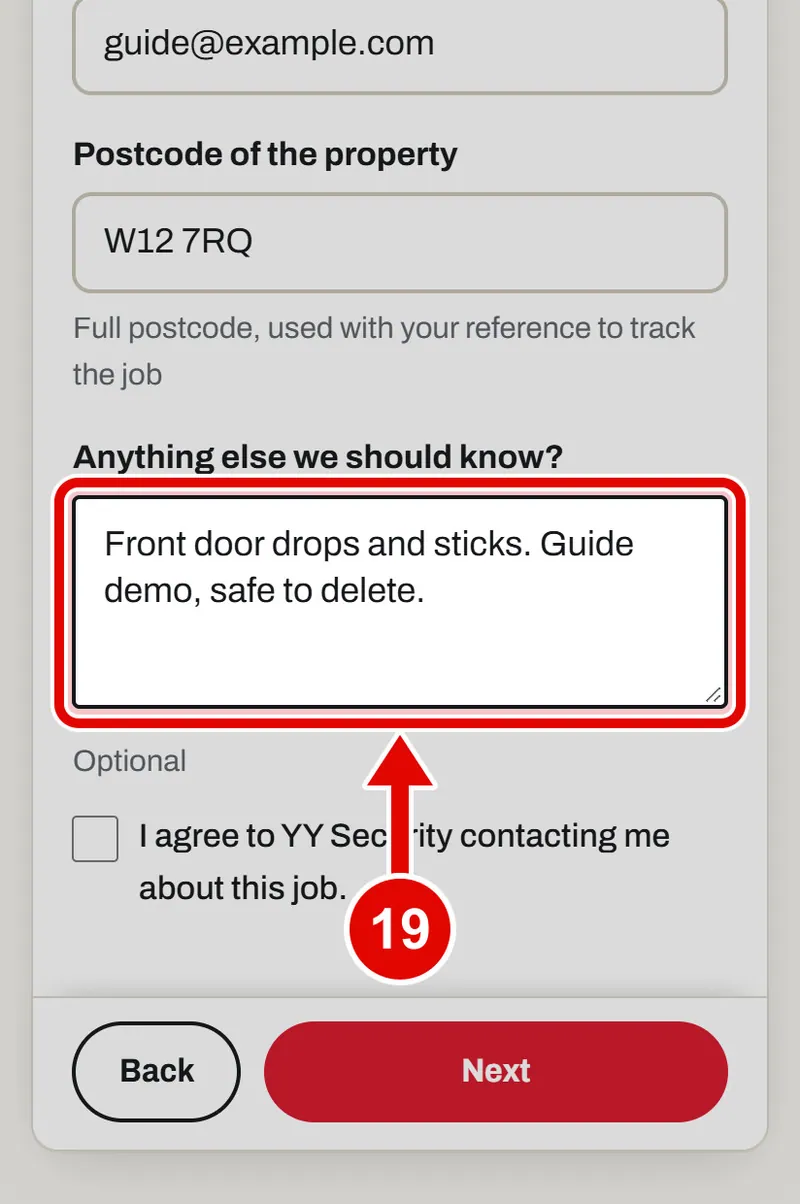
    Screen grab from Book a survey, on a phone. A red box marks the part to use.
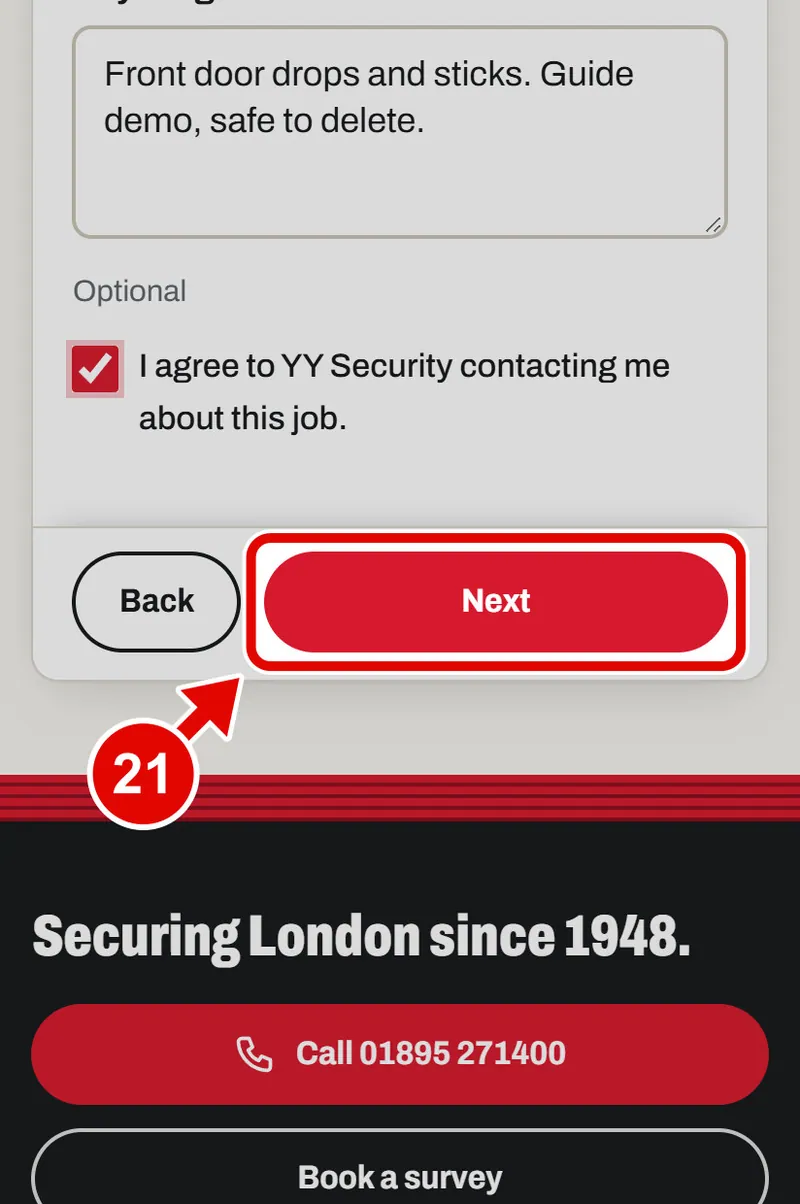
  20. Step 20. Tap the tick box. It says YY may contact you about this job.
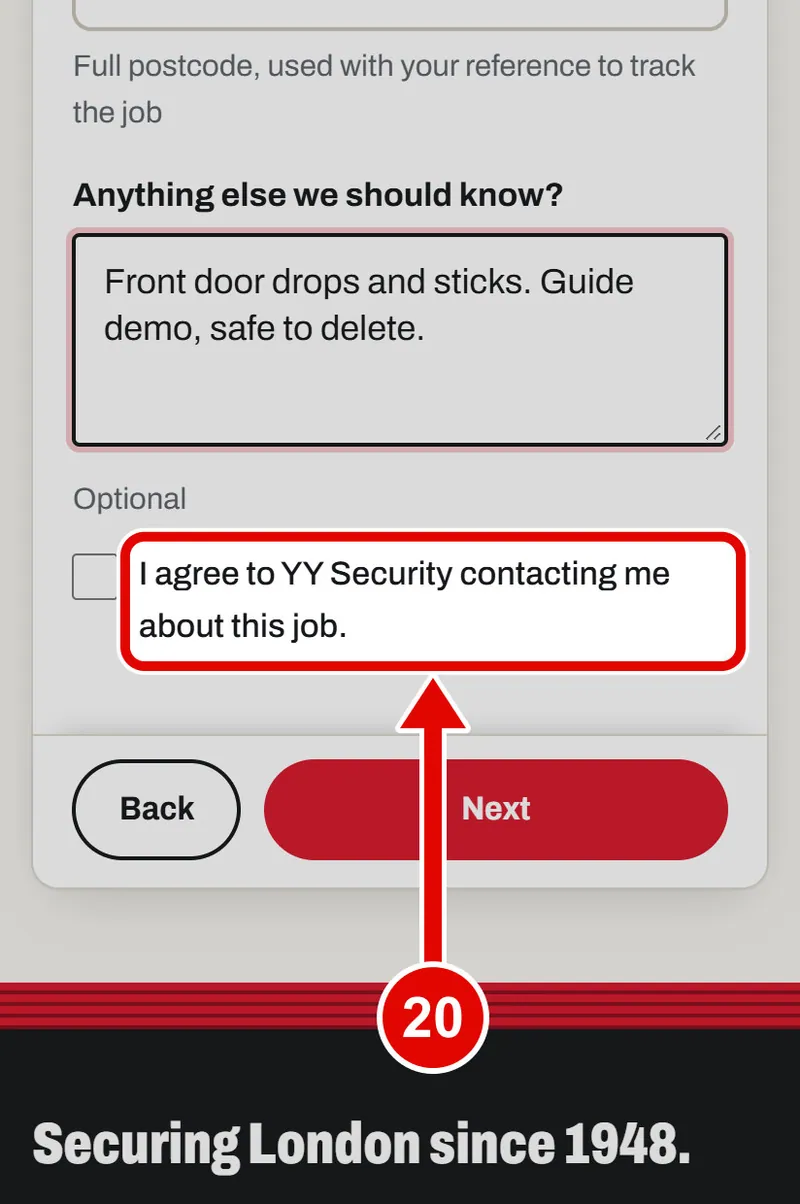
    Screen grab from Book a survey, on a phone. A red box marks the part to use.
  21. Step 21. Tap Next.

    Screen grab from Book a survey, on a phone. A red box marks the part to use.
  22. Step 22. Step 7, Check. Read everything. Is it right?
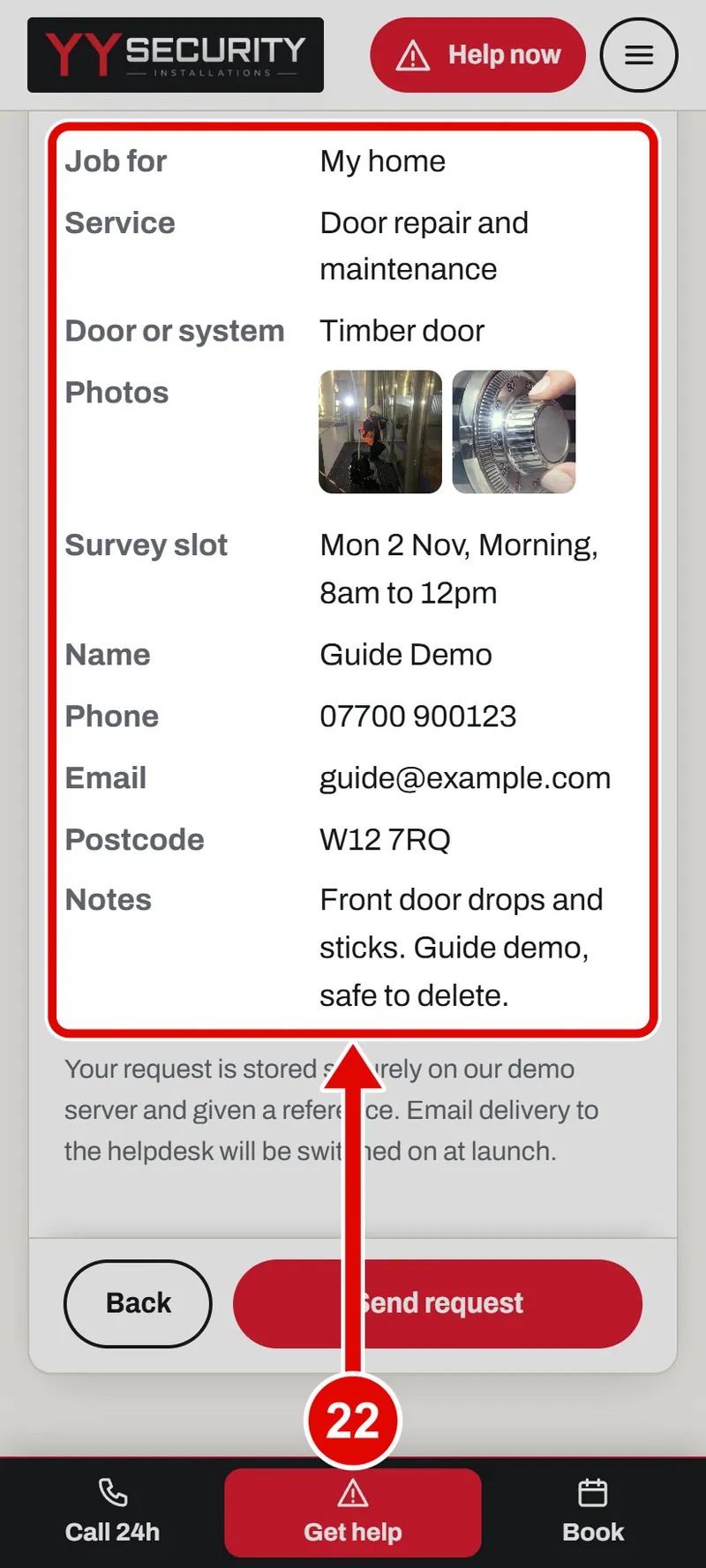
    Screen grab from Book a survey, on a phone. A red box marks the part to use.
  23. Step 23. Something wrong? Tap Back to go back and fix it.
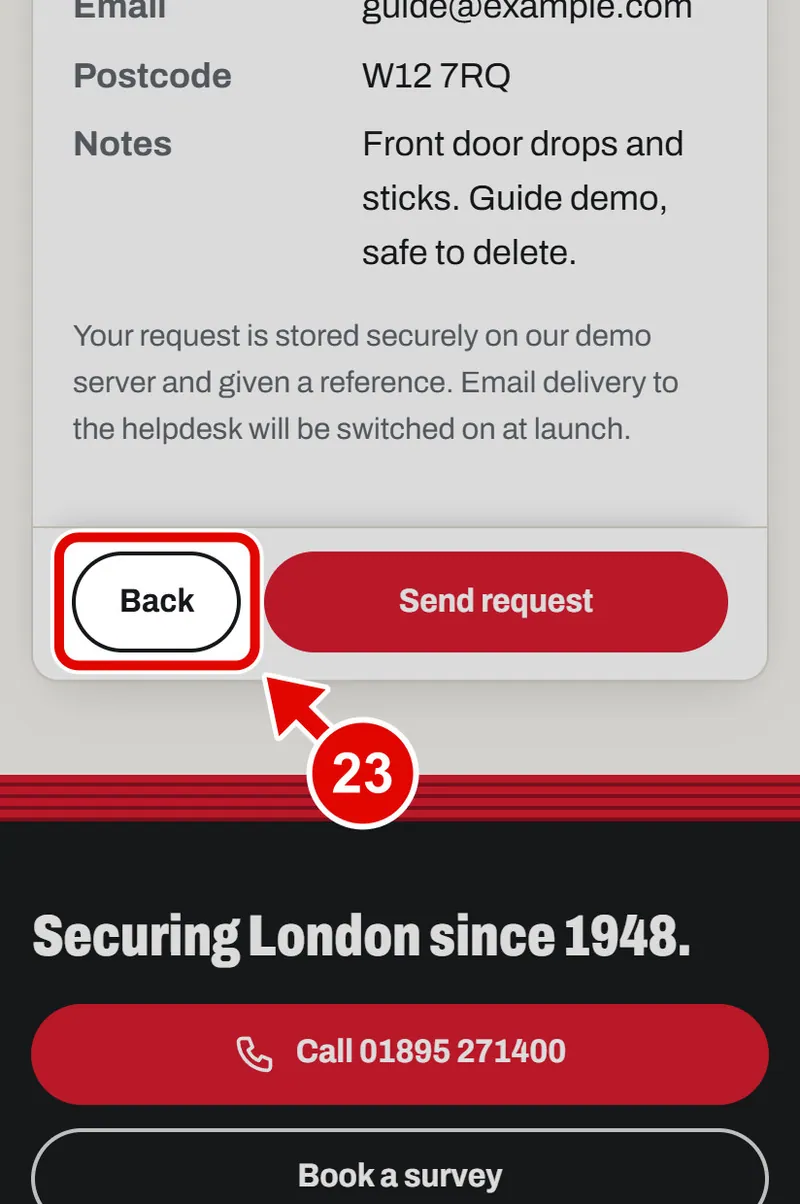
    Screen grab from Book a survey, on a phone. A red box marks the part to use.
  24. Step 24. All correct? Tap Send request.
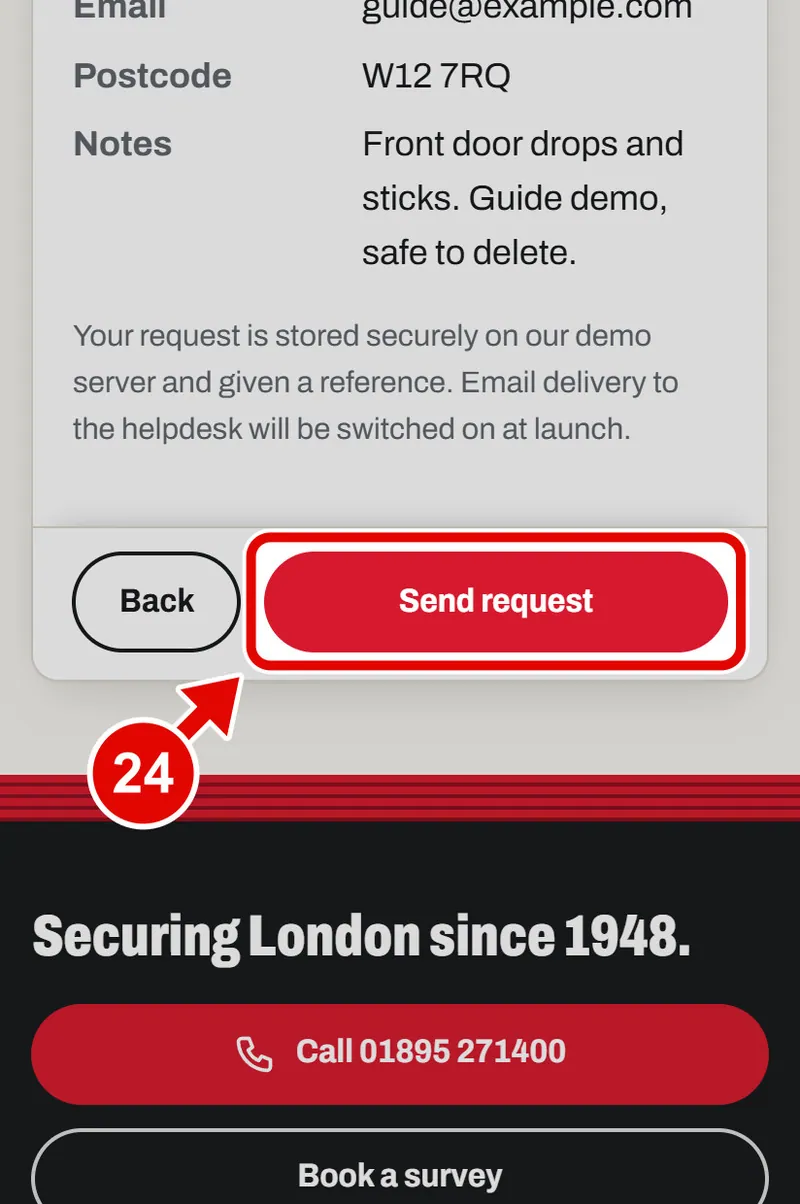
    Screen grab from Book a survey, on a phone. A red box marks the part to use.
  25. Step 25. Done. This is your reference. Write it down. It starts with YY.
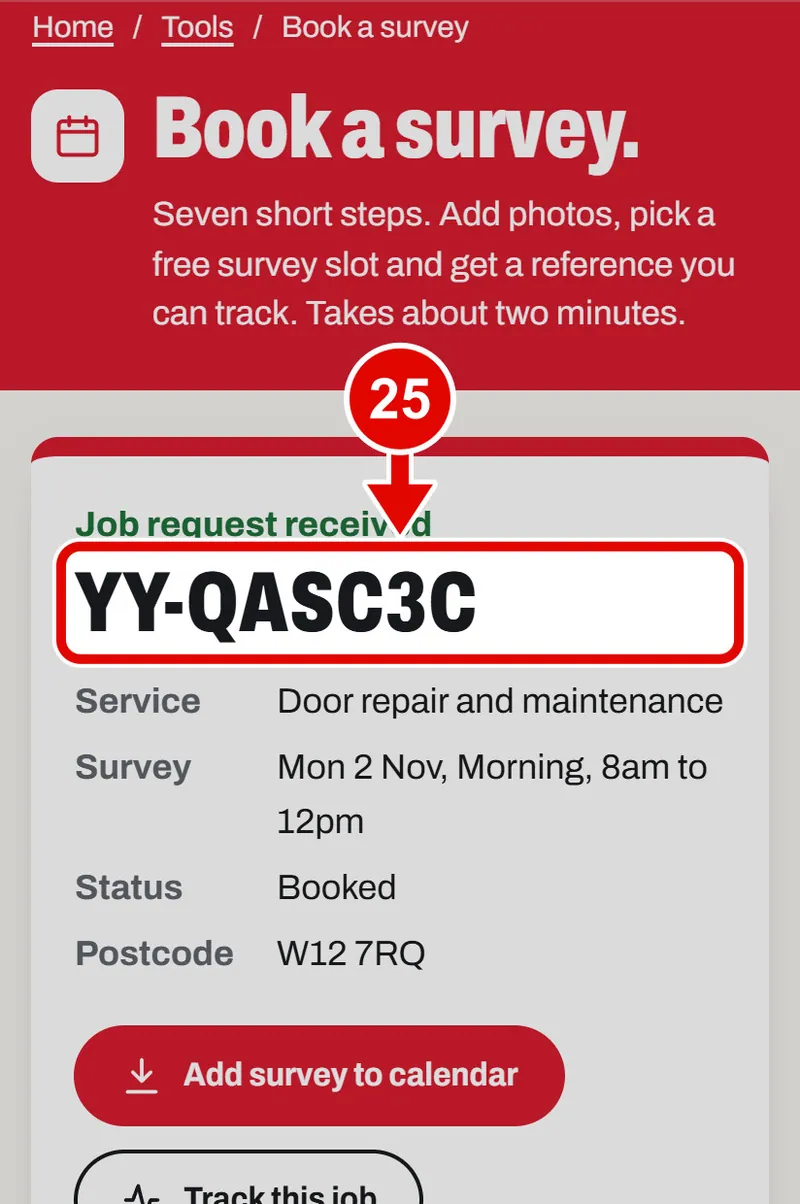
    Screen grab from Book a survey, on a phone. A red box marks the part to use.
  26. Step 26. Tap the calendar button. Your phone saves the survey visit in your calendar with a reminder.
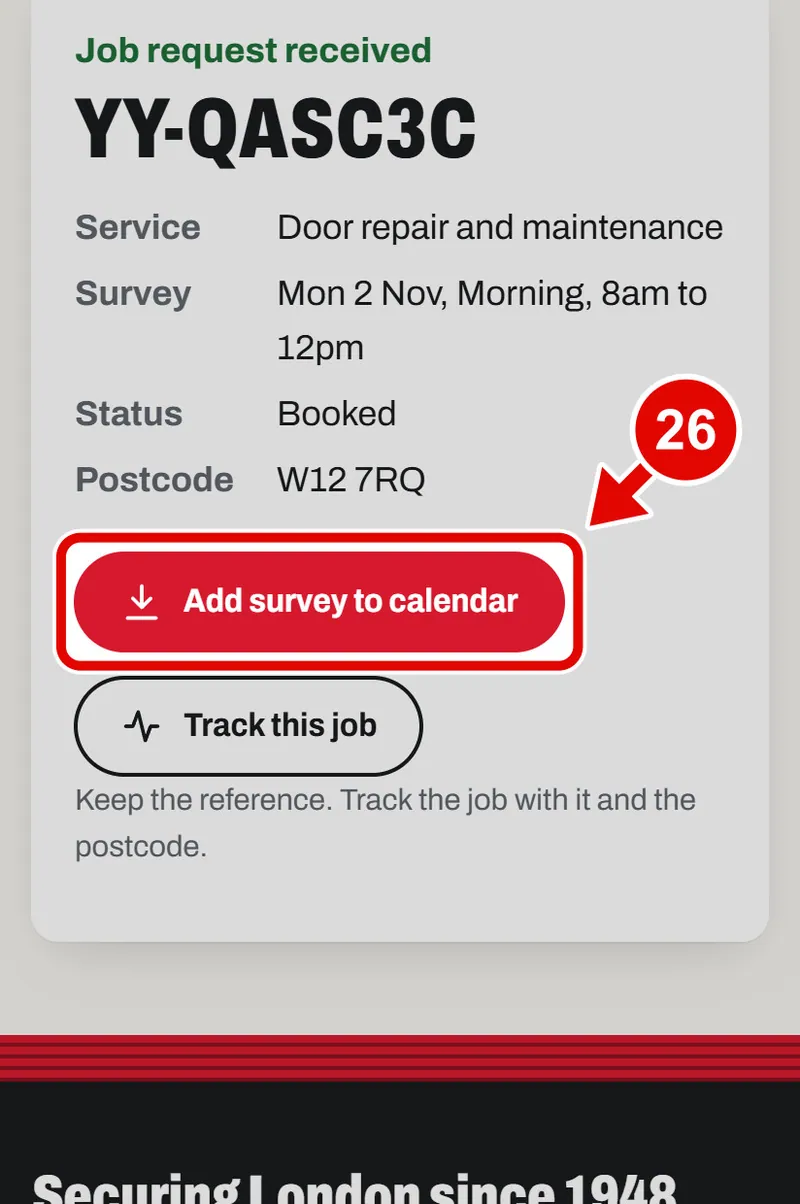
    Screen grab from Book a survey, on a phone. A red box marks the part to use.
  27. Step 27. Tap the track button to see how your job is going. The next part shows how.
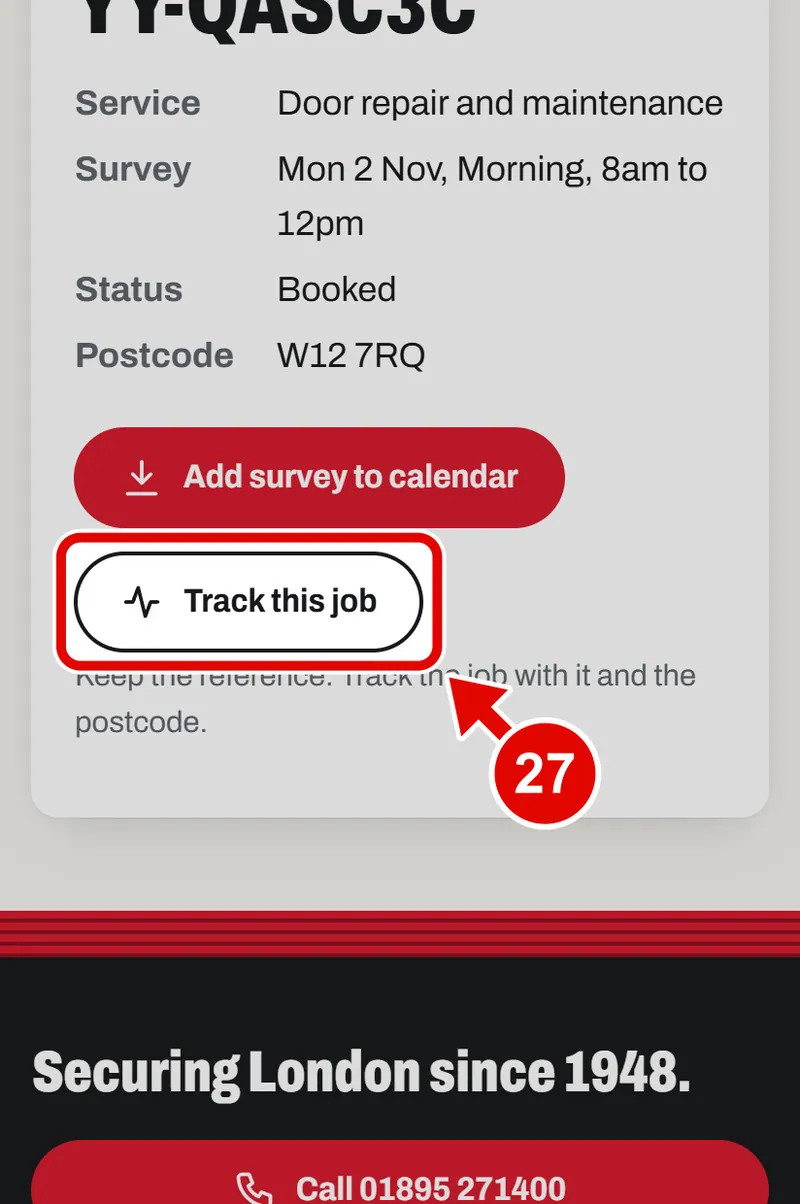
    Screen grab from Book a survey, on a phone. A red box marks the part to use.
  28. Step 28. On a computer, the steps are just the same. Click instead of tap.
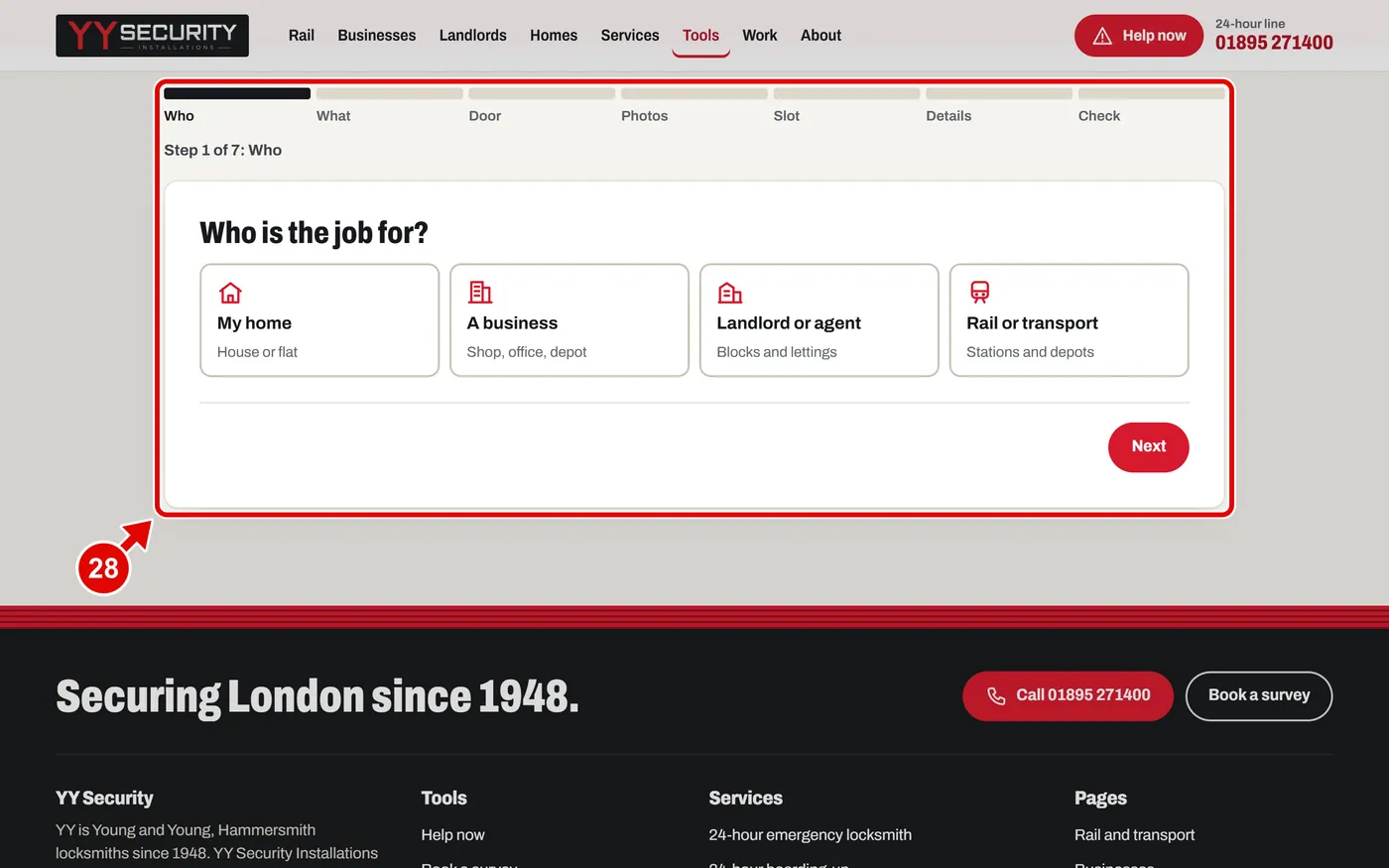
    Screen grab from Book a survey, on a computer. A red box marks the part to use.
Text us