
Part 4 of 24

The home page, part by part

Scroll down the home page. Here is what each part does, from top to bottom.

  1. Step 1. The top says who YY is: London locksmiths and security installers since 1948.
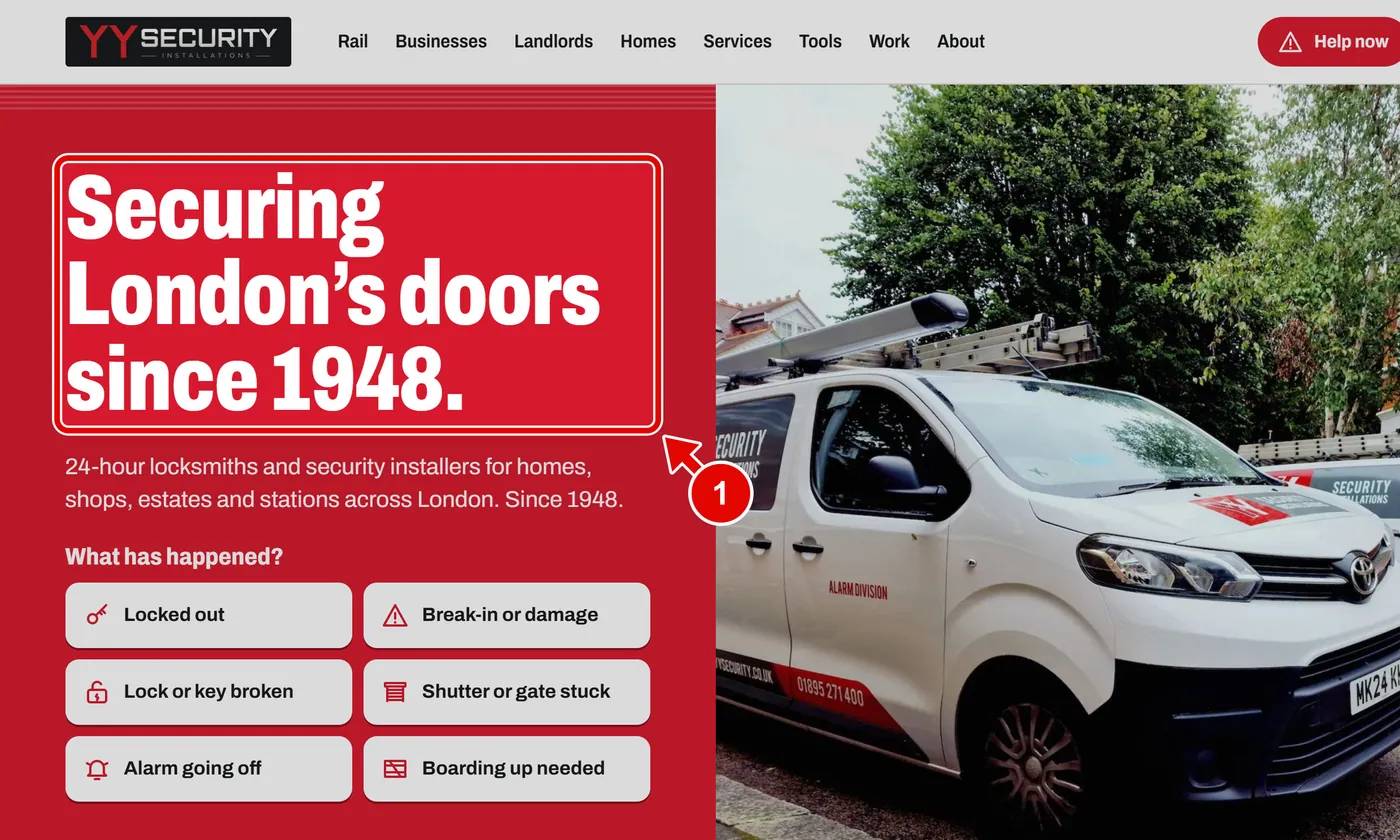
    Screen grab from The home page, part by part, on a computer. A red box marks the part to use.
  2. Step 2. What has happened? Click the button that fits. It opens Help now with your choice already picked.
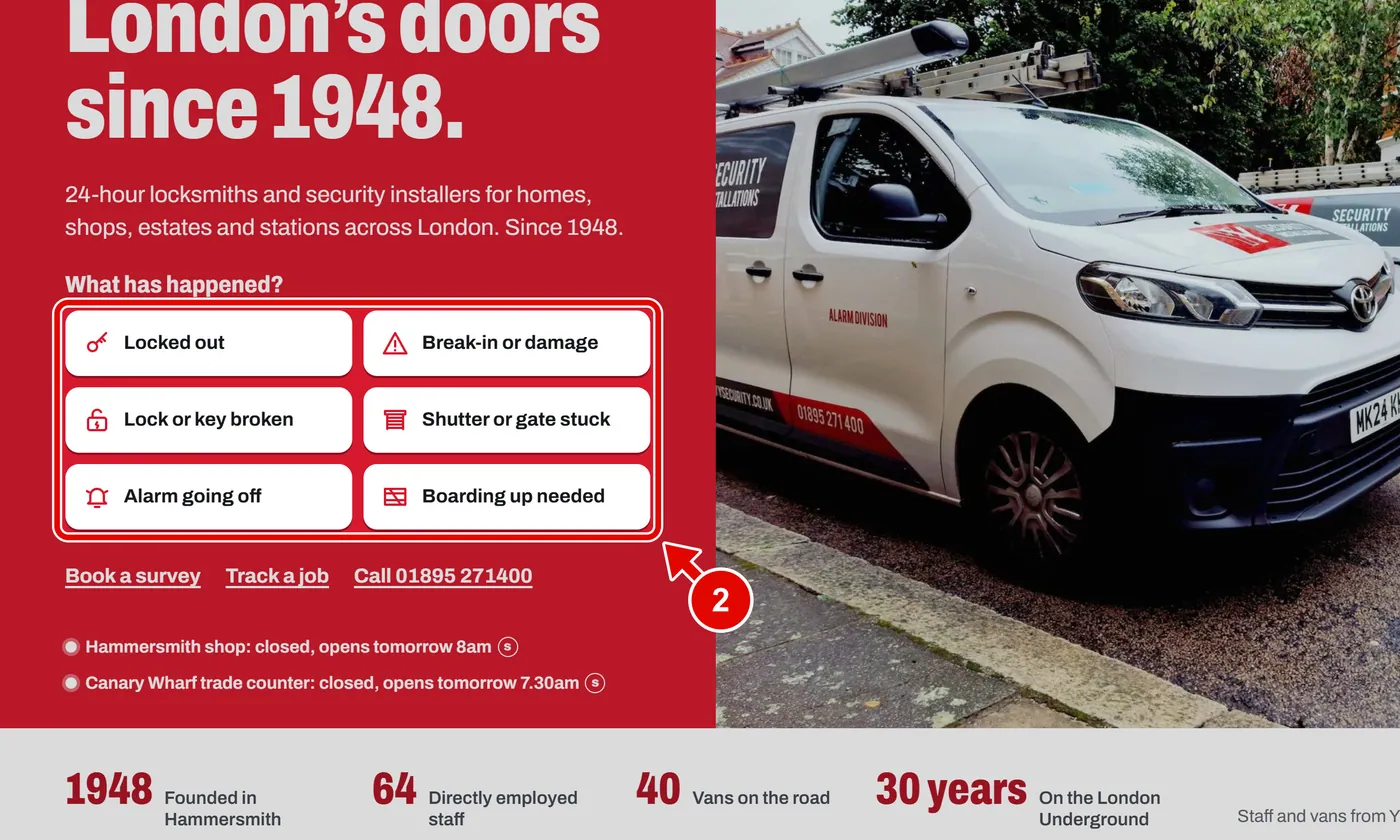
    Screen grab from The home page, part by part, on a computer. A red box marks the part to use.
  3. Step 3. Next come the facts: the year YY started, the staff and the vans. Below are the badges of the schemes YY belongs to.
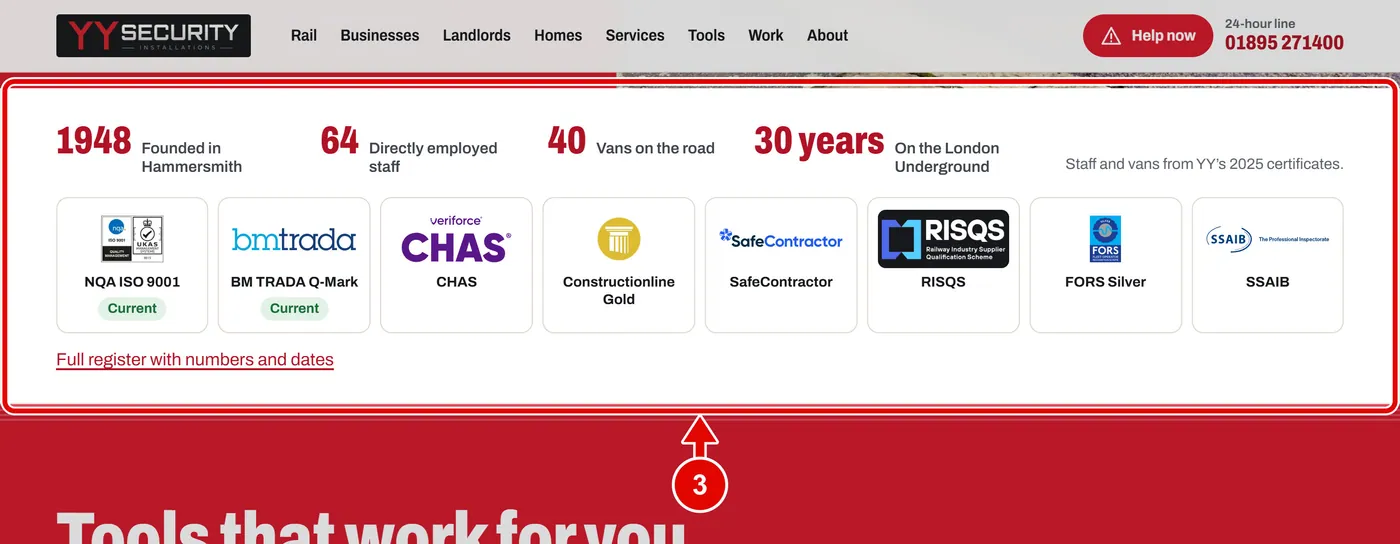
    Screen grab from The home page, part by part, on a computer. A red box marks the part to use.
  4. Step 4. Click the link under the badges to see the full register of certificates.
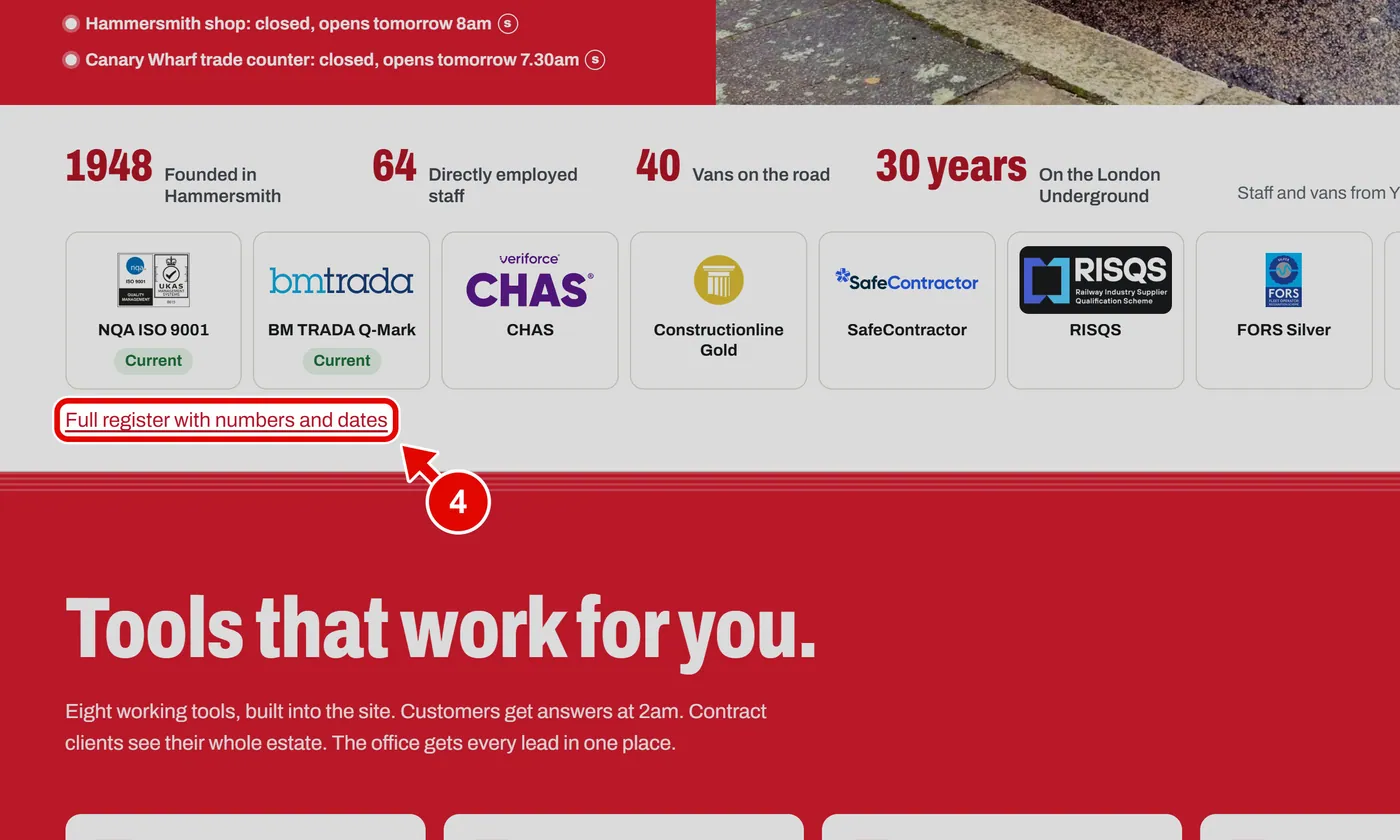
    Screen grab from The home page, part by part, on a computer. A red box marks the part to use.
  5. Step 5. Tools that work for you. Each card is a tool. Click a card to use it.
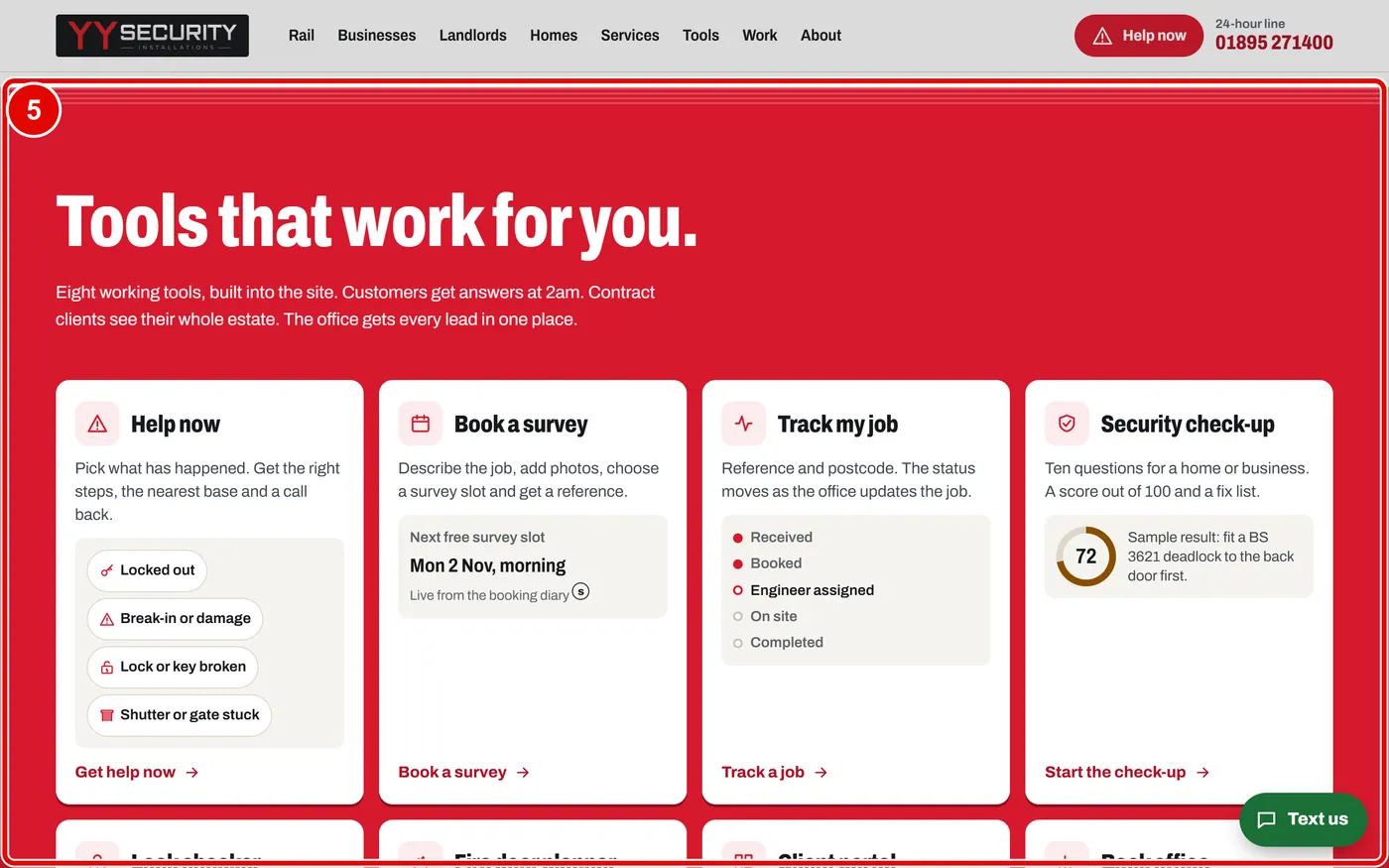
    Screen grab from The home page, part by part, on a computer. A red box marks the part to use.
  6. Step 6. One firm for the whole building. Click the card that fits you: rail, business, landlord or home.
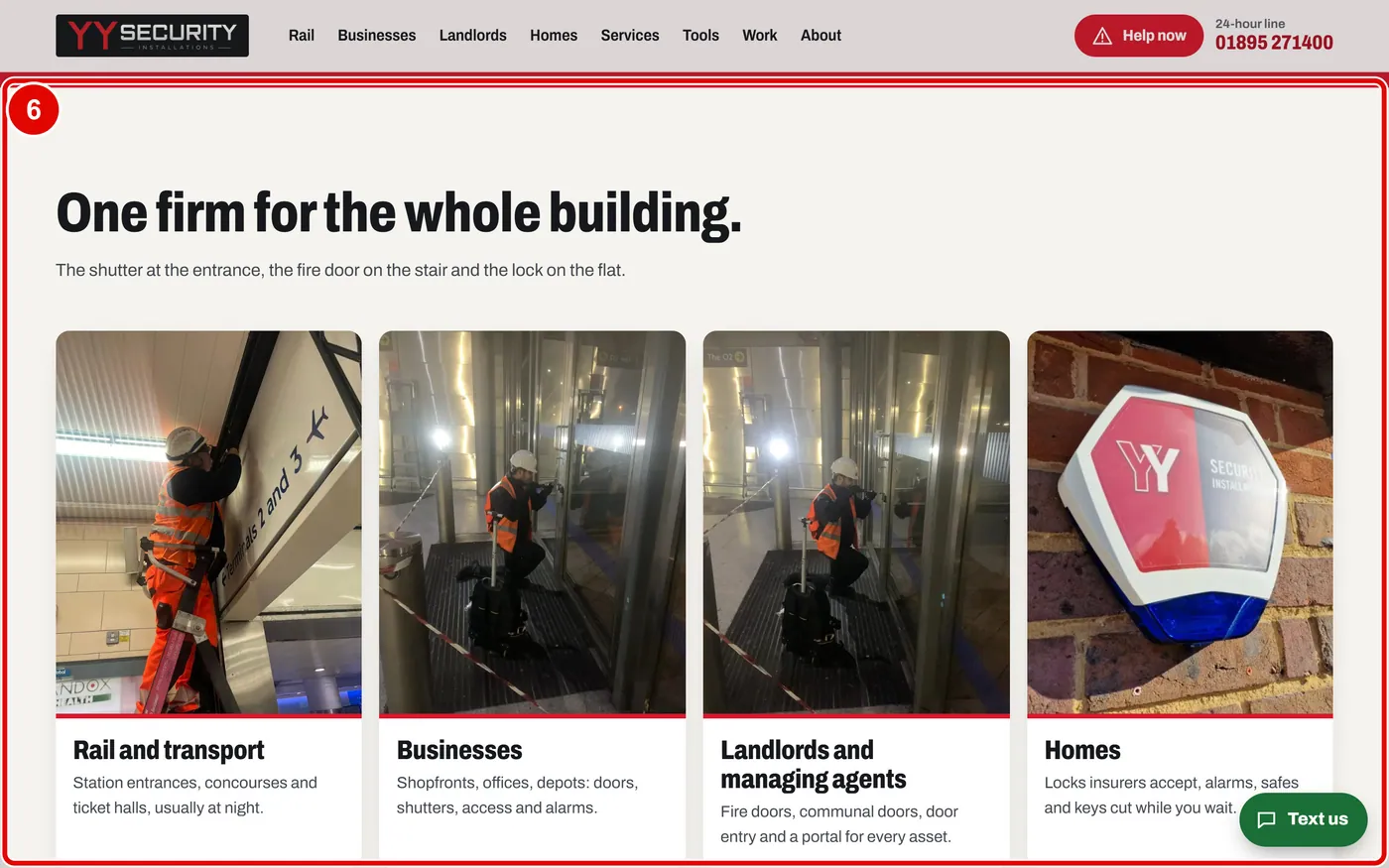
    Screen grab from The home page, part by part, on a computer. A red box marks the part to use.
  7. Step 7. Your whole estate on one screen. This is the client portal. Click Open the client portal to try it.
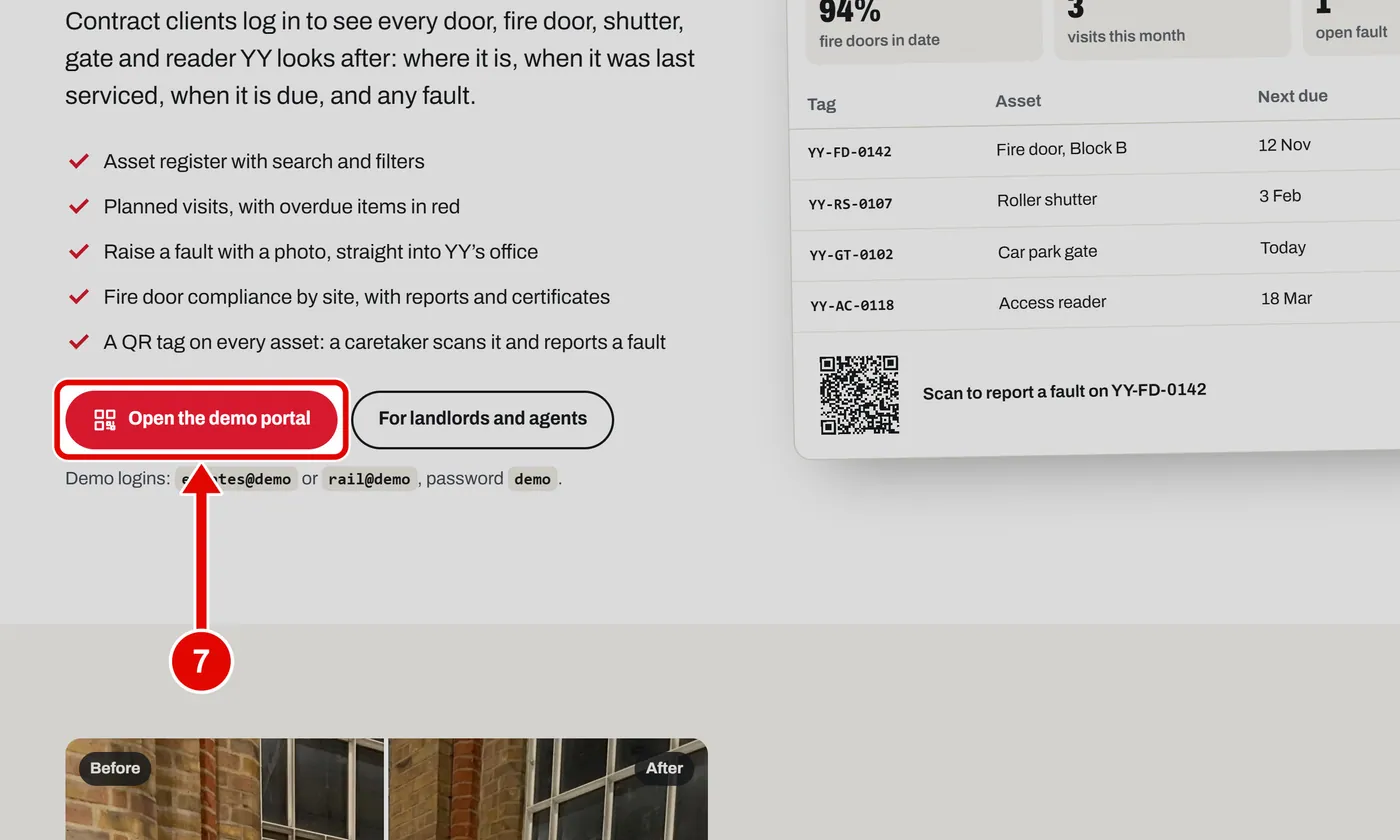
    Screen grab from The home page, part by part, on a computer. A red box marks the part to use.
  8. Step 8. Before and after. Drag the round handle left and right to compare the old and the new.
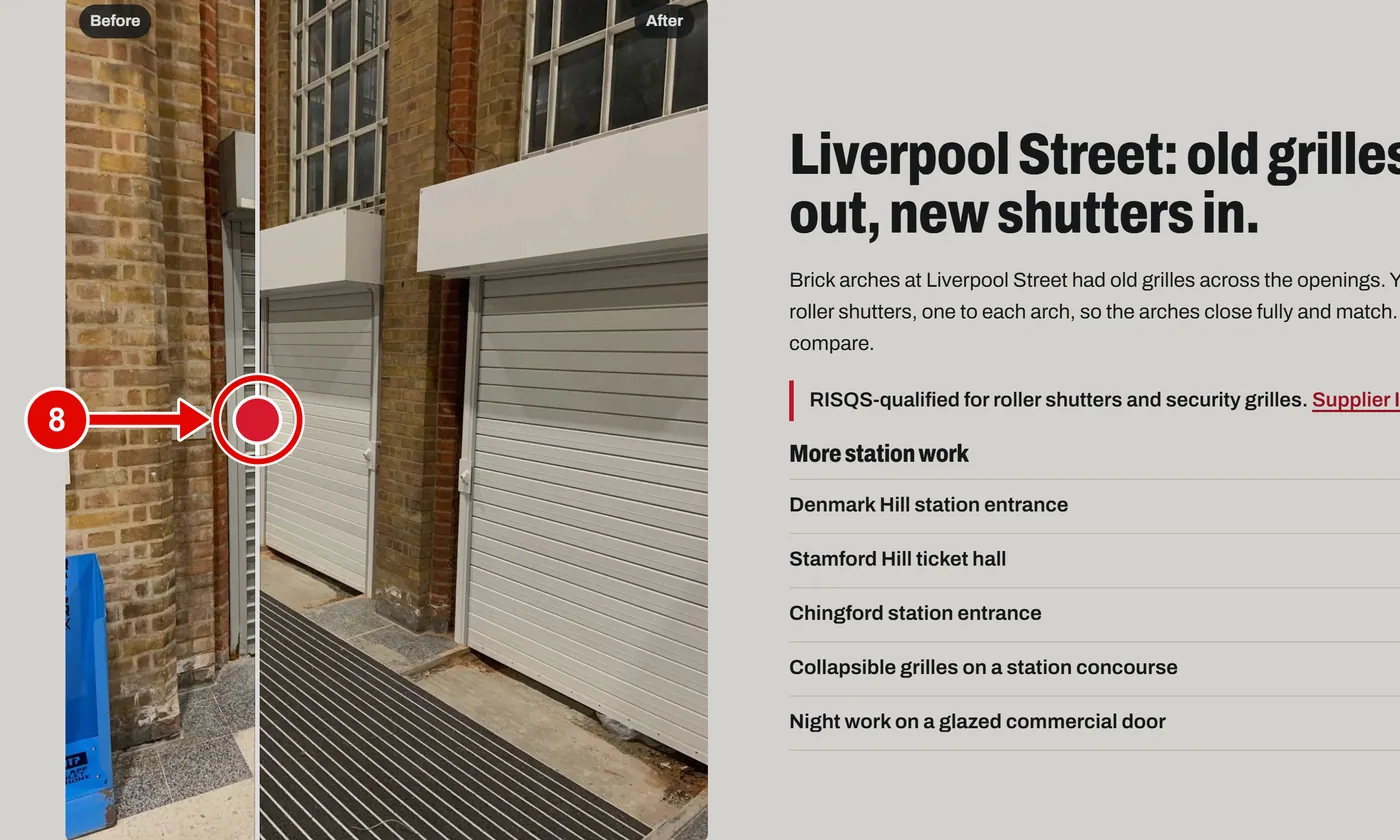
    Screen grab from The home page, part by part, on a computer. A red box marks the part to use.
  9. Step 9. More station work lists other jobs at stations. Click one to read about it.
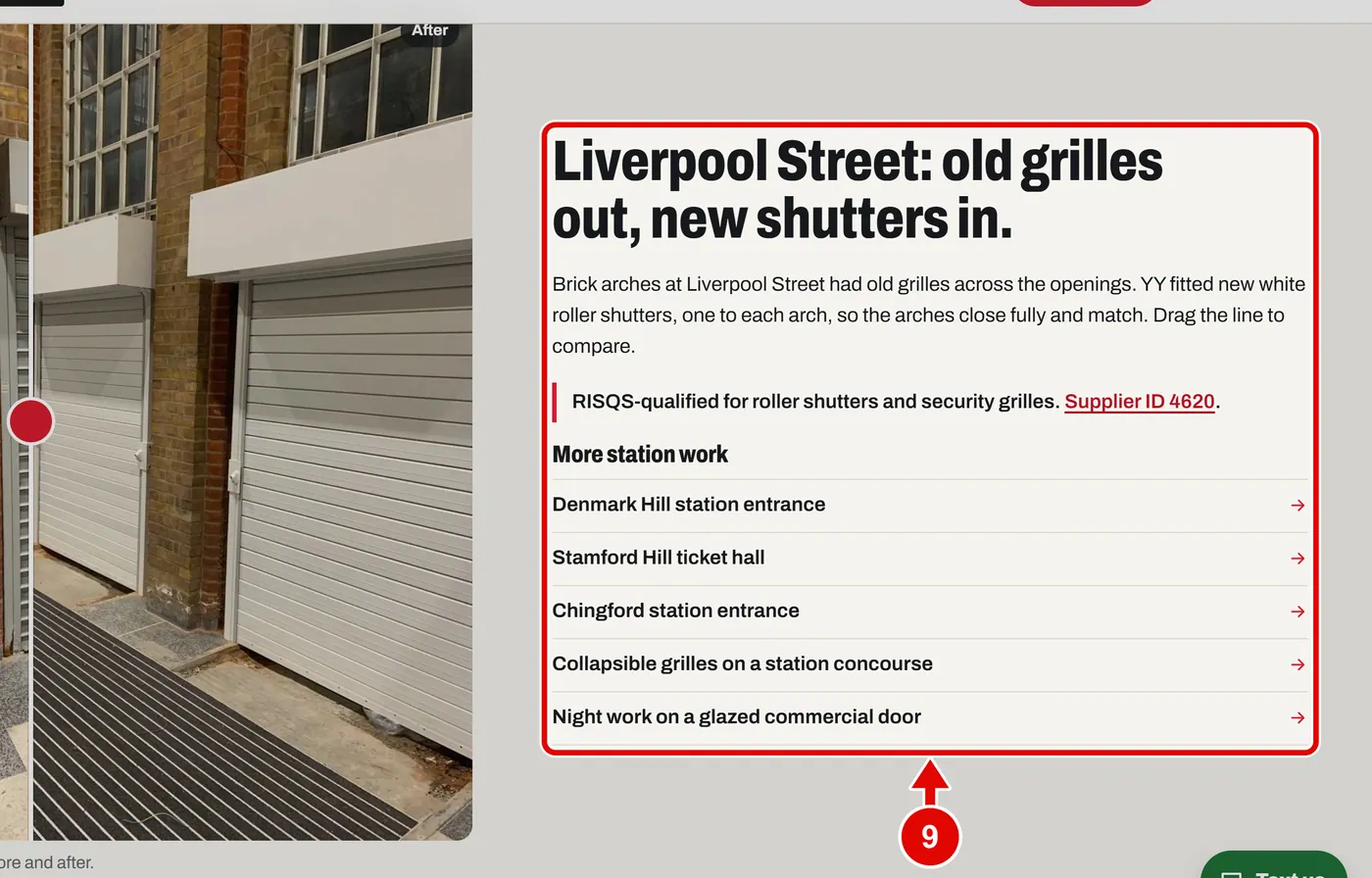
    Screen grab from The home page, part by part, on a computer. A red box marks the part to use.
  10. Step 10. Sixteen services, one team. They sit in four groups: Now, Doors, Access and Systems. Click one to read about it.
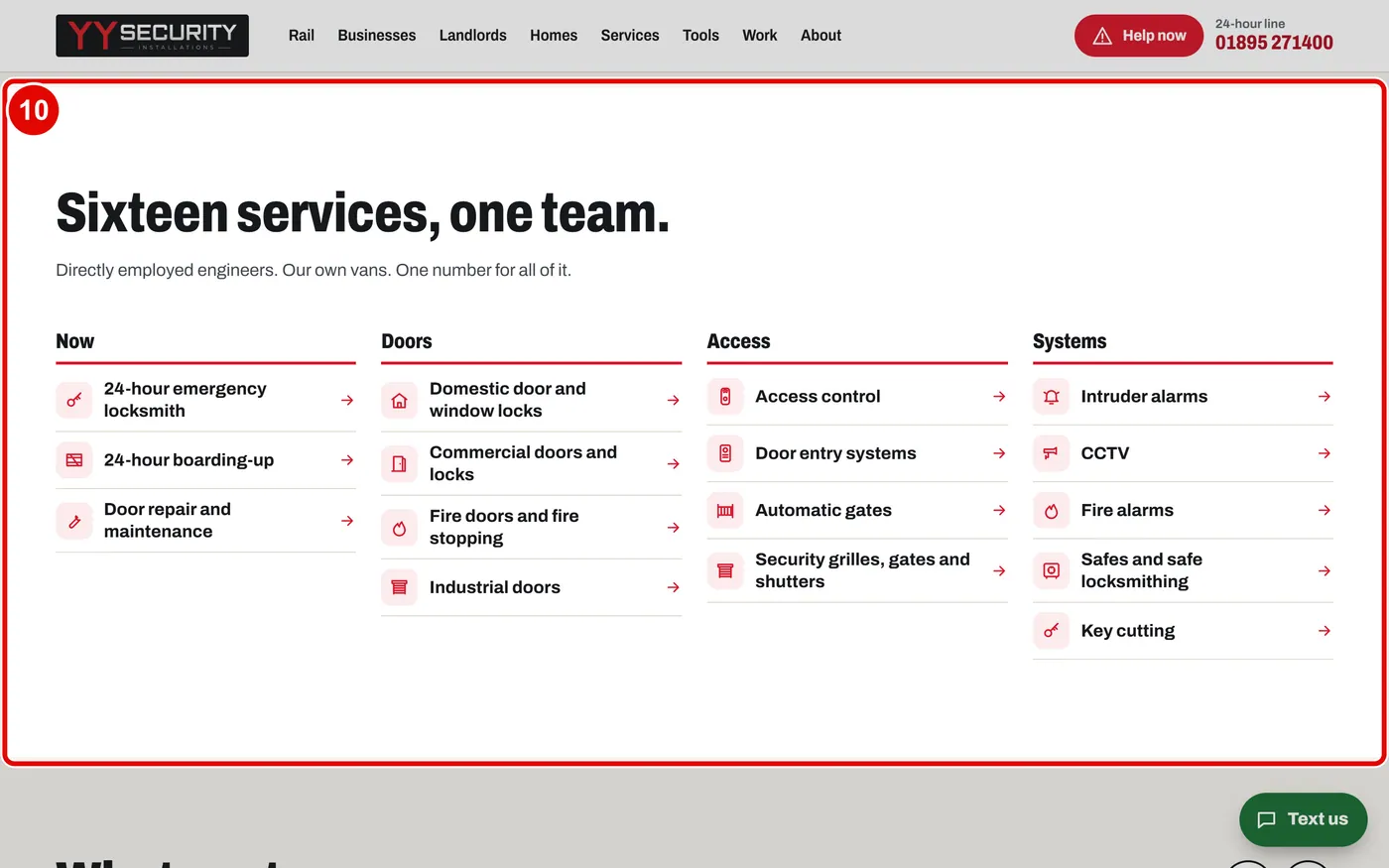
    Screen grab from The home page, part by part, on a computer. A red box marks the part to use.
  11. Step 11. What customers say. Click the arrows to read the next comment.
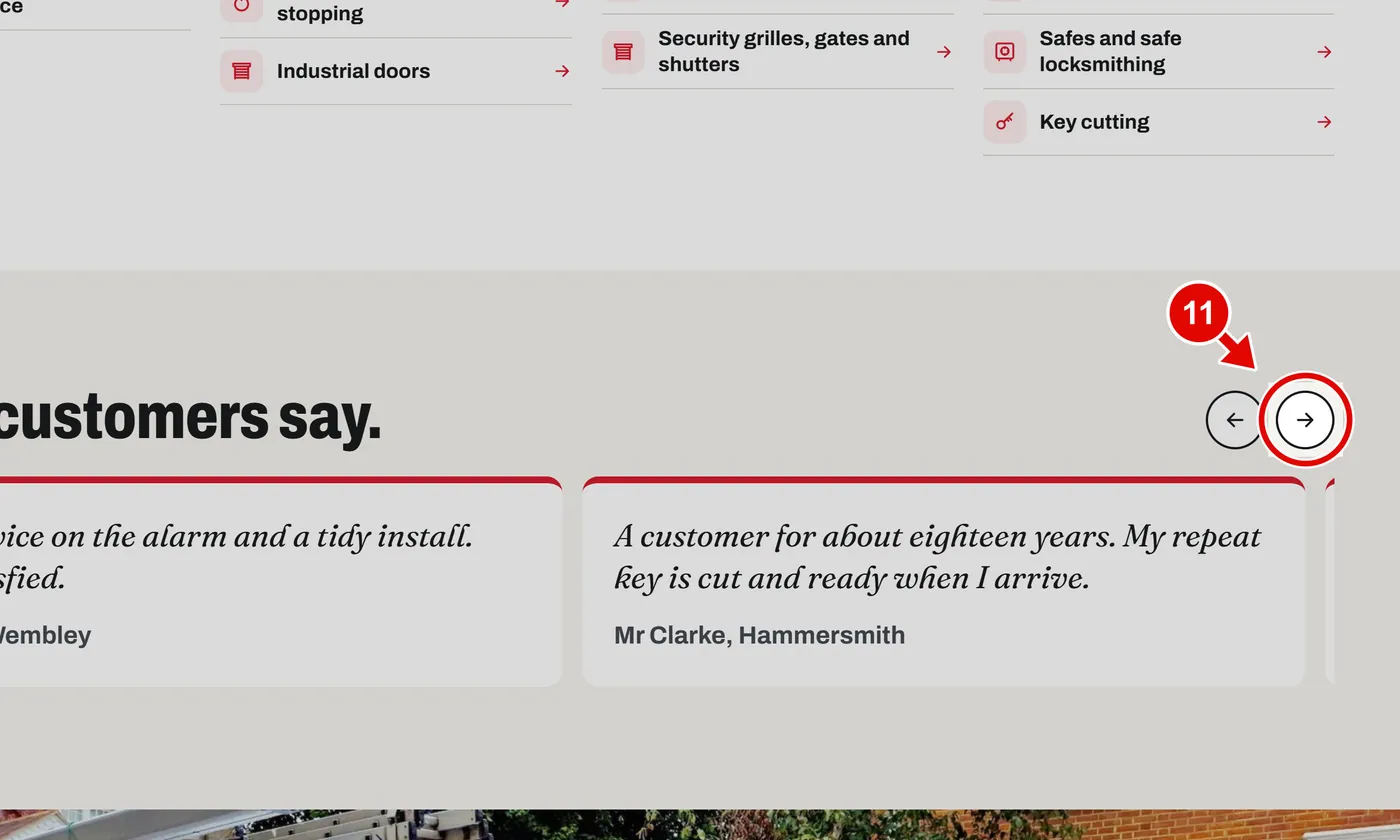
    Screen grab from The home page, part by part, on a computer. A red box marks the part to use.
  12. Step 12. Forty vans. Each van carries the parts to finish most jobs on the first visit.
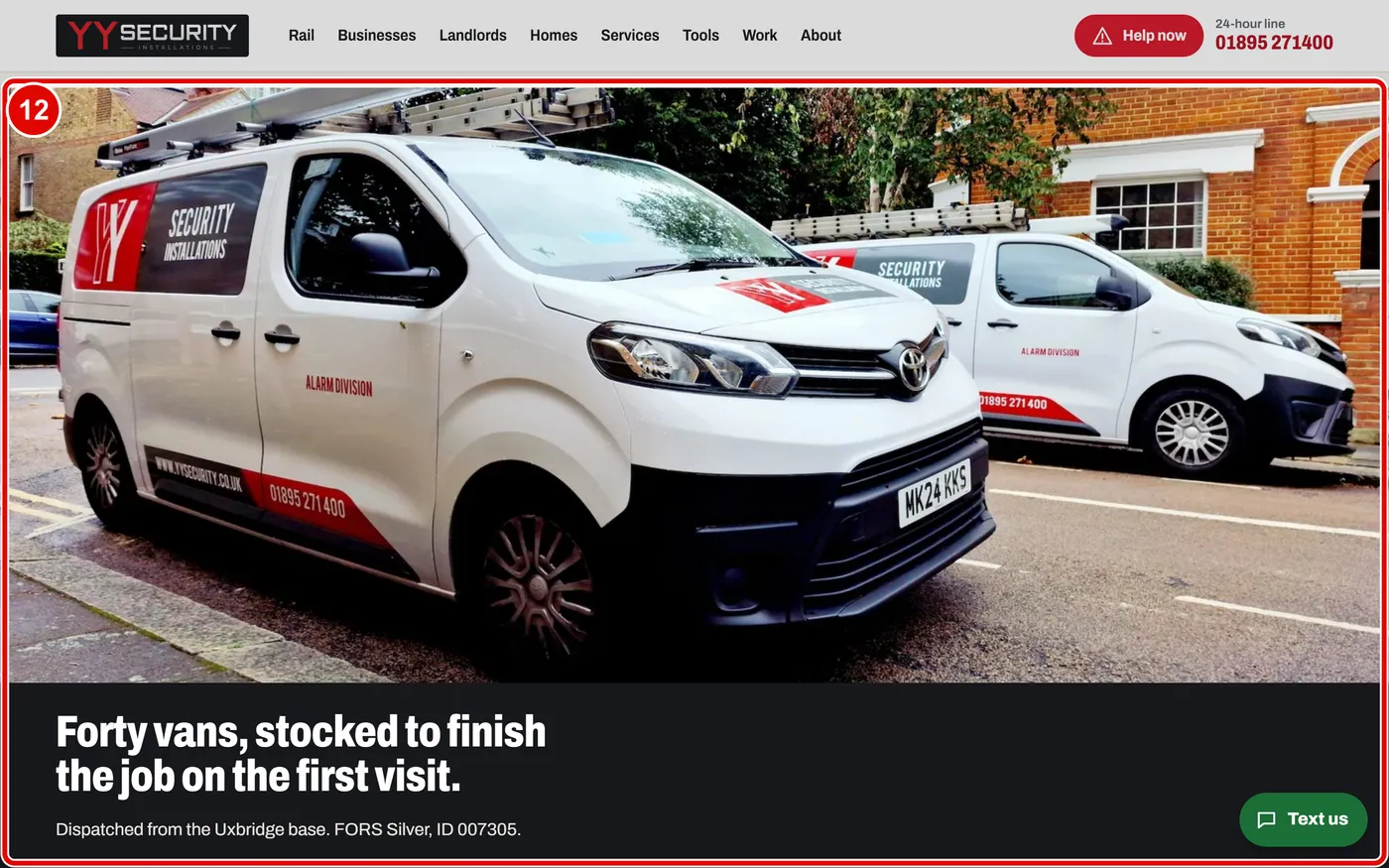
    Screen grab from The home page, part by part, on a computer. A red box marks the part to use.
  13. Step 13. Two counters and a base. Each one shows the address, the phone number, and if it is open now.
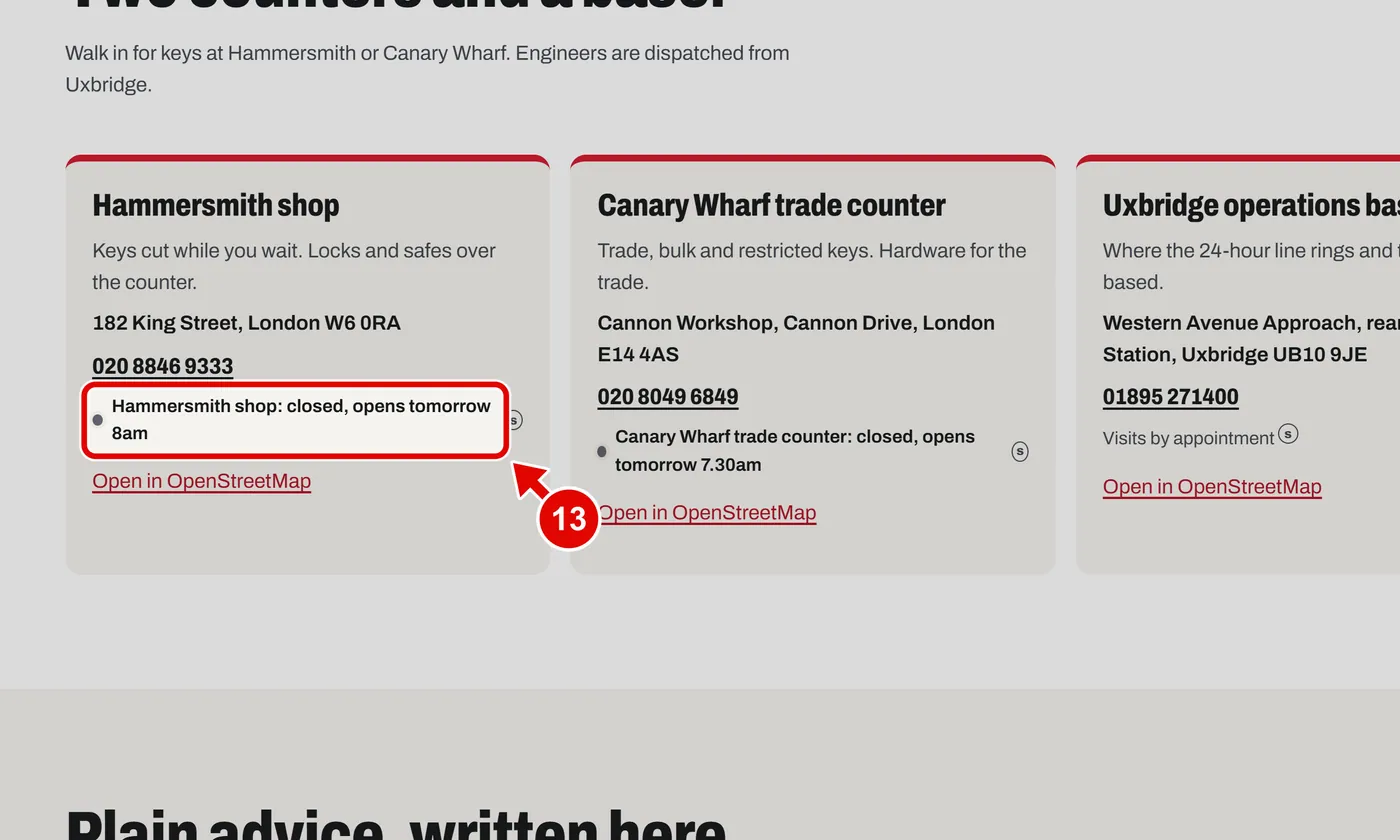
    Screen grab from The home page, part by part, on a computer. A red box marks the part to use.
  14. Step 14. Click Open in OpenStreetMap to see the place on a map.
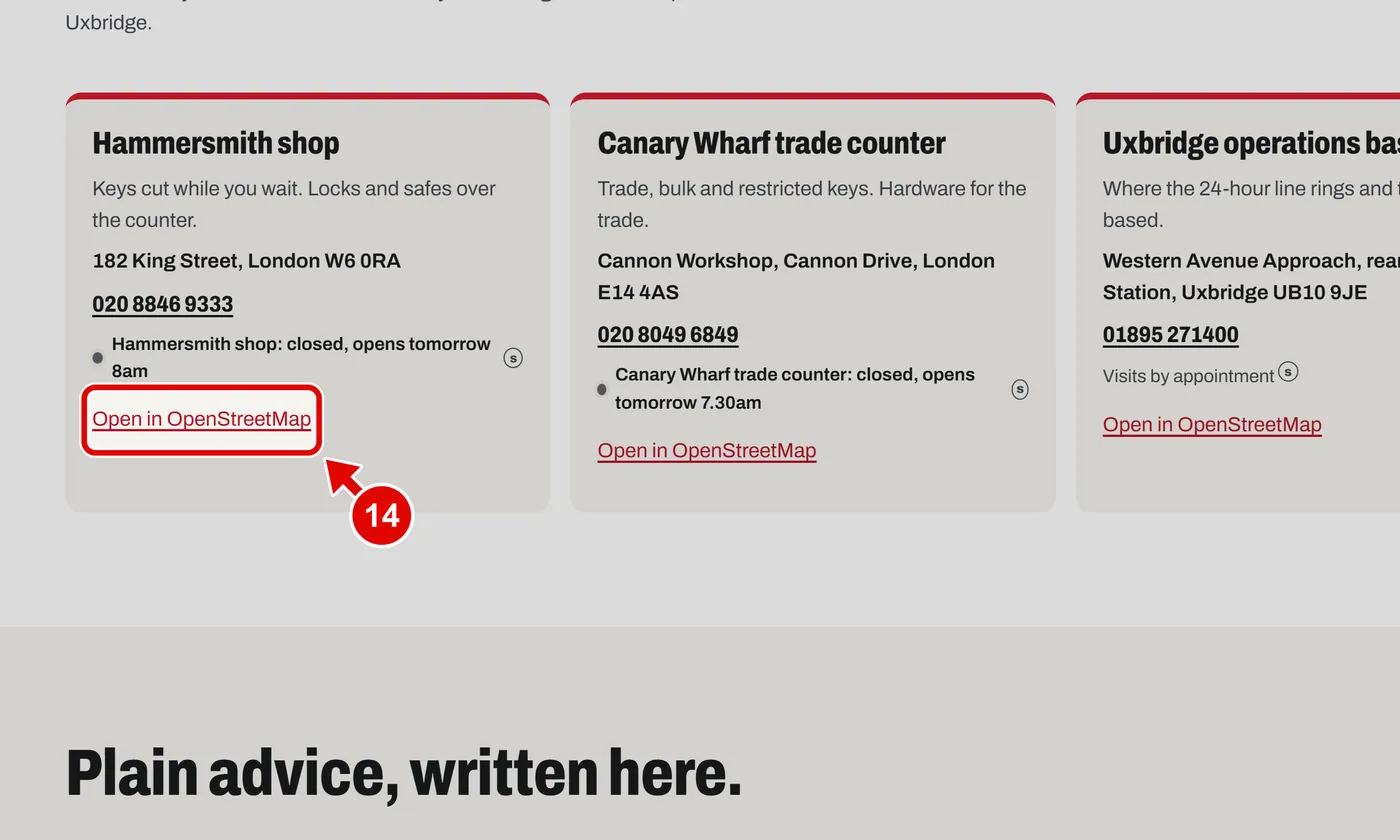
    Screen grab from The home page, part by part, on a computer. A red box marks the part to use.
  15. Step 15. Plain advice. Short guides written by YY. Click one to read it.
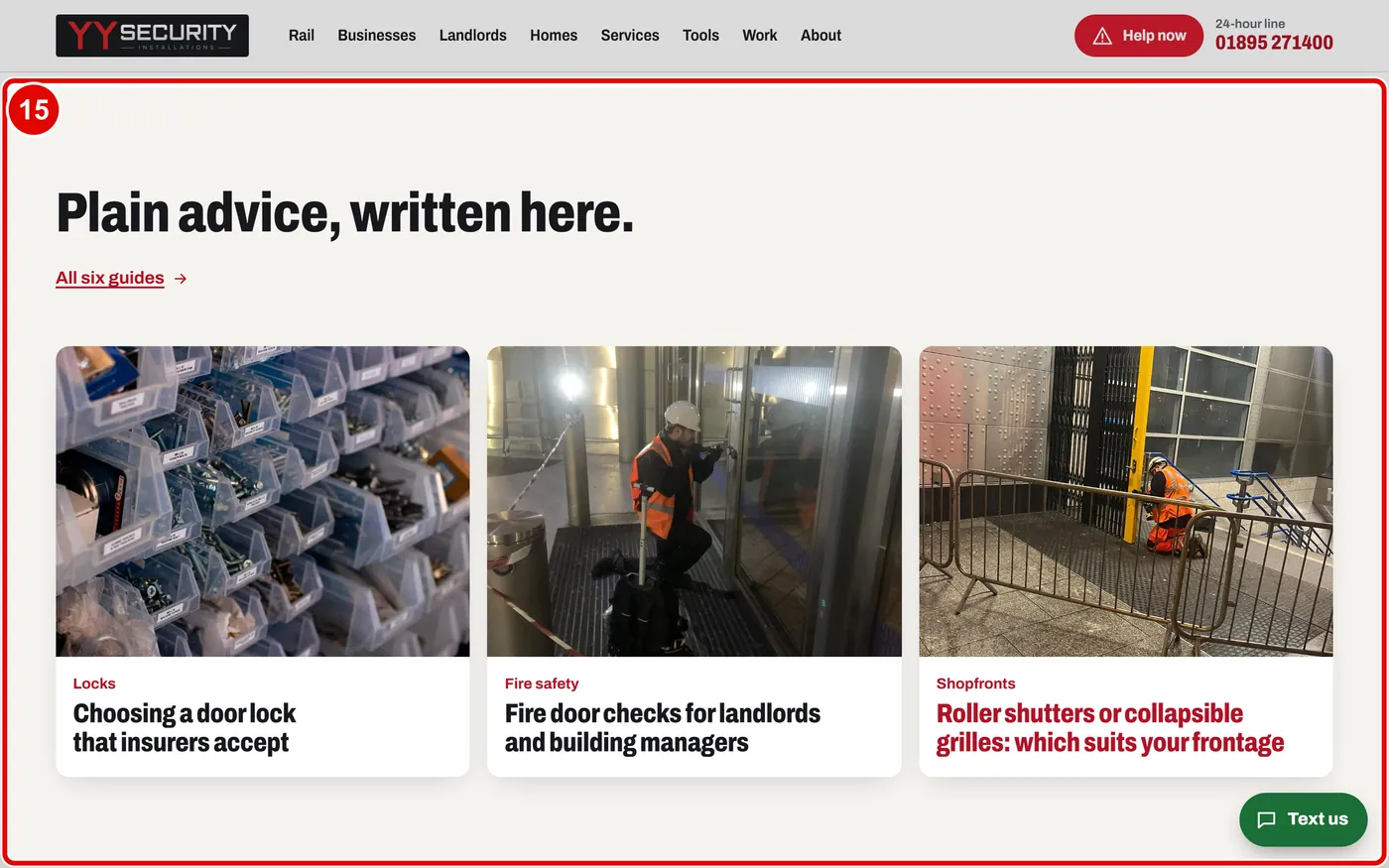
    Screen grab from The home page, part by part, on a computer. A red box marks the part to use.
  16. Step 16. The red box at the end gives you three ways to start: call, book a survey, or get help now.
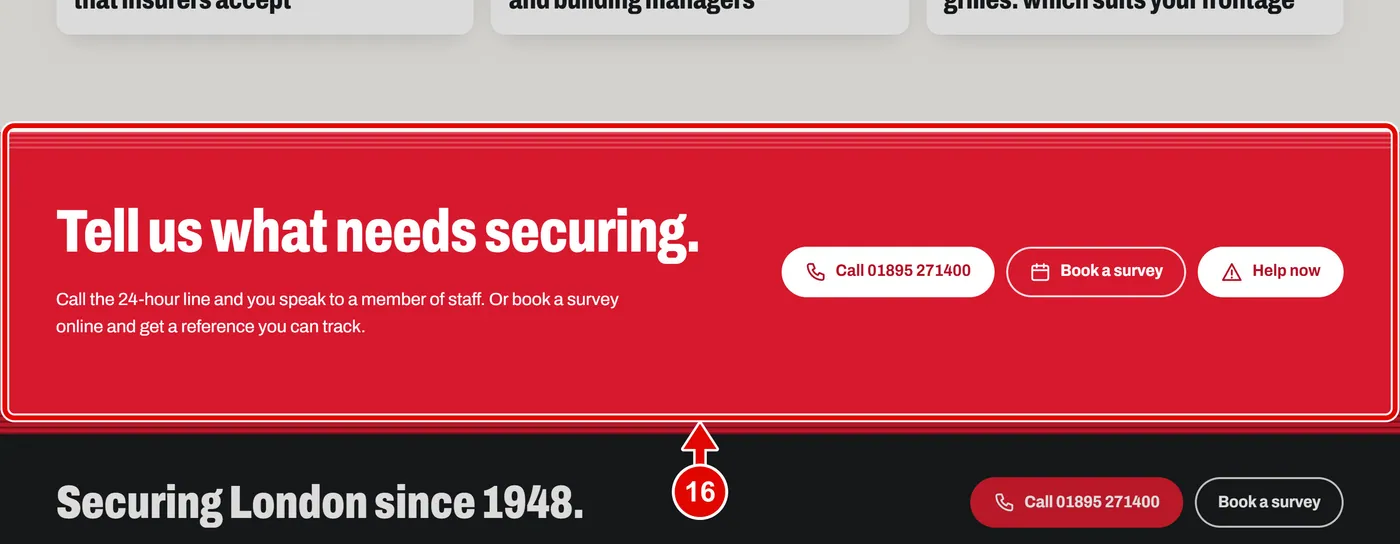
    Screen grab from The home page, part by part, on a computer. A red box marks the part to use.
  17. Step 17. On a phone, the What has happened? buttons are big and easy to tap.
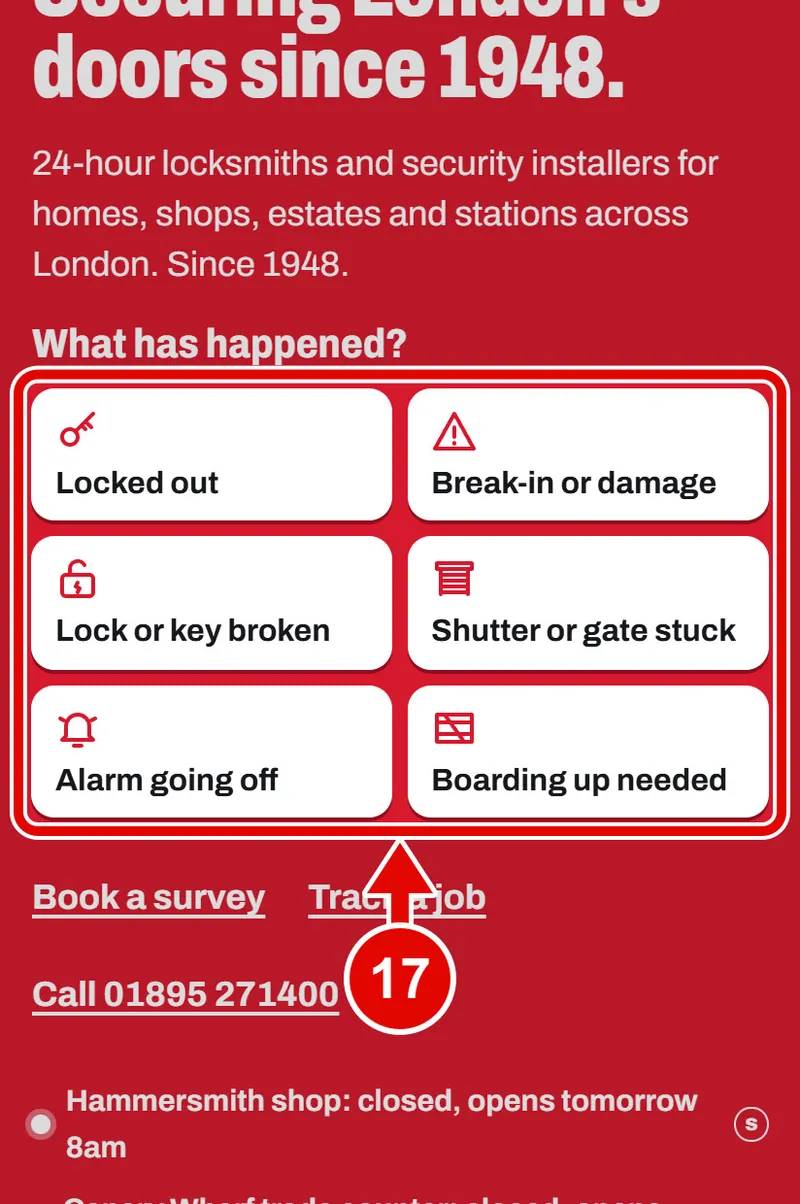
    Screen grab from The home page, part by part, on a phone. A red box marks the part to use.
Text us