Part 3 of 24

Find your way on a phone

On a phone the menu folds away to save space. A dark bar at the bottom gives you the three most useful buttons.

  1. Step 1. The top bar is smaller on a phone. Tap the YY logo to go home.

    Screen grab from Find your way on a phone, on a phone. A red box marks the part to use.
  2. Step 2. Tap Help now if something has gone wrong.

    Screen grab from Find your way on a phone, on a phone. A red box marks the part to use.
  3. Step 3. Tap Menu to see all the pages.

    Screen grab from Find your way on a phone, on a phone. A red box marks the part to use.
  4. Step 4. The menu opens. The big words are pages. Tap one to open it.
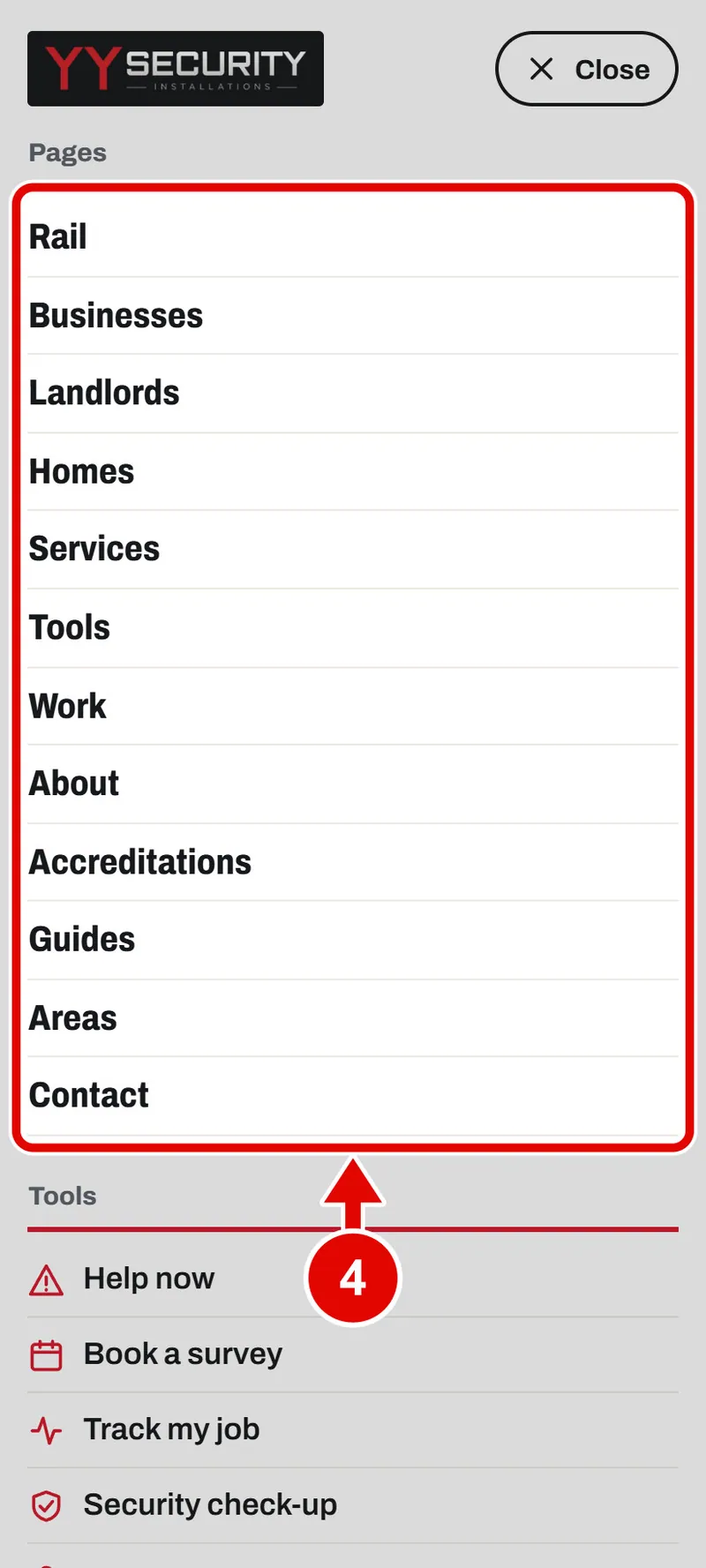
    Screen grab from Find your way on a phone, on a phone. A red box marks the part to use.
  5. Step 5. Swipe up inside the menu to see the tools. Tap one to open it.
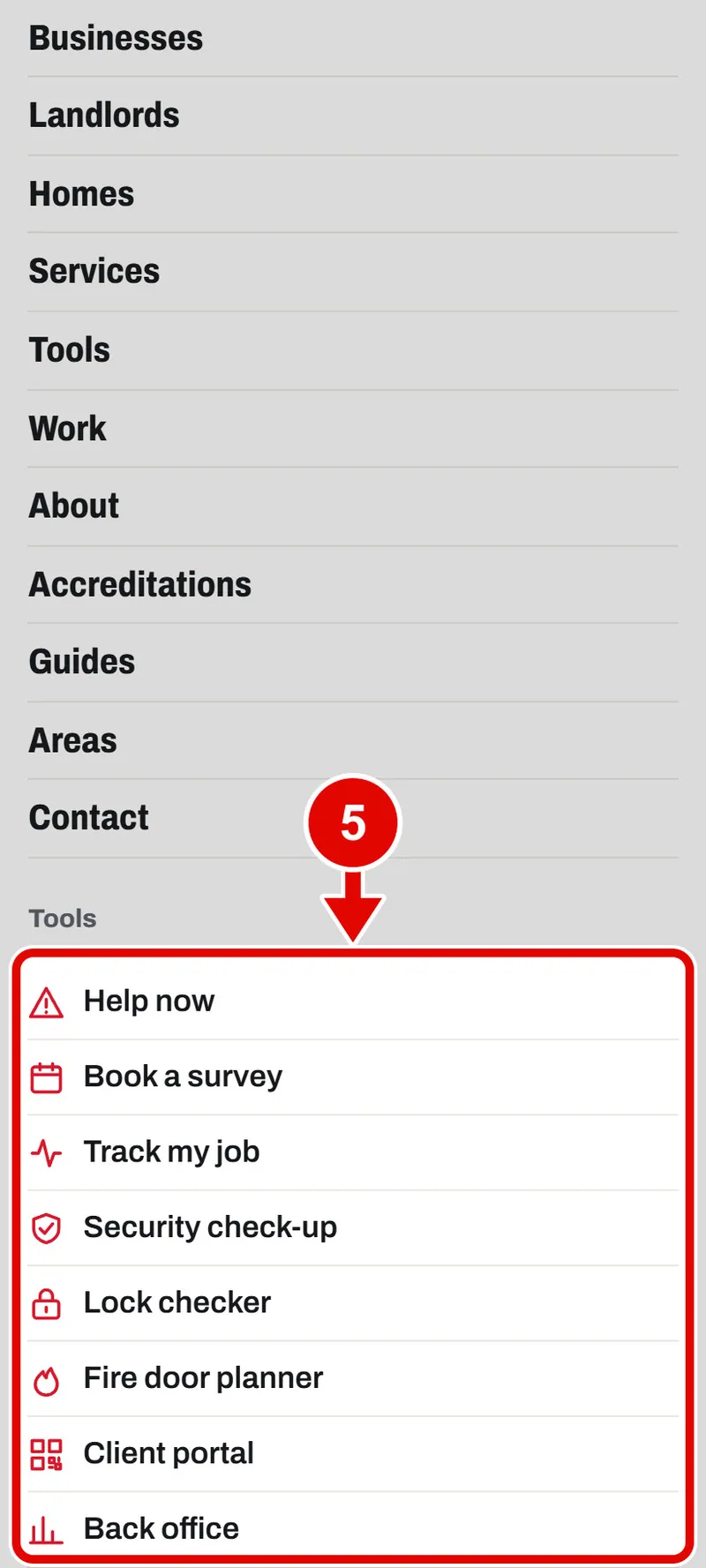
    Screen grab from Find your way on a phone, on a phone. A red box marks the part to use.
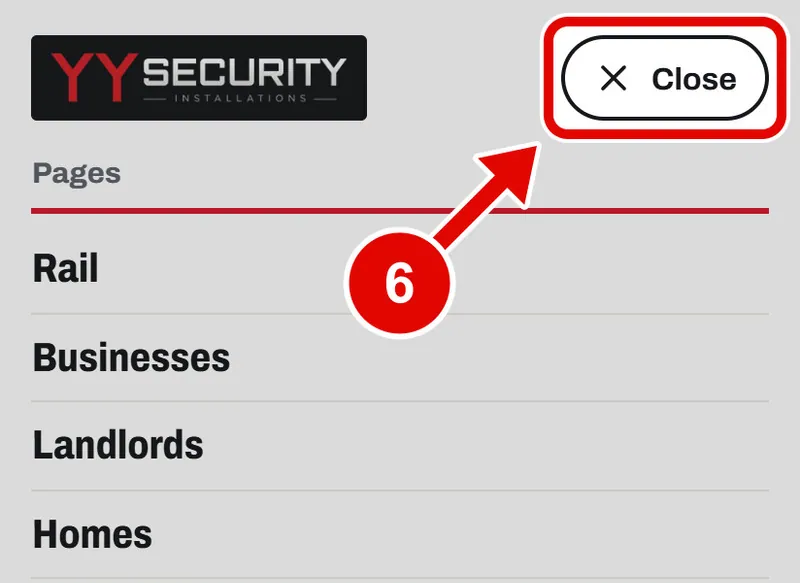
  6. Step 6. Tap Close to shut the menu.

    Screen grab from Find your way on a phone, on a phone. A red box marks the part to use.
  7. Step 7. At the bottom is a dark bar. Tap Call 24h to ring YY now.
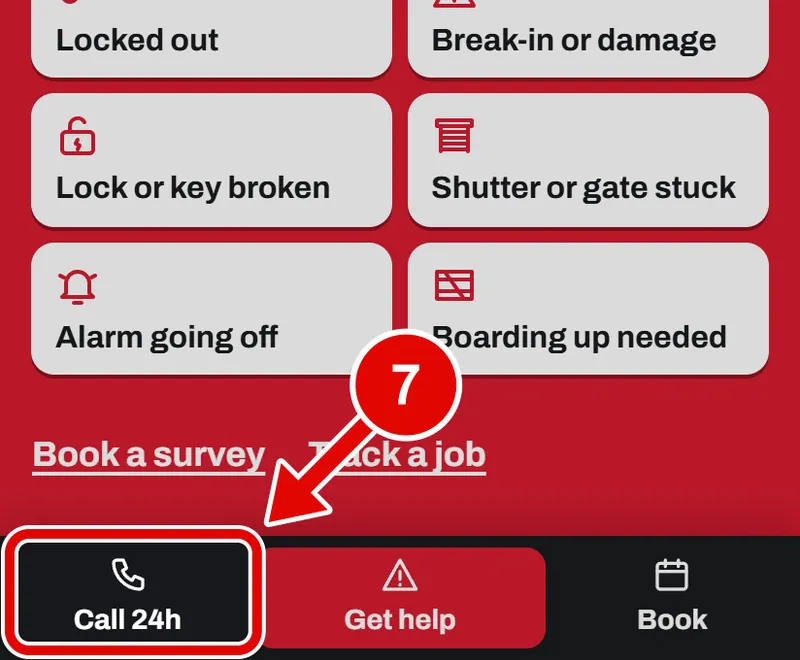
    Screen grab from Find your way on a phone, on a phone. A red box marks the part to use.
  8. Step 8. Tap Get help to open Help now.
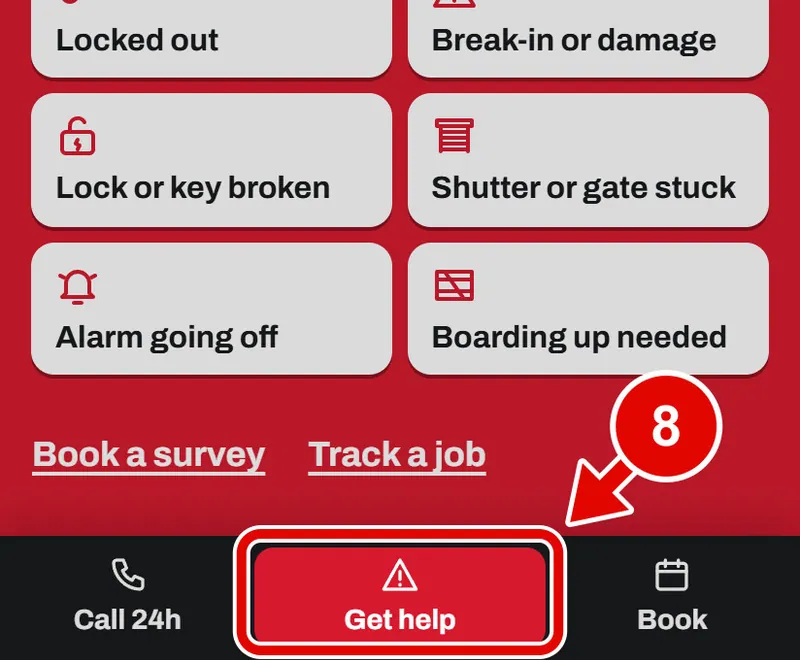
    Screen grab from Find your way on a phone, on a phone. A red box marks the part to use.
  9. Step 9. Tap Book to book a survey.

    Good to know: The dark bar hides while you type, so it never covers the keyboard.
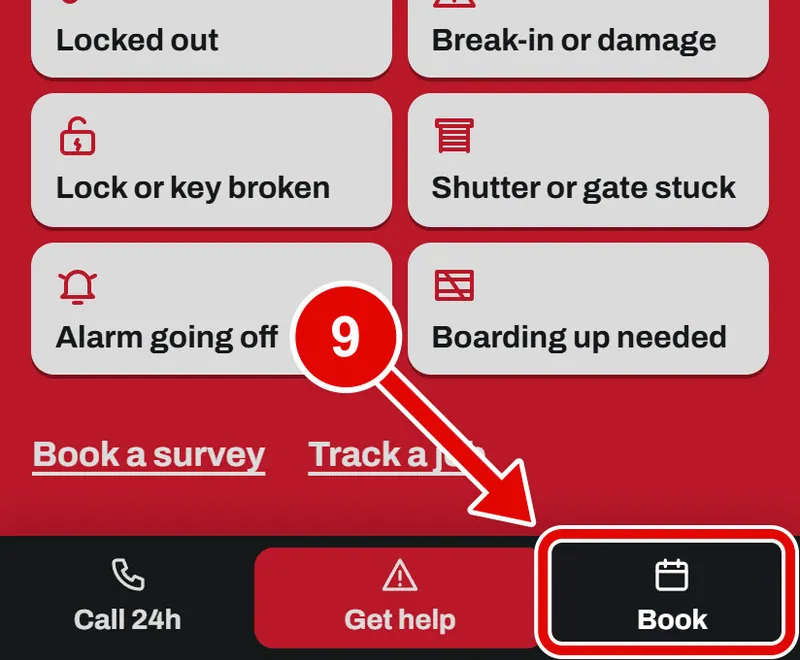
    Screen grab from Find your way on a phone, on a phone. A red box marks the part to use.
Text us